
Editing Documents on Mobile
Make changes to your documents, spreadsheets, and presentations directly from your mobile device.
Entering Edit Mode
- Open the file you want to edit.
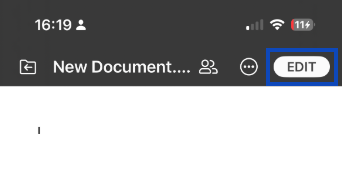
- Tap the Edit icon.
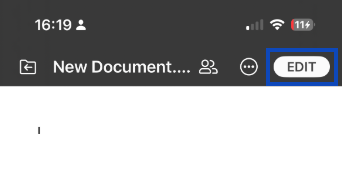
- The editing toolbar appears.
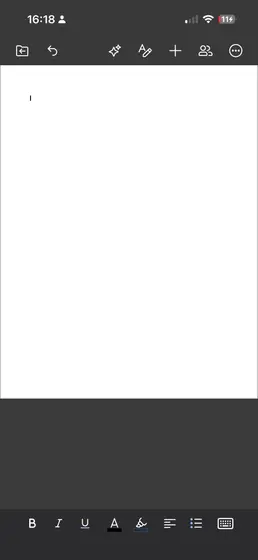
- Tap in the document, cell, or slide area where you want to make changes.
Editing Documents (Word)
Text Editing
- Tap to place the cursor where you want to type
- Use your on-screen keyboard to enter text
- Long-press text to select it, then drag the selection handles to adjust it
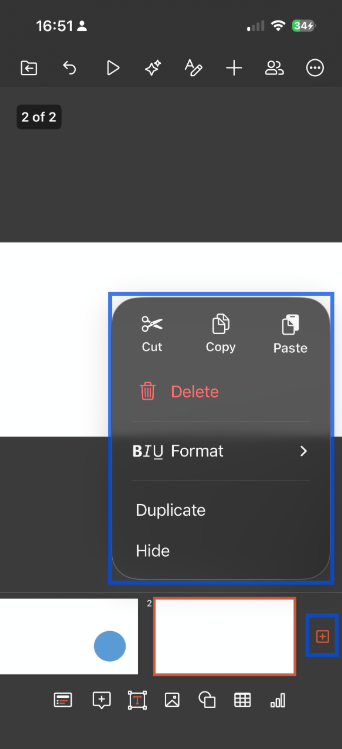
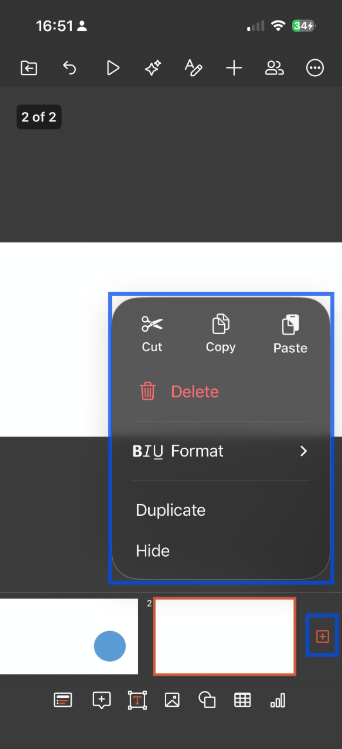
- Use the selection menu to Cut, Copy, or Paste
Formatting
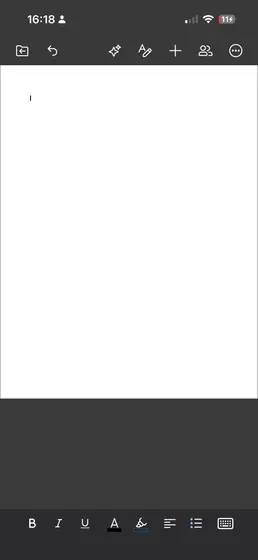
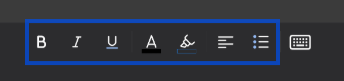
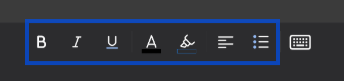
- Apply Bold, Italic, or Underline
- Change font size and text style
- Adjust text alignment
Inserting Content
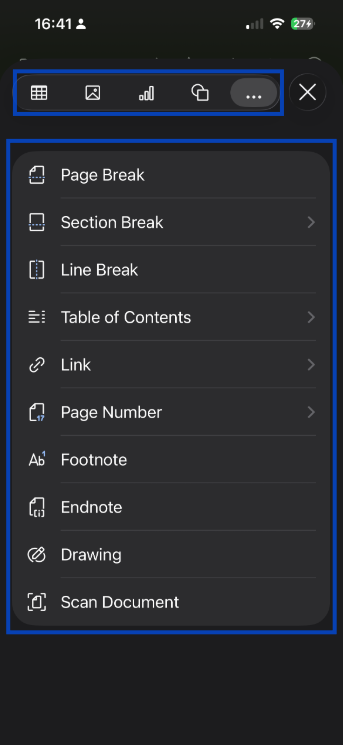
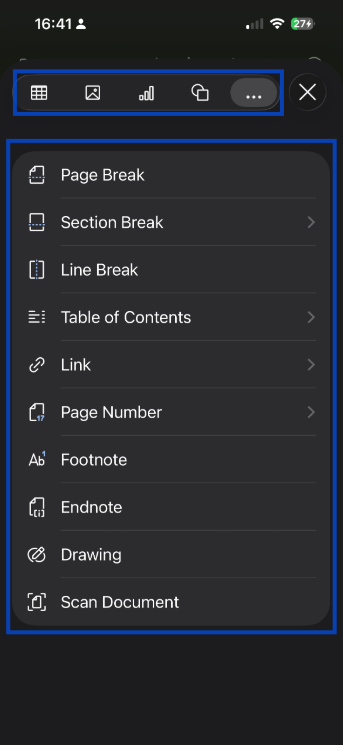
- Insert images from your camera or photo gallery
- Add tables
- Insert links
- Add page breaks when needed
Editing Spreadsheets
Cell Editing
- Tap a cell to select it
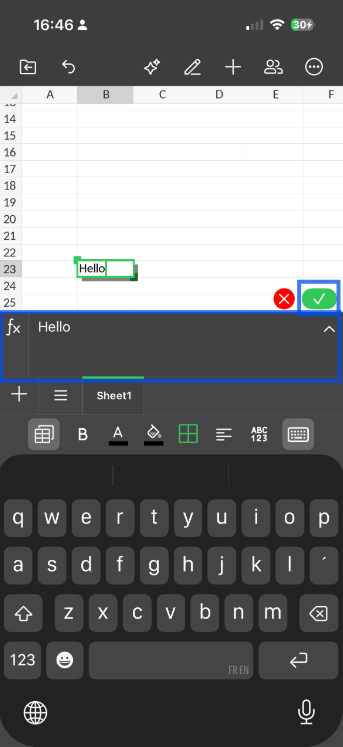
- Type directly in the formula bar, or double-tap the cell to edit
- Enter numbers, text, or formulas
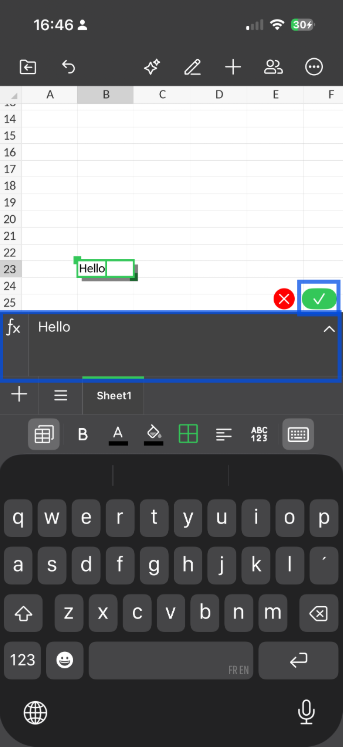
- Tap the checkmark to confirm your changes
Cell Operations
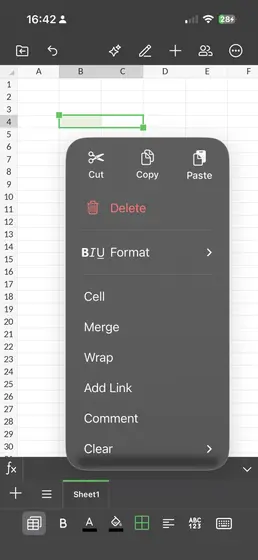
- Copy and paste cells
- Fill cells by dragging the fill handle
- Insert or delete rows and columns
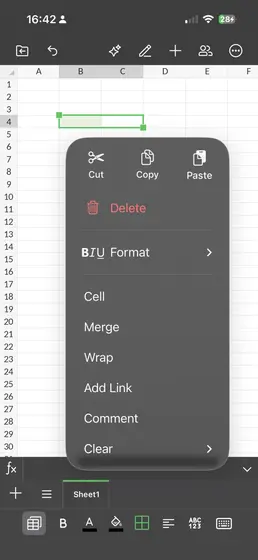
- Merge cells when needed
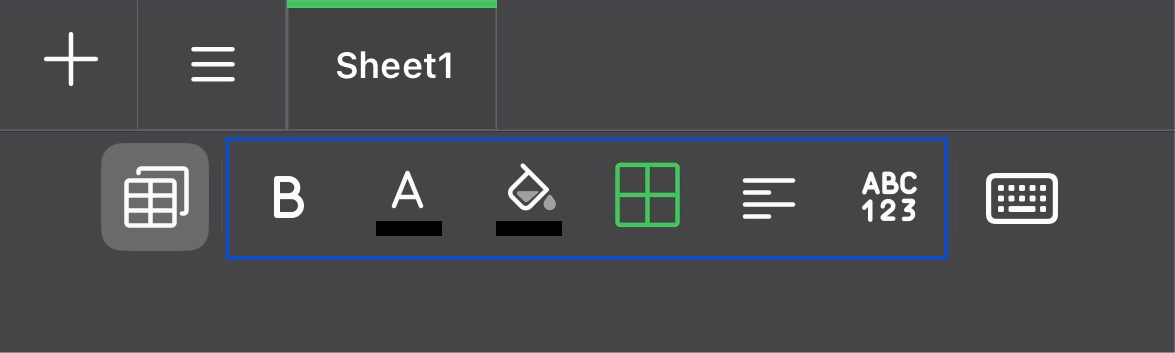
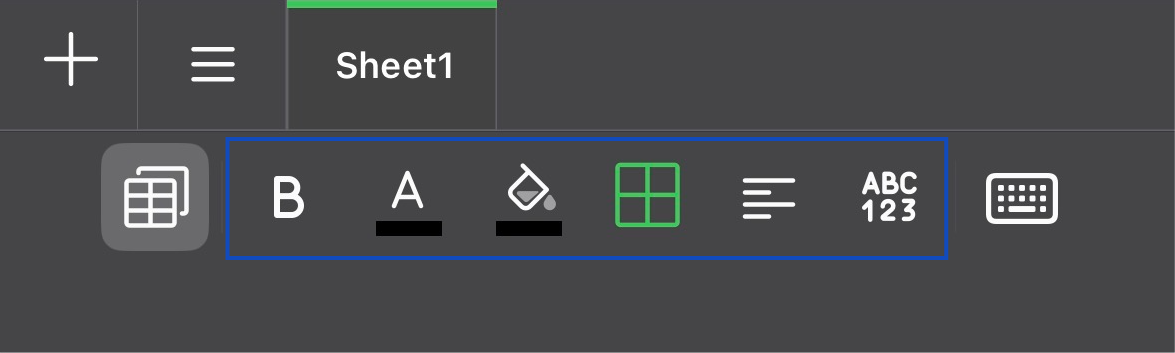
Formatting
- Apply number formats such as currency, percentage, and date formats
- Change cell colors and borders
- Adjust text alignment
- Use font options for cell content
Editing Presentations
Slide Editing
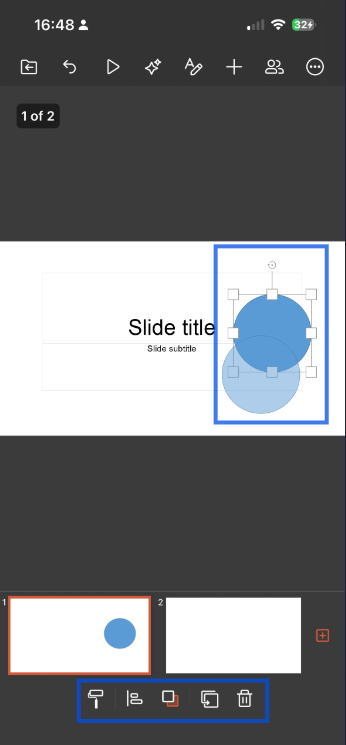
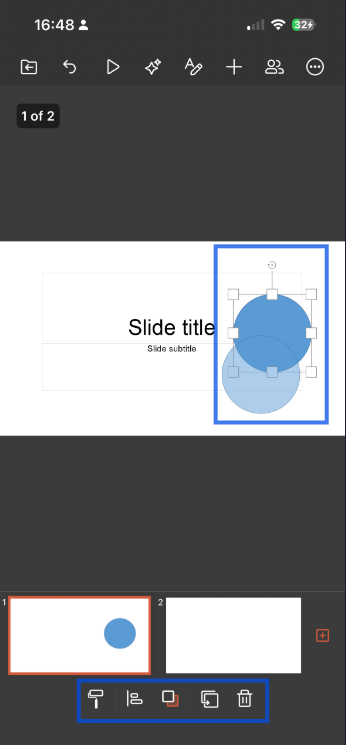
- Tap text boxes to edit text
- Move objects by dragging them
- Resize objects using the handles
- Use the formatting toolbar to style slide content
Slide Management
- Add new slides
- Duplicate slides
- Delete slides
- Reorder slides by dragging them in thumbnail view
Saving Changes
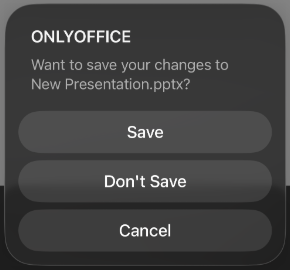
- When you exit the file, you are prompted to save your changes or leave without saving.
- Changes save automatically to the cloud
- The save indicator shows the current sync status
- When you leave the file, your saved work remains available
Undo and Redo
- Tap the undo arrow to reverse your last action
- Tap the redo arrow to restore an undone change
- Multiple levels of undo may be available while editing
Mobile Editing Tips
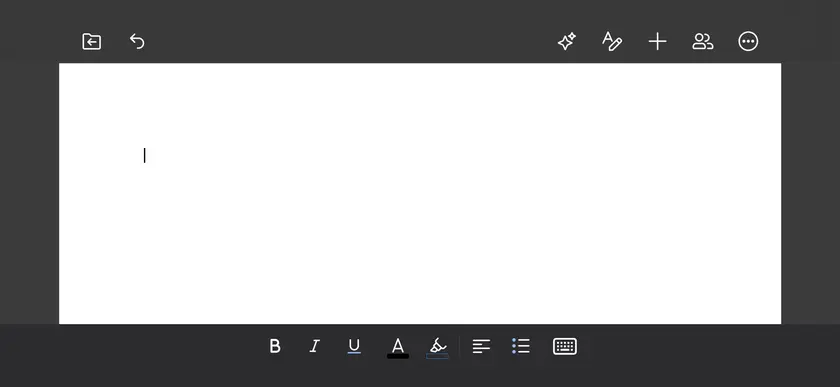
Use Landscape Mode
Rotate your device for more editing space, especially when working in spreadsheets.
Zoom In
Pinch to zoom for more precise editing and selection.
External Keyboard
You can connect a Bluetooth keyboard for longer editing sessions.
Keep Edits Simple
Mobile editing works best for quick changes. For more advanced formatting or layout work, the desktop or web editor may be more comfortable.
Collaboration
- See when other users are editing in real time
- Changes from collaborators can appear while you work
- Add comments while editing when commenting is available
Exiting Edit Mode
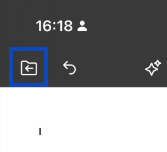
- Tap the back arrow.
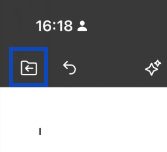
- You return to the file browser.
Limitations
Some advanced features may not be available on mobile, such as:
- More complex formatting options
- Macros and scripts
- Some chart types
- Advanced layout controls
For these features, use the web or desktop editor.