
Copying Files
Create copies of files when you want to duplicate content while keeping the original file unchanged. Copying is useful for backups, templates, and alternate versions.
Copy and Paste
- Right-click the file.
- Select Copy.
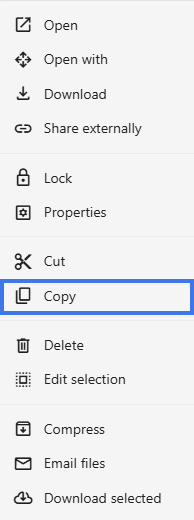
- Navigate to the destination.
- Right-click and select Paste (Ctrl+V).
Keyboard Shortcuts
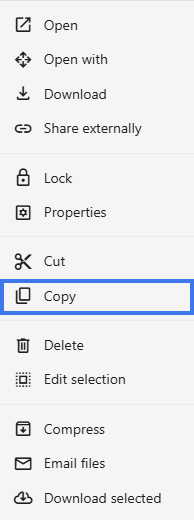
- Ctrl+C — Copy
- Ctrl+V — Paste
Duplicate in Same Folder
- Right-click the file.
- Select Copy.
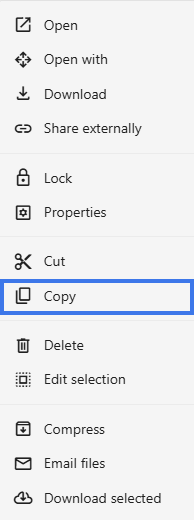
- A new file appears with (1) in the name.

- Rename it if needed.

Copy vs. Move
Copy
- Creates a duplicate
- Original stays in place
- Results in two separate files
Move
- Relocates the original
- Original is removed from the old location
- Results in one file in a new location
What Gets Copied
- The file content is duplicated
- Formatting is preserved
- The copy becomes a new, separate file
- Version history starts fresh for the copy
- Sharing permissions are not copied
Copying Folders
When you copy a folder:
- The entire folder structure is duplicated
- All files inside are copied
- All subfolders are copied
Use Cases
- Creating a backup before major changes
- Using an existing document as a template
- Making different versions of the same file
- Sharing a copy instead of the original