
Editing Presentations
OfficeDocs includes a presentation editor for working with PowerPoint files and other presentation formats. This guide helps you understand the editor layout, manage slides, update content, apply design changes, and present your slideshow with confidence.
Presentation editor overview
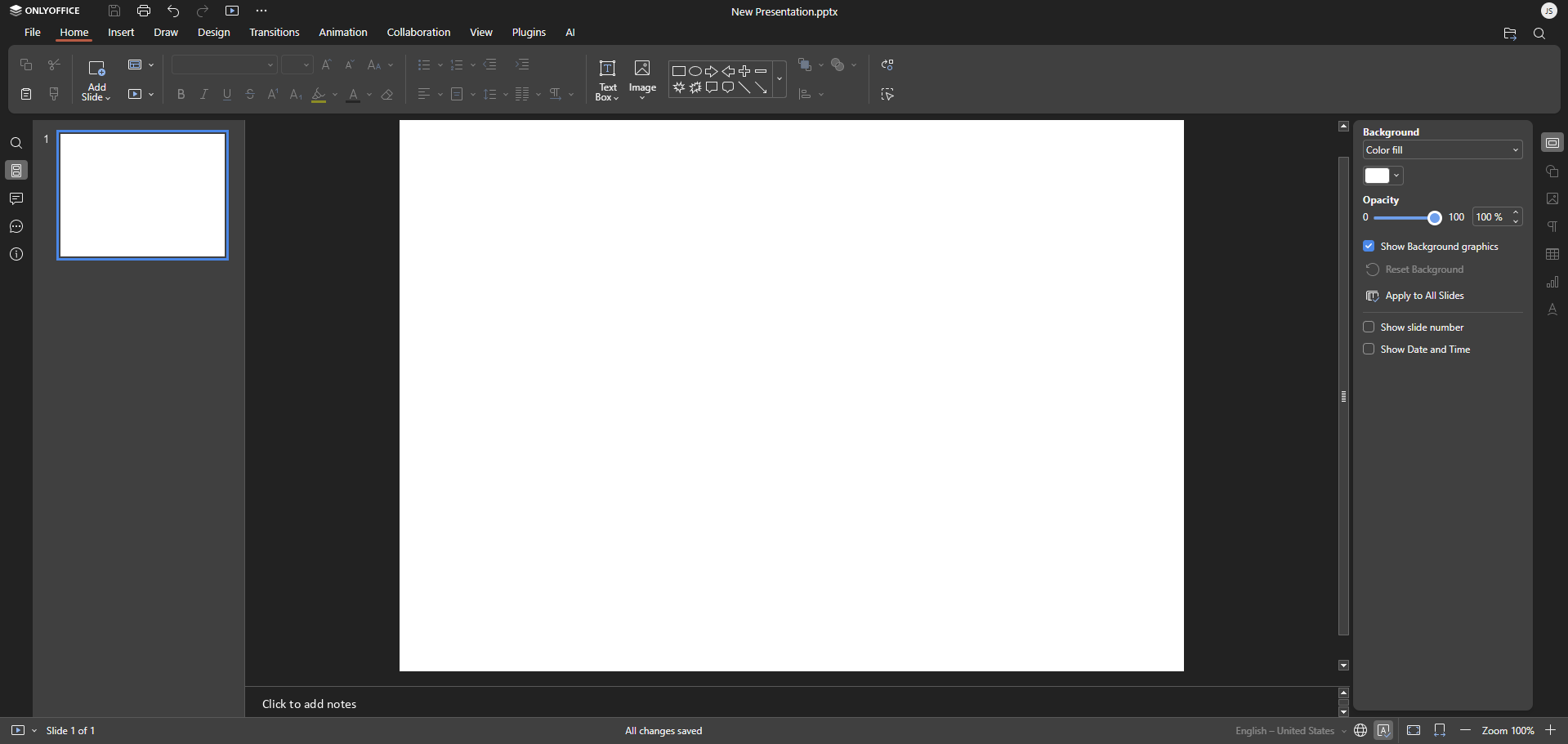
When you open a presentation, the editor gives you access to the main tools you need to build and organize your slides efficiently.
- Toolbar: Access formatting, design, and editing tools
- Slide panel: View and select slide thumbnails
- Slide canvas: Edit the selected slide in the main workspace
- Notes panel: Add speaker notes below the slide
- Status bar: View slide details and display options
Working with slides
Slides can be added, moved, and removed directly from the slide panel, making it easy to organize your presentation as you work.
Adding slides
Use any of the following methods to insert a new slide:
- Click New Slide in the toolbar
- Right-click in the slide panel and select New Slide
- Press Ctrl+M on your keyboard
- Choose a layout that fits your content
Move through your presentation quickly using the slide panel or keyboard shortcuts.
- Click any slide thumbnail to open it
- Use Page Up and Page Down to move between slides
- Scroll through the slide panel to browse the full presentation
Reordering slides
You can change the sequence of your slides at any time.
- Drag and drop slide thumbnails into a new position
- Cut and paste slides to move them elsewhere in the presentation
Deleting slides
If a slide is no longer needed, you can remove it in just a few clicks.
- Select the slide and press Delete
- Right-click the slide and select Delete Slide
Editing slide content
OfficeDocs makes it easy to update text, insert content, and adjust formatting directly on the slide.
Working with text boxes
Text can be edited directly inside placeholders or added manually with a new text box.
- Click inside a text placeholder to edit existing text
- Use Insert > Text Box to add a new text box
- Drag text boxes to reposition them
- Use the handles to resize them
Formatting text
Use the toolbar to make your content clearer and more visually consistent.
- Change the font, size, color, and alignment
- Apply bold or italic formatting where needed
- Add bullet points or numbered lists to organize information
Adding content
- Images and photos
- Shapes and icons
- Tables
- Charts
- Videos and audio
- Hyperlinks
Slide design
Design tools help you keep your presentation clean, professional, and visually consistent.
Changing layouts
Layouts define how content is arranged on a slide.
- Right-click a slide and select Layout
- Choose from title slides, content slides, or blank slides
Themes and backgrounds
Themes and backgrounds can quickly improve the appearance of your presentation.
- Use the Design tab to apply a theme
- Right-click a slide and select Format Background
- Apply the change to one slide or the entire presentation
Animations and transitions
Animations and transitions add movement and help guide the viewer’s attention.
- Animations: Control how text or objects appear on a slide
- Transitions: Control how one slide changes to the next
- Preview effects before presenting to make sure they fit your content
- See Animations and Transitions guides
Presenting
When your presentation is ready, you can launch the slideshow from the beginning or from the current slide.
- Press F5 to start from the beginning
- Press Shift+F5 to start from the current slide
- See Presenting Your Slideshow
Speaker notes
Speaker notes are useful for adding reminders or talking points without displaying them on the slide itself.
- Add notes in the notes panel below each slide
- View notes in Presenter View, depending on your presentation setup
- See Speaker Notes