
Offline Editing
OnlyOffice Desktop Editors lets you continue working on documents even when you are not connected to the internet. Your changes are saved locally and sync automatically when your connection is restored.
How Offline Mode Works
- Open a document while you are online.
- The document is cached on your device for local access.
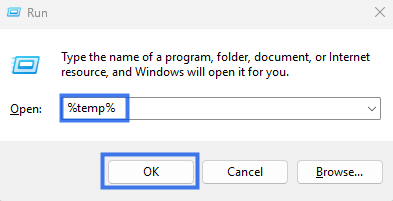
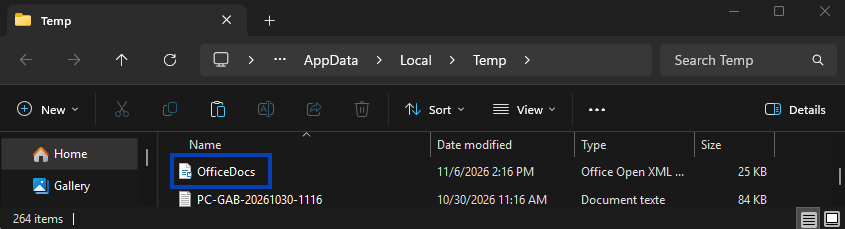
- Press Windows + R, type %temp%, then press Ok. The Temporary Files folder opens and displays your copied file..
- If your internet connection is interrupted, you can continue editing the cached version.
- Once you reconnect, your changes sync back to the cloud automatically.
Working Offline
When you are offline, you can:
- Edit cached documents
- Make your usual content changes
- Save work locally on your device
- Create new documents to sync later
What’s Available Offline
You can typically access:
- Documents you opened recently
- Files prepared or cached for offline access
- Local files stored directly on your computer
Sync When Back Online
When your connection returns:
- The application detects that you are back online.
- Your pending changes begin uploading to the server.
- Any updates from the server download to your device.
- The document returns to a fully synchronized state.
Conflict Resolution
If someone else edited the same document while you were offline:
- Changes are merged automatically whenever possible
- You may be asked to review and resolve conflicts
- Version history helps preserve different document states if needed
Offline Indicators
The application may show offline activity with:
- An offline icon or status indicator
- A sync notice showing that changes are pending
- A warning message if sync cannot be completed yet
Preparing for Offline Work
- Open the documents you expect to need before going offline.
- Let the application cache them while you are still connected.
- For important work, confirm the files have opened successfully before disconnecting.
Limitations When Offline
While offline, some functions may be limited:
- Files that were not already cached may not be available
- Real-time collaboration is not available
- Version history may not be accessible
- Some cloud-based features may require an active connection
Best Practices
- Open important files before leaving your connection
- Save regularly while working offline
- Reconnect as soon as possible to sync your latest changes
- Check the sync status after reconnecting to confirm everything uploaded correctly