
Accessing a Shared Document
This guide is for external users who have received a share link to access a document in OfficeDocs. Follow these steps to open the document and complete the email verification process.
Step 1: Click the Share Link
Click the link you received by email, chat, or another communication method.
- The link opens the OfficeDocs access page
- You may be asked to verify your email before the document opens
- This helps confirm that the document is being accessed by the intended recipient
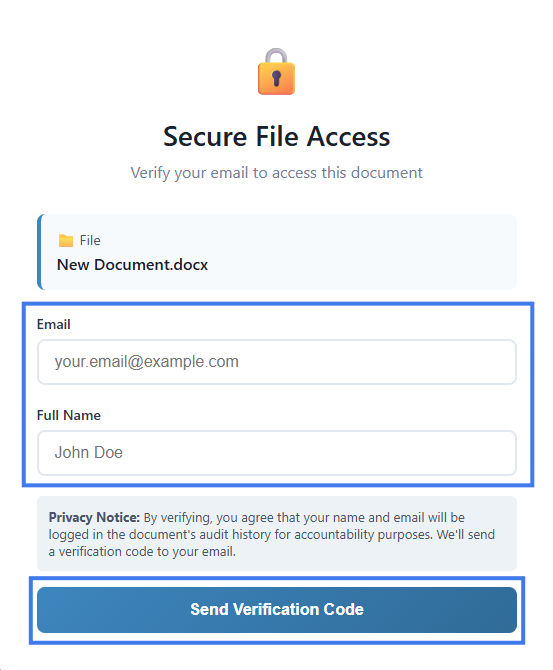
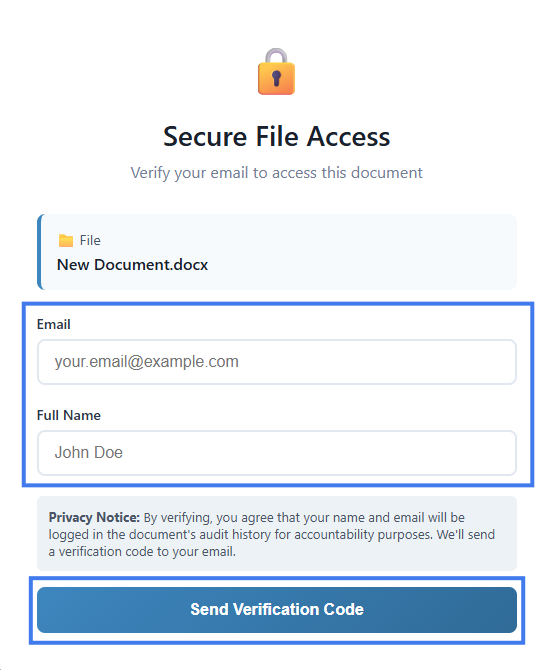
Step 2: Enter Your Email and Full Name
- Enter your email address and full name in the field provided.
- Use the same email address the link was intended for.
- Click Send Verification Code.
Step 3: Check Your Email
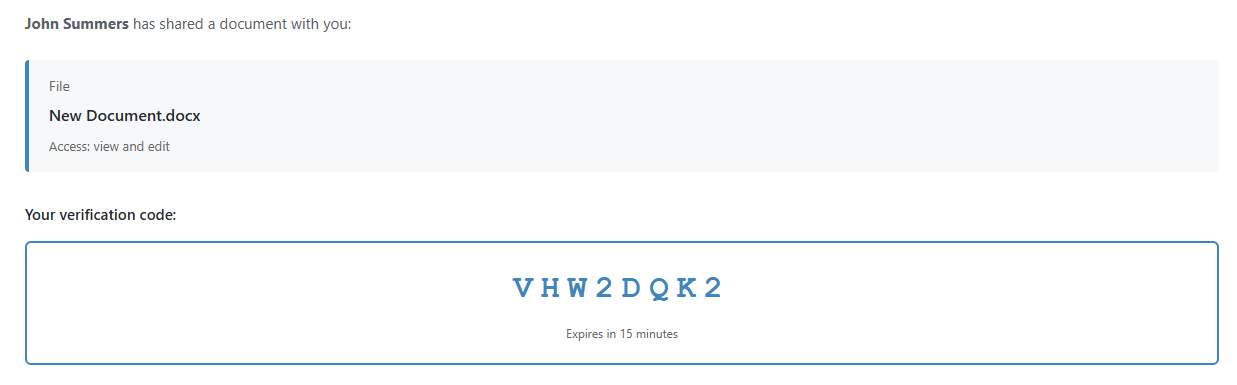
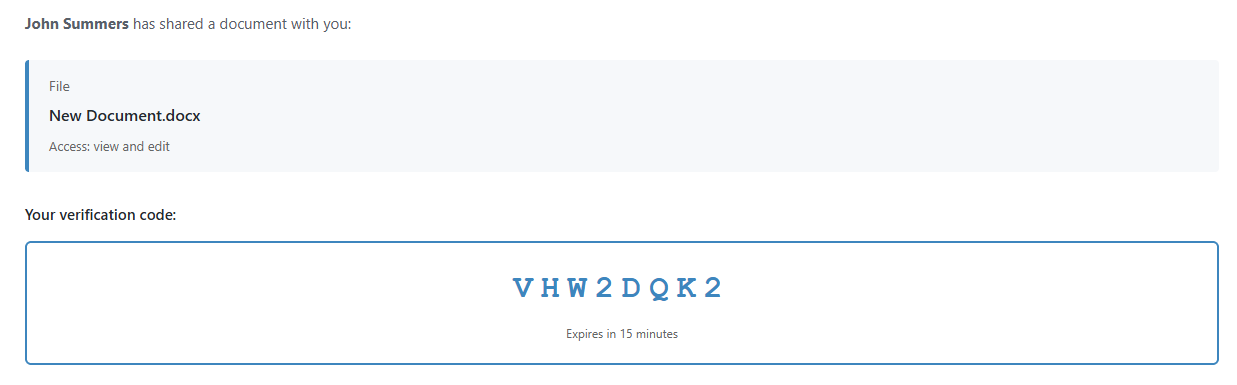
A verification code will be sent to your email address.
- Check your inbox for the verification message
- If you do not see it, check your spam or junk folder
- The email contains a 6-digit verification code
Step 4: Enter the Code
- Return to the verification page.
- Enter the 6-digit code.
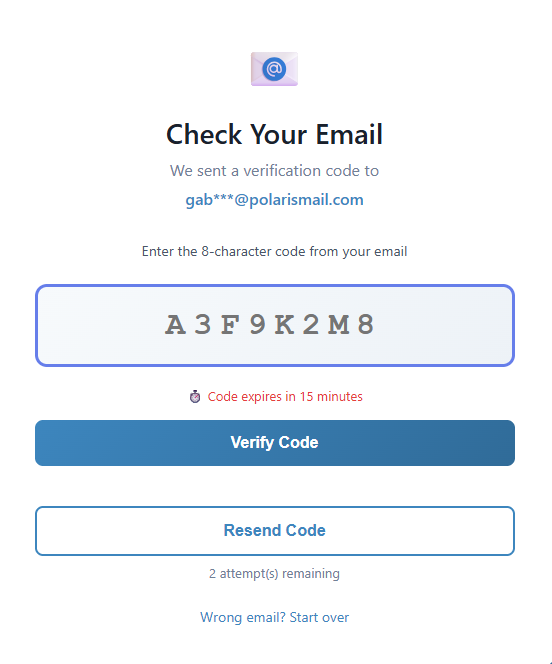
- Click Verify.
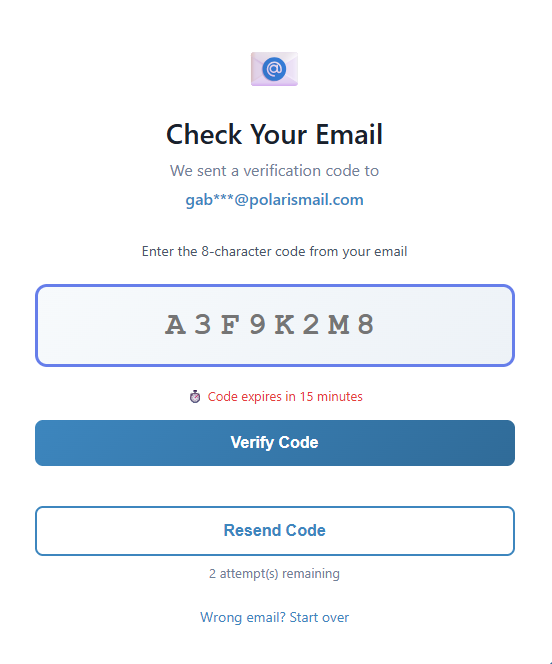
- The document directly opens in your browser.
Using the Document
View-Only Access
If you have view-only access:
- You can read and move through the document
- You cannot make changes
- You may be allowed to download a copy, depending on the share settings
View and Edit Access
If you have view and edit access:
- You can make changes directly in the document
- Your changes are saved as you work
- Your activity may be associated with your verified email address
Session Duration
Your access session is usually valid for a limited period.
- You may stay signed in for a set amount of time
- If the session expires, you may need to verify your email again
- The share link itself may still work if it has not been revoked or expired
Returning to the Document
Troubleshooting
Link doesn't work
- The link may have expired
- The owner may have revoked access
- The document may no longer be shared externally
- Contact the person who shared the document if you still need access
Code not received
- Check your spam folder
- Wait a moment and request a new code if the option is available
- Make sure you entered the correct email address
- Confirm that you are using the email address the link was created for
No Account Required
As an external user, you do not need to create a full account to open a shared document.
- Email verification is enough to confirm your identity
- You can access the document through the share link you received
- Your available actions depend on the permission level assigned to that link