
Opening Documents
OfficeDocs allows you to open and edit documents directly from your web browser. This guide explains the different ways to open a document, depending on where it is stored or how it was shared with you.
Opening from the File Manager
To open a document from the File Manager:
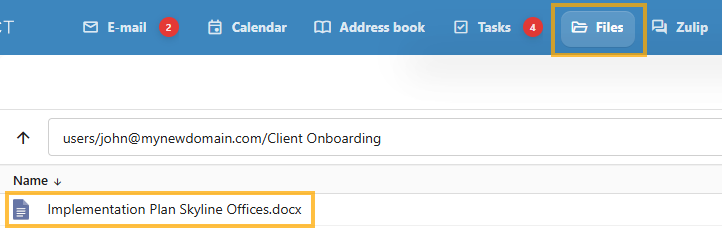
- Open the Files module in your account.
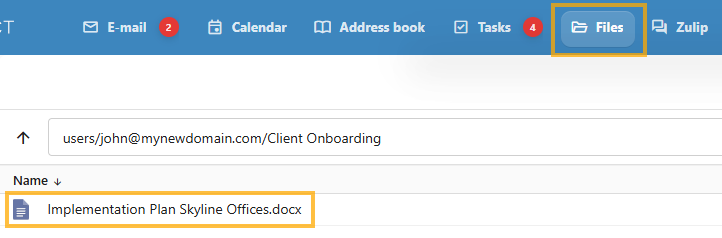
- Browse to the folder that contains the document.
- Click the document name.
- The document will open in the OfficeDocs editor in a new tab.
Opening from Recent Files
Recently opened documents can be accessed from your recent files list.
- Open the Files module.
- Locate the Recent Files section or filter.
- Click the document you want to open.
If a document has been shared with you by link:
Opening from Desktop Editors
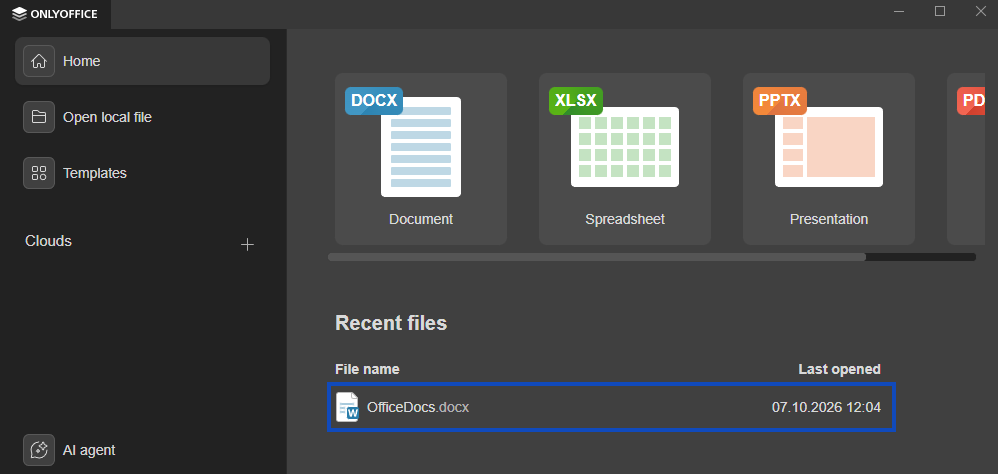
You can also open documents using the OnlyOffice Desktop Editors.
- Open OnlyOffice Desktop Editors.
- Connect the application to your account, if it is not already connected.
- Browse to the document using the file browser.
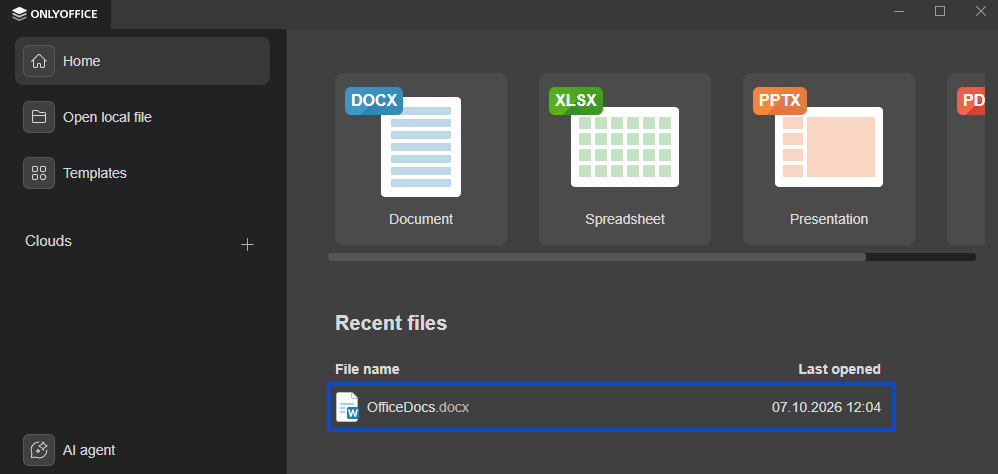
- Double-click the document to open it.
Opening from the Mobile App
To open a document from the mobile app:
- Open the OnlyOffice mobile app.
- Sign in to your account.
- Browse to the document in the file list.
- Tap the document to open it.
Supported File Types
OfficeDocs supports a variety of file formats, including:
- .docx: Microsoft Word documents
- .xlsx: Microsoft Excel spreadsheets
- .pptx: Microsoft PowerPoint presentations
- .pdf: PDF documents
- .docxf: OnlyOffice form documents
Troubleshooting
Document does not open
- Make sure you have permission to access the file.
- Confirm that the file format is supported.
- Refresh the page and try opening the document again.
Document opens in read-only mode
- Your account may have view-only access.
- The file may have been shared with limited permissions.
- Another user may currently have the document locked for editing.