
Mobile Application Introduction
Access and manage your OfficeDocs files on the go with the OnlyOffice mobile application. The mobile app lets you view, edit, and organize documents from your phone or tablet, whether you are online or working with downloaded files offline.
What Is the Mobile App?
The OnlyOffice mobile app connects to your OfficeDocs account so you can work with your files from a mobile device.
With the mobile app, you can:
- View and edit documents from your phone or tablet
- Access files from anywhere with an internet connection
- Work offline with downloaded files
- Share documents with others
Key Features
Document Viewing
Open and read supported OfficeDocs files directly on your mobile device.
Mobile Editing
Make changes to documents, spreadsheets, presentations, and forms using a touch-friendly mobile interface.
File Management
Browse folders, organize files, and manage your cloud documents from the app.
Offline Access
Download files to your device so you can continue working when you do not have an internet connection. Changes sync when you reconnect.
Supported Devices
- iOS — iPhone and iPad running iOS 13.0 or later
- Android — Phones and tablets running Android 6.0 or later
What You Can Do
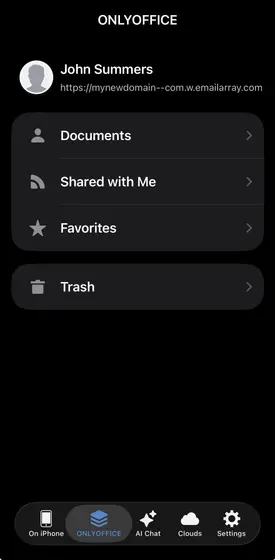
- Browse your OfficeDocs folders
- Open and view documents
- Edit text, numbers, slides, and forms
- Add comments and annotations
- Share files with others
- Upload photos and files from your device
- Download documents for offline use
Mobile vs Desktop/Web
The mobile app is designed for fast and convenient access while you are away from your computer.
Mobile use is ideal for:
For more advanced editing or larger tasks, the desktop or web version may be more comfortable.
Getting Started
- Download the mobile app from your device’s app store.
- Open the app on your phone or tablet.
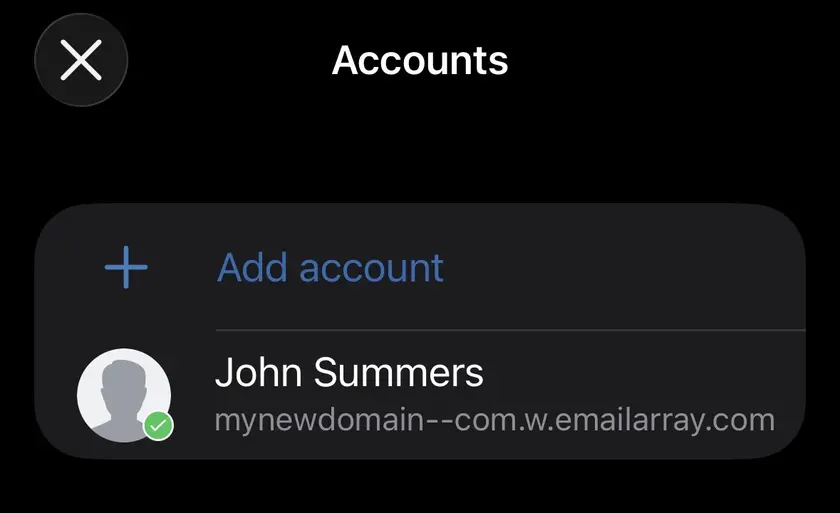
- Connect your OfficeDocs account.
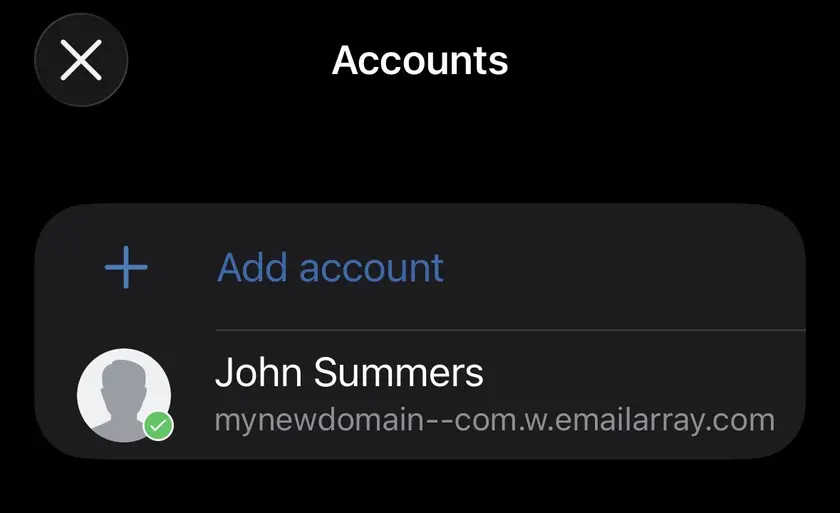
- Browse your folders and open your files.
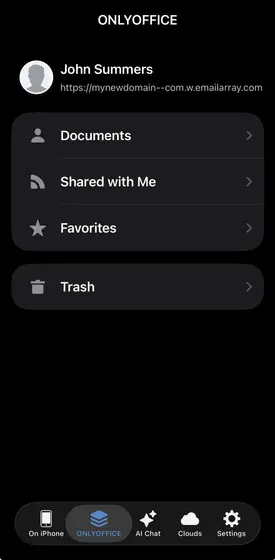
- Start viewing, editing, or downloading documents as needed.
For detailed setup instructions, see the installation guide.