
Viewing Version History
OfficeDocs saves document versions as you work, making it easier to review earlier changes, compare updates, and restore a previous version when needed. Version history is especially useful when several people are editing the same file or when you want to track how a document has changed over time.
Accessing version history
You can open version history either from the file browser or from inside the editor. In both cases, you will see a list of saved versions and revisions for the file.
From the file browser
- Open the folder that contains the file.
- Right-click the file, or click the version indicator next to the file name if it is available.
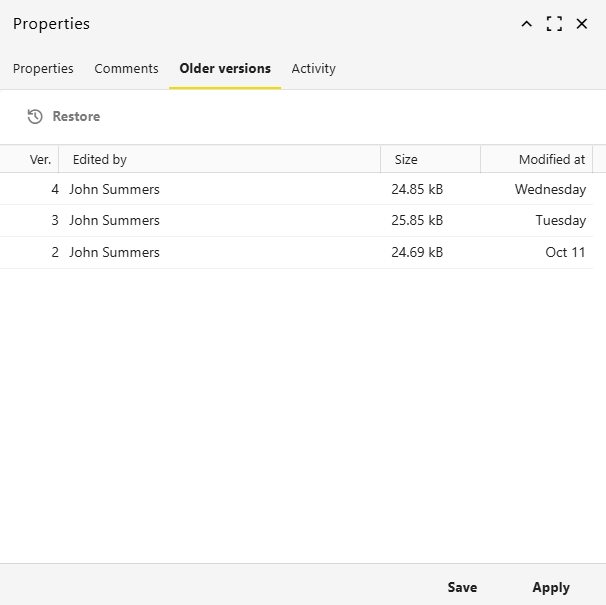
- Open Properties, then select Older versions.
- A panel opens and shows the saved versions of the file.
From the editor
- Open the document.
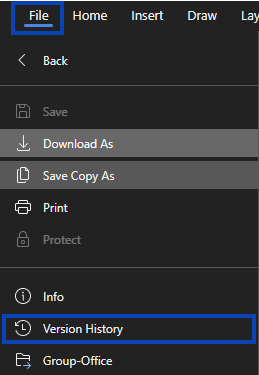
- Click File.
- Select Version History from the left panel.
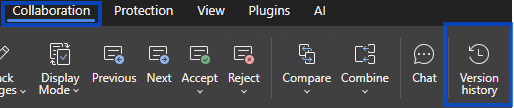
You may also be able to open version history from the Collaboration tab or from a Version History button in the toolbar.
Understanding the version list
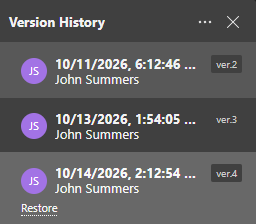
Each version entry helps you identify when the file changed and who made the update. Depending on the workspace, version history can also include revisions grouped inside larger versions.
A version entry may show:
- Date and time — when the version was saved
- Author — who made the changes
- Comments or notes — short details about the change
- Version number — such as ver.3
- Size — the file size for that version, if shown in your interface
Viewing a previous version
You can open an earlier version to review it before deciding whether to restore it.
- Open the version history panel.
- Click the version you want to review.
- The document opens in preview mode for that version.
- Changes made in that version can be highlighted in the document.
- You can review the content, but you do not edit the historical version directly.
What creates versions
New versions and revisions can be created while the document is being edited and saved. A full version is typically created when an editing session ends, while smaller revisions can also be saved during work, depending on your settings.
New versions or revisions may be created when:
- you manually save the file
- the editor saves an intermediate revision
- the editing session ends
- a collaborator saves changes during shared editing
Version information
Version history can also help you understand what changed between saved versions.
Who made changes
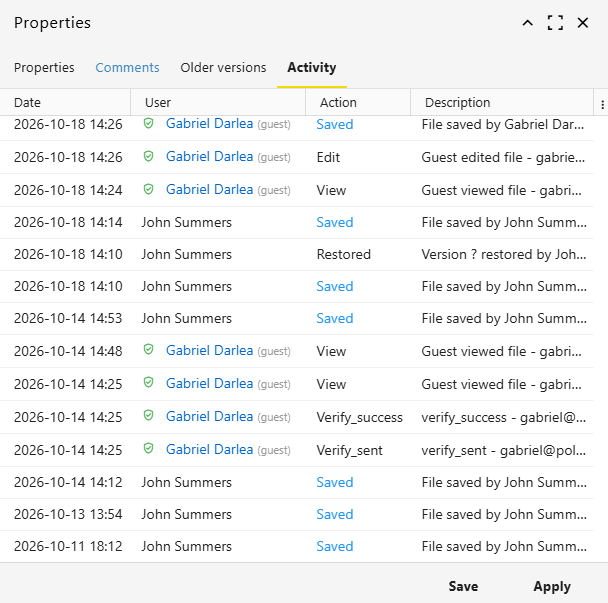
Version history shows the name of the person who saved a version. In some workspaces, external users may appear differently from internal users, depending on how the document was shared.
- internal users may appear by name
- external collaborators may appear differently depending on the sharing method
- multiple contributors may be involved during co-editing sessions
Size changes
If the file size changes significantly between versions, it may indicate larger updates to the file.
This can happen when:
- large sections of content are added or removed
- images or media are inserted or deleted
- the file structure changes significantly
Searching version history
If a document has many saved versions, version history details can help you find the one you need more quickly. In some interfaces, comments, dates, and author names help identify the correct version.
You may be able to use version details to:
- look for a specific date or time
- identify the author of a version
- review comments or notes if they are available
- compare older and newer saved states of the file
Version history limits
Version history can vary depending on your workspace settings and storage rules. Some environments may limit how many saved versions are kept or how long old versions remain available.
Possible limits may include:
- a maximum number of saved versions
- automatic cleanup of older versions
- storage or retention rules set by your workspace administrator
If needed, check with your administrator for details about retention and version availability.
Returning to the current version
After reviewing an older version, you can return to the current document at any time.
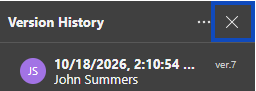
- Click Close History at the top of the version list, or
- close the version history panel to return to the latest version of the file.
Restoring a previous version
If you need to return the document to an earlier state, you can restore a previous version from the version history panel.
- Open Version History.
- Select the version you want.
- Click Restore.
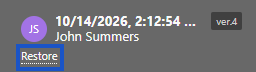
When a version is restored, the file returns to that saved state as a new current version. You can also preview or download older versions before restoring them.