
Browsing Cloud Files
Access and manage your OfficeDocs files directly from Desktop Editors without opening a web browser. When your cloud account is connected, your files appear inside the Desktop Editors interface so you can browse, open, and work with them from one place.
Opening the File Browser
- Open OnlyOffice.
- In the left sidebar, click your connected OfficeDocs account.

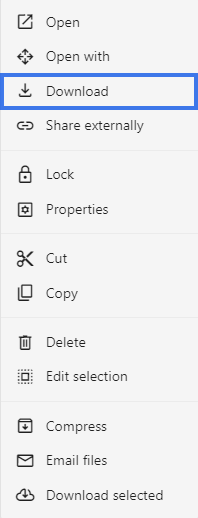
- Select the File tab then download your files or folder.
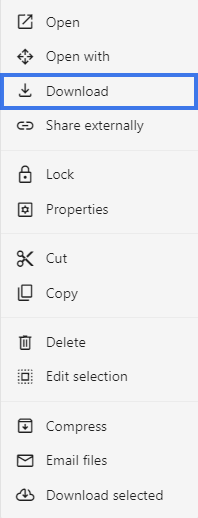
- Open the file or folder from the file browser in OnlyOffice.


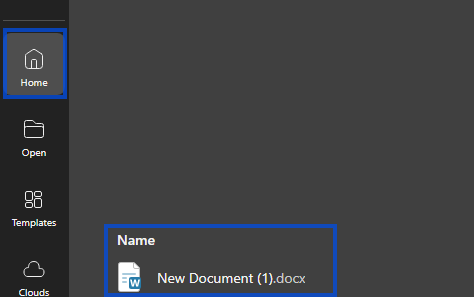
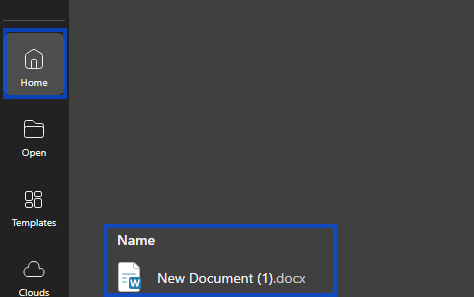
- Your file now appears in the Home tab ready for editing directly from the Desktop Editor.



Folders
- Double-click a folder to open it.
- Use the breadcrumb path to go back to a previous location.
- Use the back arrow to move up one level when needed.
Special Folders
Your connected cloud may include built-in sections such as My Documents, Shared with Me, Common, Favorites, and Recent, depending on your workspace setup. These sections help you quickly reach personal files, shared files, organization files, starred items, and recently accessed documents.
Opening Files
File Operations
Right-click a file or folder to open its action menu. Available options can include:
- Open — Open the file for editing
- Download — Save a copy to your computer
- Rename — Change the file name
- Move — Move the item to another folder
- Copy — Create a copy
- Delete — Move the item to trash
These file actions are available from the connected cloud area in Desktop Editors, along with account actions such as opening the cloud in a new tab, logging out, or removing the cloud from the list.
Search
- Use the search box to find files quickly.
- Search by file name or keyword when available.
- Results can appear as you type.
- Click a result to open it.
Sorting and View
- Sort files by name, date, size, or type.
- Switch between list view and grid view if available.
- In list view, click column headers to change the sort order.
Refresh
If files were changed elsewhere:
- Click the refresh button.
- Or press F5 if supported.
- The file list updates with the latest changes.
Local vs Cloud Files
Desktop Editors lets you work with both local files and connected cloud files. Local files stay on your computer, while cloud files are stored in your connected OfficeDocs workspace and can be opened from the cloud section in the sidebar.
Tips
- Use Recent to reopen files you worked on recently.
- Use Favorites to keep important files easy to find.
- Keep the file browser open when switching often between documents.
- Use folders to keep cloud files organized.