
Browsing Files on Mobile
File Browser Overview
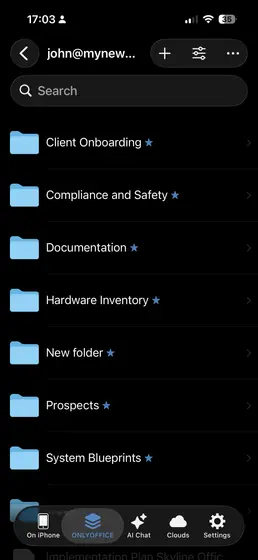
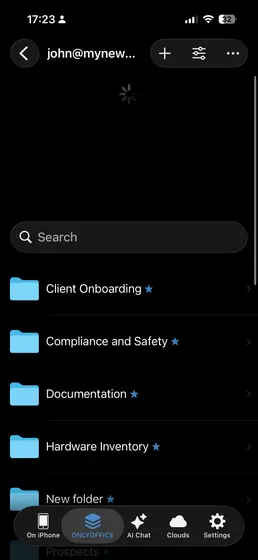
After connecting your account, your files and folders appear in a layout that is similar to the web version, making it easy to browse and manage your content from your phone or tablet.
Navigation
Opening Folders
- Tap a folder to open it
- Tap the back arrow to go up one level
- Use breadcrumbs, if shown, to jump back to parent folders
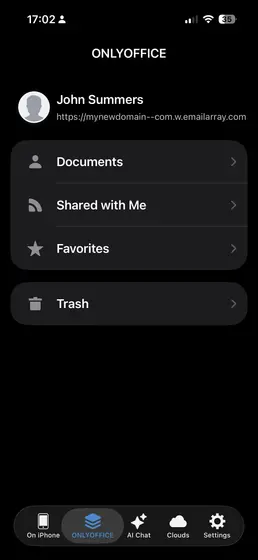
Main Sections
- My Documents — Your personal files
- Shared with Me — Files and folders shared by other users
- Favorites — Starred files for quick access
- Trash — Deleted files
File List View
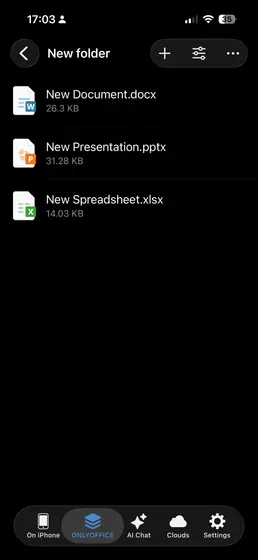
Each file entry typically shows:
- A file icon that indicates the file type
- The file name
Searching Files
- Tap the search icon.
- Type your search term.
- Results appear as you type.
- Tap a result to open it.
Sorting
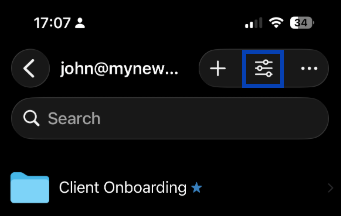
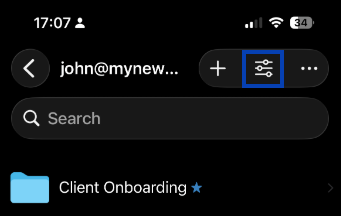
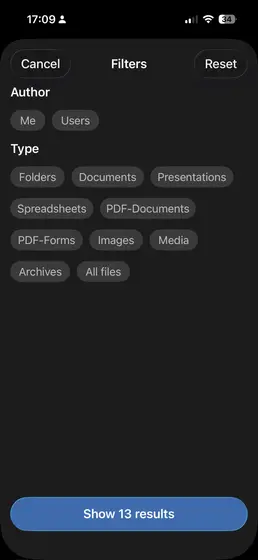
- Tap the Filters option
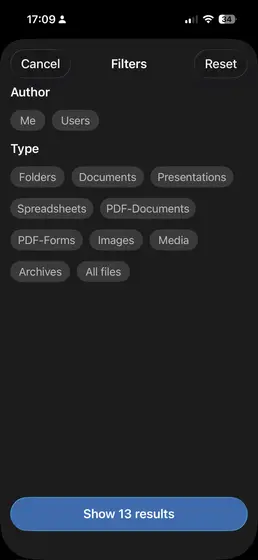
- Sort by type and author
File Actions
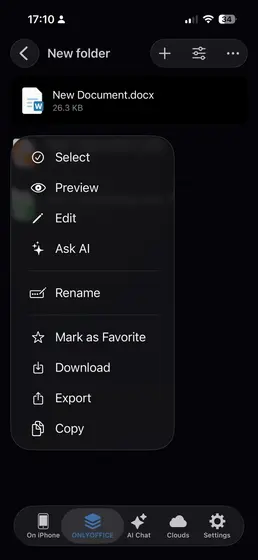
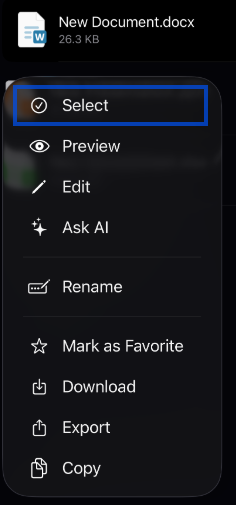
Long-press a file to open the available file actions.
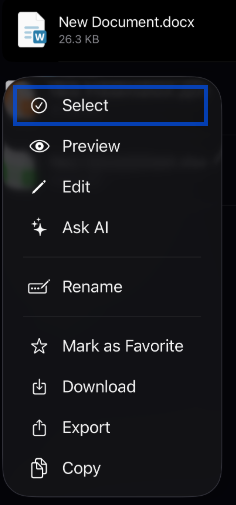
- Select — Choose the file so you can include it in multi-file actions.
- Preview — Open the file in view mode to quickly check its contents without starting full editing.
- Edit — Open the file in editing mode so you can make changes.
- Ask AI — Use the built-in AI tool to help with the file’s content, such as rewriting, summarizing, or generating text.
- Rename — Change the file name while keeping the same content and file type.
- Mark as Favorite — Add the file to your favorites for quicker access later.
- Download — Save a copy of the file to your mobile device for offline access or sharing outside the app.
- Export — Create a copy of the file in another format, depending on the available export options.
- Copy — Make a duplicate of the file so you can keep the original unchanged.
Selecting Multiple Files
- Long-press a file then click Select.
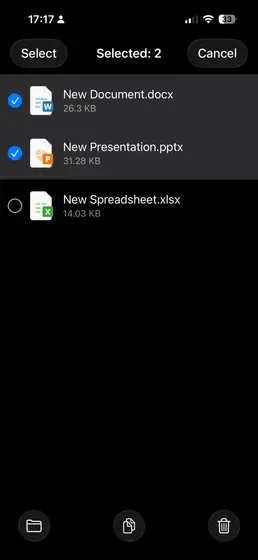
- Tap additional files to select them.
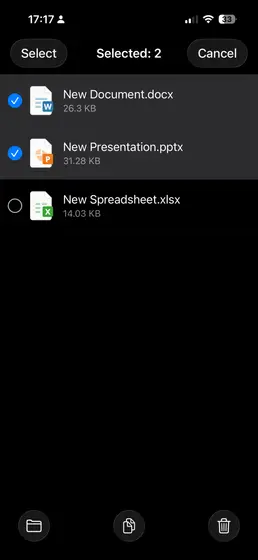
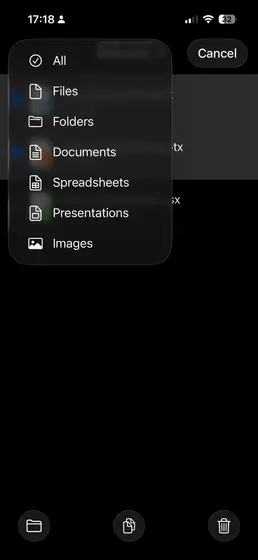
- Use the Select button in the top-left for bulk actions.
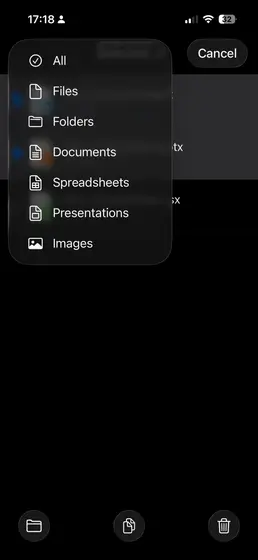
- Tap the action you want to perform or Cancel to exit selection mode.
Refreshing
To update the file list:
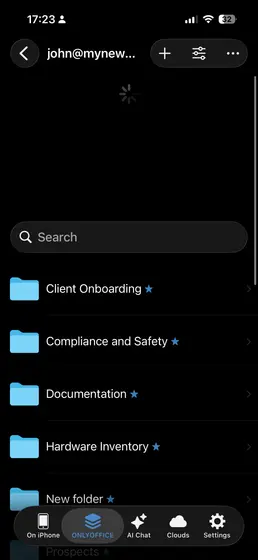
- Pull down to refresh
Creating Folders
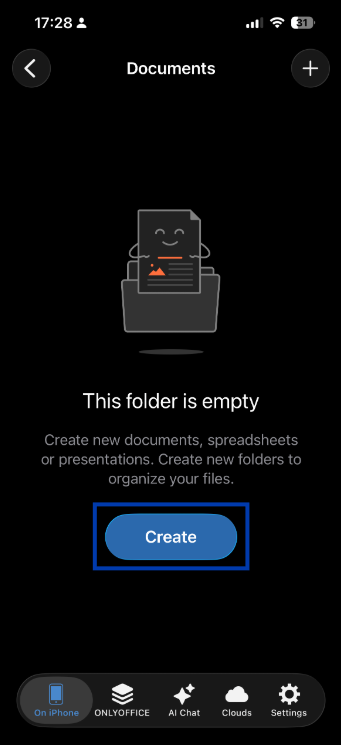
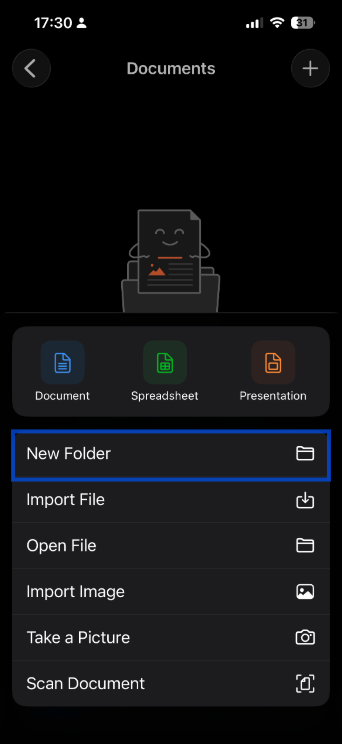
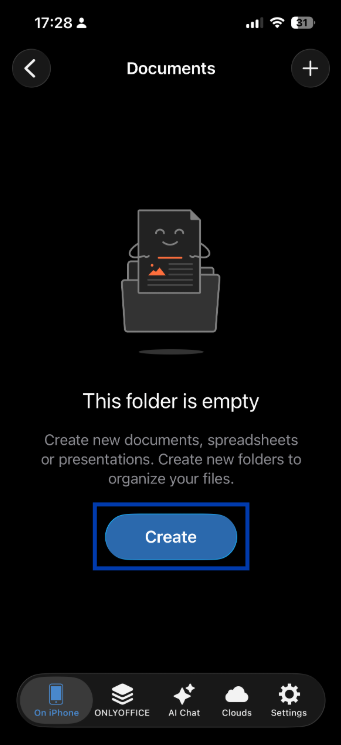
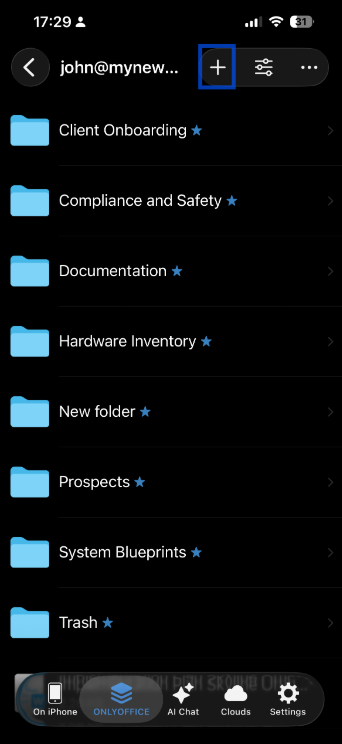
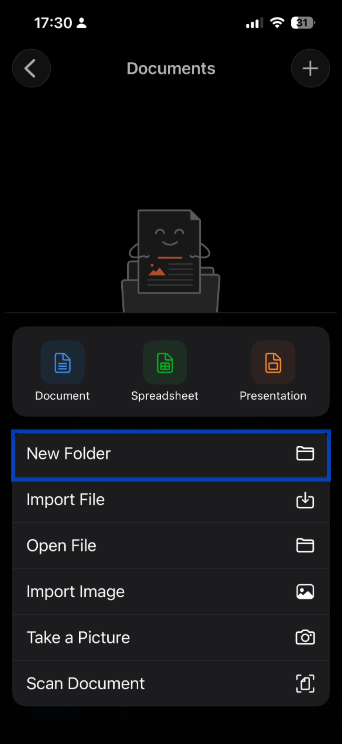
- Navigate to the location where you want the folder. (Cloud or in OnlyOffice)
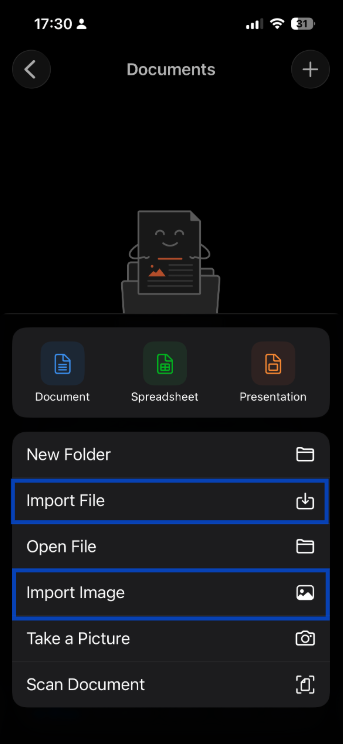
- Tap the create or add button.
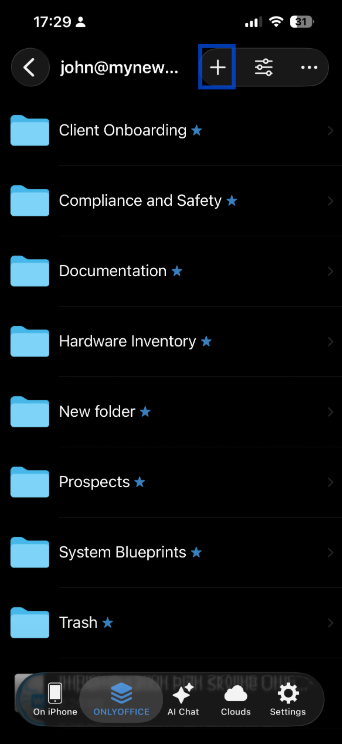
- Select New Folder.
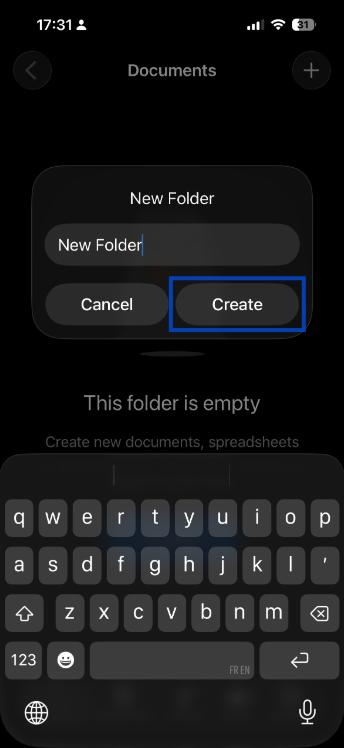
- Enter the folder name.
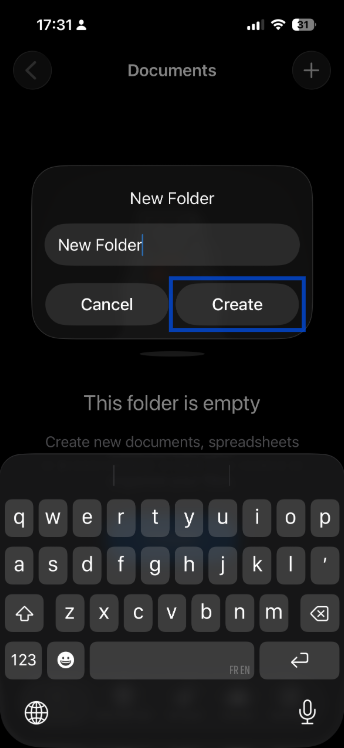
- Tap Create.
Uploading Files
- Tap the add or upload button.
- Select the import options.
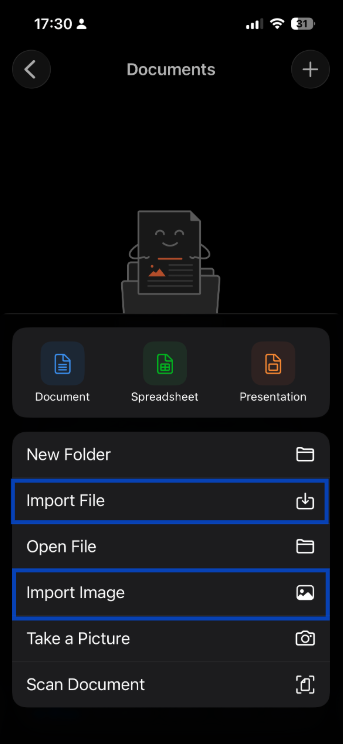
- Choose files from your device storage or photos.
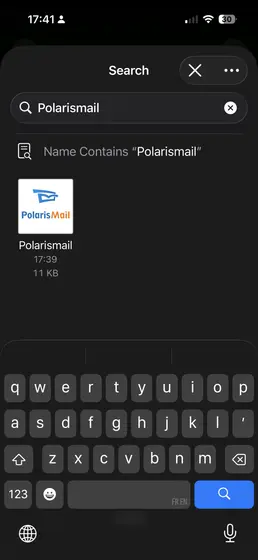
- Press the files to import.
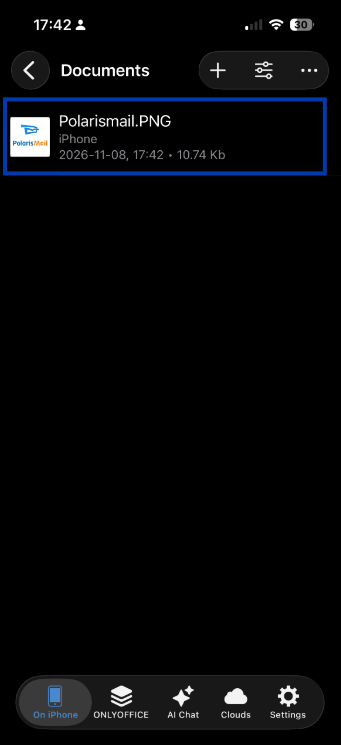
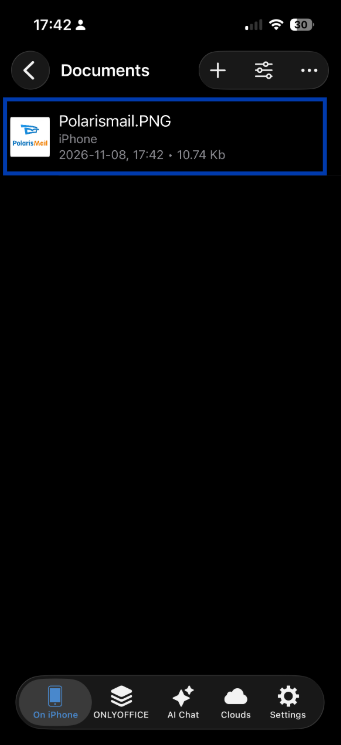
- The files are added to the current folder.
Tips
- Add important files to Favorites for faster access
- Download key files if you need offline access
- Keep folders organized to make mobile navigation easier