
Installing the Mobile App
Download and install the ONLYOFFICE Documents app on your iPhone, iPad, or Android device so you can access and work with your OfficeDocs files on the go.
iOS Installation
- Open the App Store on your iPhone or iPad.
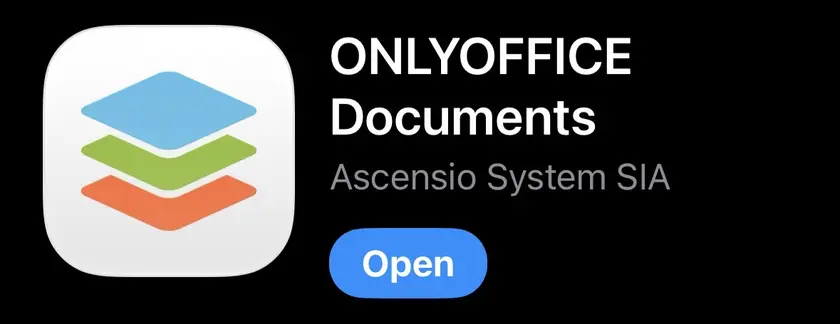
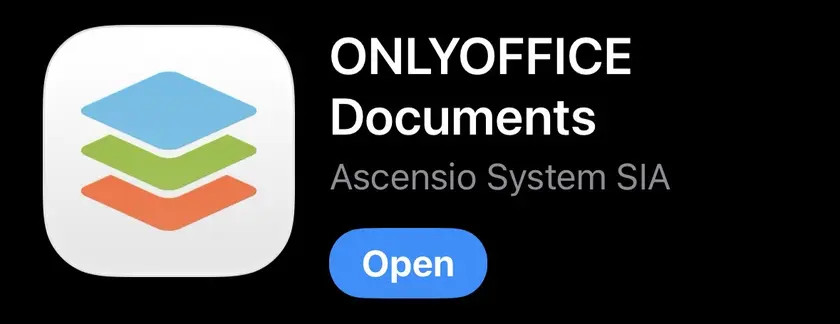
- Search for ONLYOFFICE Documents.
- Tap the ONLYOFFICE Documents app in the results.
- Tap Get to begin the download.
- Confirm with Face ID, Touch ID, or your Apple ID password if prompted.
- Wait for the app to download and install.
- Tap Open, or launch it later from your Home Screen.
Android Installation
- Open the Google Play Store.
- Search for ONLYOFFICE Documents.
- Tap the ONLYOFFICE Documents app in the results.
- Tap Install.
- Accept any requested permissions if prompted.
- Wait for the app to download and install.
- Tap Open, or find the app later in your app drawer.
First Launch
- Open the ONLYOFFICE Documents app.
- Review any welcome or introduction screens.
- Allow the permissions you want to use, such as storage or notifications.
- Continue to the app home screen.
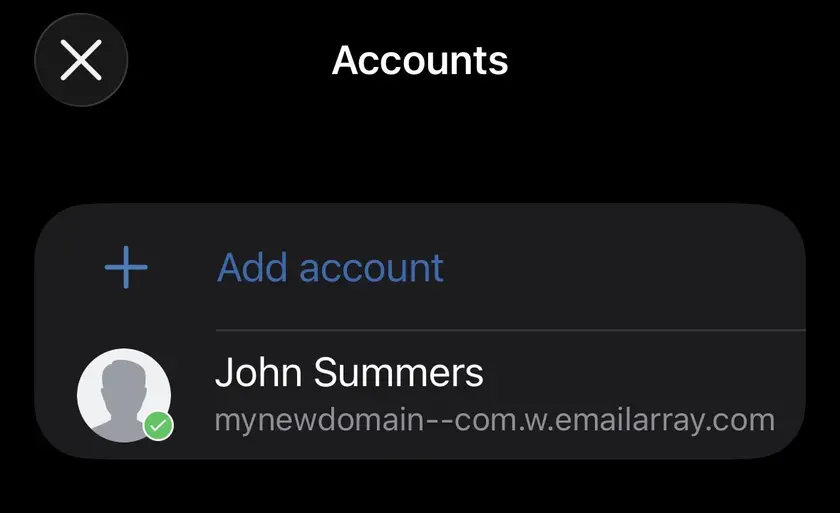
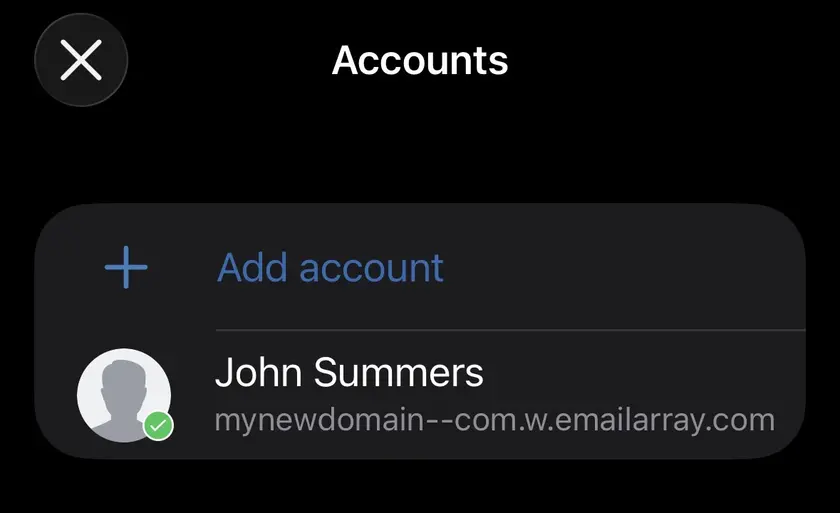
- You’re then ready to connect your OfficeDocs account and start browsing files.
Permissions
The app may ask for permission to use certain features:
- Storage — Save files locally and open downloaded files
- Camera — Scan documents or add images, if needed
- Photos — Upload images or insert pictures from your device
- Notifications — Receive alerts about shared files, updates, or activity
Grant only the permissions you want to use. You can usually change them later in your device settings.
Updates
Keeping the app updated helps you get the latest fixes, performance improvements, and features. The official mobile help center also tracks current mobile app functionality and updates.
iOS
- The App Store shows when updates are available
- You can enable automatic updates in iPhone or iPad settings
- You can also update manually from the App Store
Android
- The Google Play Store notifies you when updates are available
- You can enable automatic updates in Play Store settings
- You can also update manually from the Google Play Store
Storage Space
Before installing, make sure your device has enough free space for:
- The app itself
- Cached documents
- Files you download for offline access
If you plan to keep many files offline, extra free space is recommended.
Uninstalling
If you no longer need the app, you can remove it at any time.
iOS
- Touch and hold the app icon.
- Tap Remove App.
- Confirm the deletion.
Android
- Touch and hold the app icon.
- Drag it to Uninstall, or tap the uninstall option.
- Confirm the deletion.
Troubleshooting
Can’t Find the App
- Search for ONLYOFFICE or ONLYOFFICE Documents
- Make sure your device meets the minimum supported version
- Check that your App Store or Play Store is working normally
Installation Fails
- Check available storage space
- Verify your internet connection
- Restart your device and try again
- Retry the download from the app store
Minimum Device Support
- iPhone / iPad — iOS 14.0 or later
- Android phones / tablets — Android 6.0 or later