
Managing Favorites
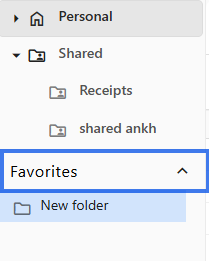
Mark frequently used folders as favorites for quicker access. Favorites appear in a separate section so you can return to important items without searching through folders every time.
Adding to Favorites
Right-Click Method
- Right-click the folder.
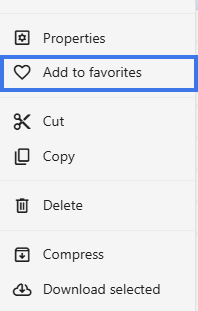
- Select Add to Favorites.
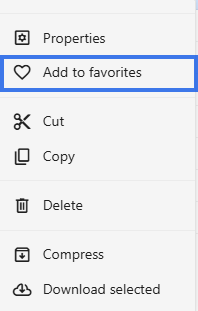
- The item is added to your favorites list.
Viewing Favorites
- Open the file browser.
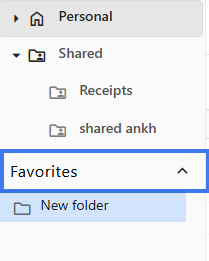
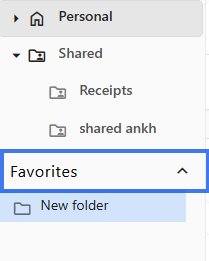
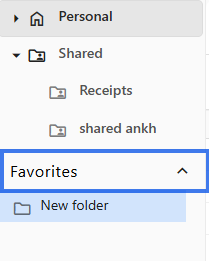
- Click Favorites in the navigation area.
- All your favorited items are listed there.
Removing from Favorites
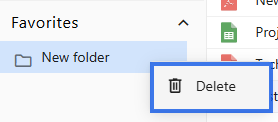
- Right-click the favorited item.
- Select Delete.
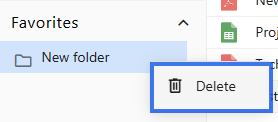
- The item is removed from your favorites list.
The folder itself is not changed. Only the favorite marker is removed.
What Can Be Favorited
Benefits of Favorites
- Faster access to important documents
- Less need to open multiple folders
- A simple personal organization system
- Easier access across devices when favorites sync with your workspace
Favorites Are Personal
- Only you see your favorites
- Marking something as a favorite does not affect other users
- Each user keeps their own favorites list
Use Cases
- Documents you open every day
- Current project folders
- Reference files you use often
- Templates you return to regularly
Tips
- Avoid adding too many favorites
- Review and clean up favorites from time to time
- Combine favorites with folders for better organization