
Renaming Files and Folders
Change the names of your files and folders to keep them organized and easy to identify.
Renaming a File or Folder
Right-Click Method
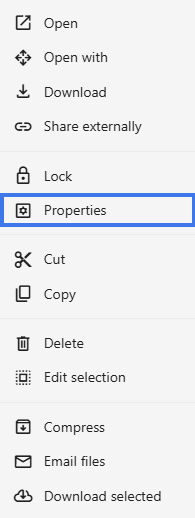
- Right-click the item.
- Select Properties then Name, Extension.
- Type the new name.
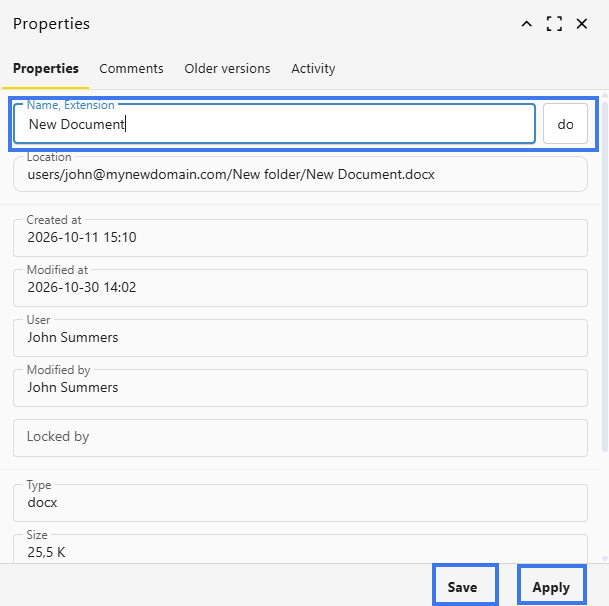
- Press Enter to confirm.
Naming Guidelines
- Use descriptive, meaningful names
- Keep names reasonably short
- Avoid special characters such as
\ / : * ? " < > |
- Include dates when useful, such as YYYY-MM-DD
- Use version numbers when tracking files manually
File Extensions
When renaming files:
- The file extension, such as .docx or .xlsx, should usually stay unchanged
- Changing the extension may affect how the file opens
- The system may show a warning if you try to change the extension
Impact of Renaming
- File content is not changed
- Sharing permissions stay in place
- Internal share links continue working
- External share links continue working
- Version history is preserved
Canceling a Rename
- Press Esc before confirming the new name
- The original name is kept
Undoing a Rename
- Press Ctrl+Z immediately after renaming, if available
- Or rename the item again manually
Best Practices
- Use a consistent naming style
- Include project or client names when helpful
- Add dates for time-sensitive files
- Avoid generic names such as Document1