
Managing External Shares
Viewing All External Shares
For a Single Document
- Navigate to the document.
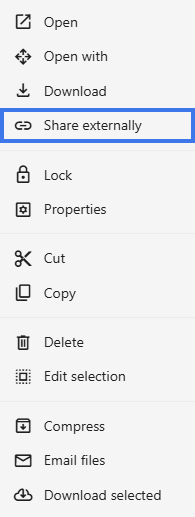
- Open the sharing settings for that file.
- Find the External Links section.
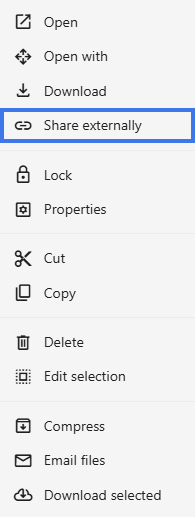
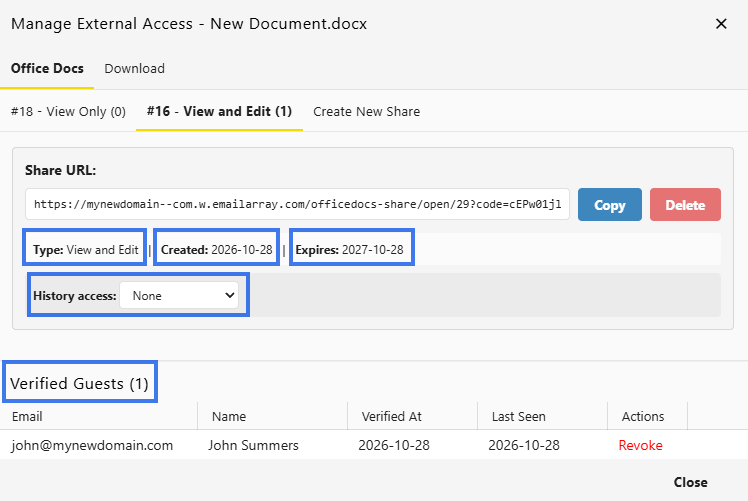
- Review all active share links linked to that document.
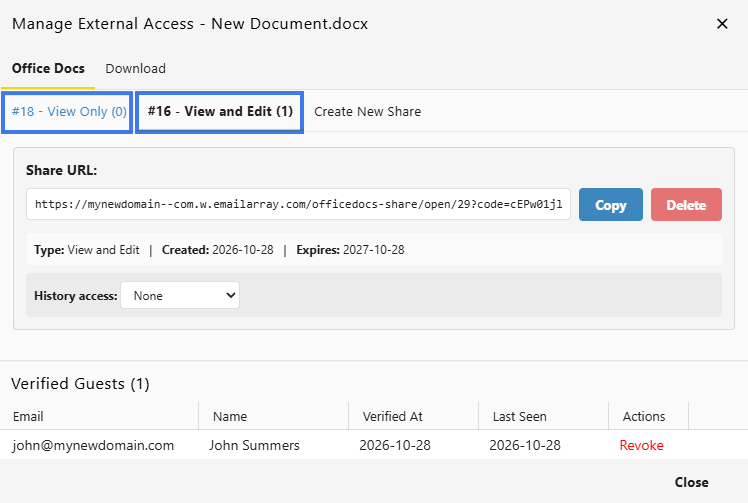
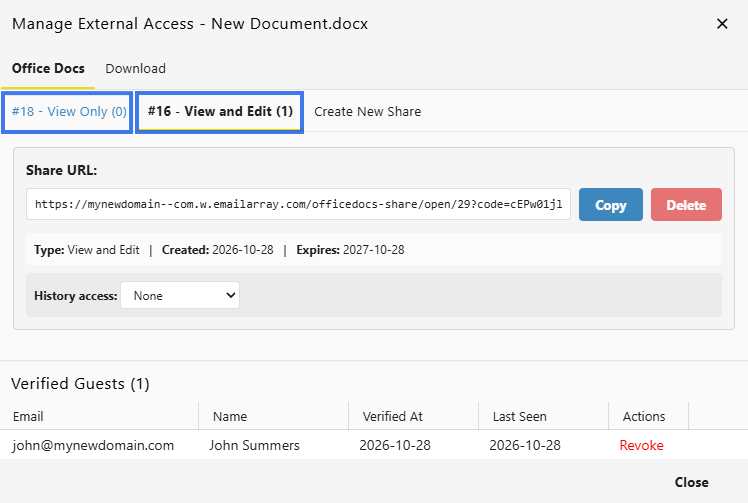
- Created Date — when the link was created
- Permission — whether the link allows View or Edit
- Expiration — when the link will stop working
- History Access — whether recipients can view the document’s version history
- Verified Guests — who currently has access, with their verified email details
Regular Maintenance
Periodic Review
- Review active external shares on a regular schedule
- Identify expired or unused links
- Remove links that are no longer needed
After Projects End
- Revoke project-related share links
- Archive or secure completed documents
- Keep a record of who had access when needed
Bulk Management
If bulk tools are available in your environment, you may be able to:
- Remove multiple expired links
- Export sharing activity or access reports
Best Practices
- Review external shares regularly
- Remove unnecessary access promptly
- Use expiration dates whenever possible
- Keep notes about why a link was created
- Pay extra attention when sharing sensitive documents