
Deleting Files and Folders
Remove files and folders you no longer need. Deleted items usually go to the trash first, where they can often be recovered before being removed permanently.
Deleting a File
Right-Click Method
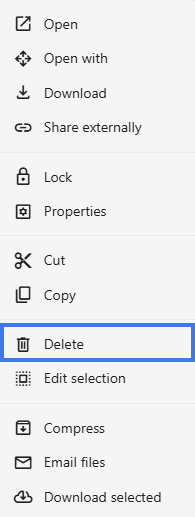
- Right-click the file.
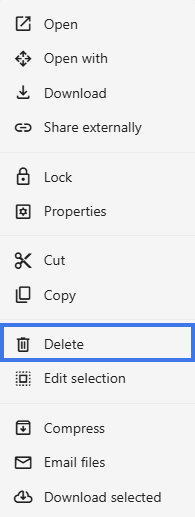
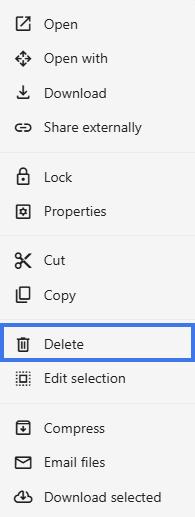
- Select Delete.
- Confirm the deletion if prompted.
Keyboard Method
- Select the file.
- Press the Delete key.
- Confirm the deletion if prompted.
Deleting Folders
When you delete a folder:
- All files inside are deleted with it
- All subfolders are deleted with it
- Everything moves to the trash together
Deleting Multiple Items
- Select multiple items:
- Ctrl+Click for individual items
- Shift+Click for a range
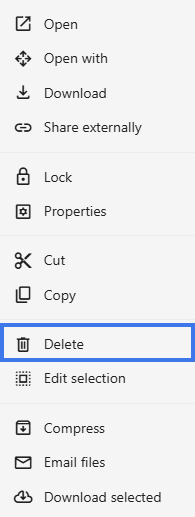
- Press Delete or right-click and choose Delete
- All selected items are deleted together
Impact of Deletion
- The file is no longer available in its folder
- Shared users lose access
- External share links stop working
Before You Delete
Before deleting, consider:
- Is anyone else still using this file?
- Are there active share links?
- Do you need to keep a copy first?
- Would archiving be a better option?