
Revoking External Access
When external users no longer need access to a document, you can remove that access by revoking the share link.
When to Revoke Access
You may want to revoke external access when:
- A project or collaboration has ended
- Your relationship with the external party has changed
- The document is no longer relevant
- A security concern has come up
- Access was granted by mistake
- The person who shared the file is no longer with the organization
- Navigate to the document.
- Open the External Sharing option.
- Find the share link you want to revoke.
- Click Delete.
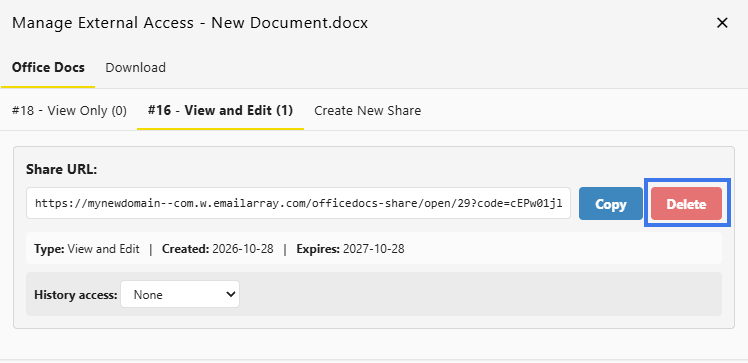
- Confirm the deletion.
What Happens When Revoked
- The link stops working immediately
- Recipients will no longer be able to use it
- Any active access through that link may end
- Future access with that link is no longer possible
Revoking a Single User
If you only need to remove access for one external user without deleting the entire share link, you can revoke that user individually from the Verified Guests list.
- Open the document sharing settings.
- Find the external share link.
- View the Verified Guests list for that link.
- Locate the user you want to remove.
- Click Revoke in the Actions column.

- Confirm the change.

After revoking that user:
- That person can no longer use the share link
- Other verified users on the same link keep their access
- The share link itself remains active
- The revoked user would need to be verified again or receive new access if needed later
Revocation Is Immediate
Unlike an expiration date, revocation happens as soon as you remove the link.
- Revocation takes effect instantly
- No scheduled end date is required
- It is useful when immediate action is needed
Impact on Recipients
Once access is revoked:
- Users can no longer open the document through that link
- Saved or bookmarked links stop working
- Email links previously sent become invalid
- A new link is required if access needs to be granted again later
Revoking vs. Expiration
Revocation
- Takes effect immediately
- Requires manual action
- Best for unexpected situations
- Does not rely on a scheduled date
Expiration
- Takes effect on a set date
- Ends automatically
- Best for planned access periods
- Works well when you already know when access should end
After Revocation
After a link has been revoked:
- The old link cannot be used again
- A new link must be created if access is needed later
- Access records may still remain available for review or audit purposes
Communicating Revocation
When appropriate, you may want to notify affected users.
- Let them know access has ended
- Share an updated link if continued access is still needed
- Provide context if the change affects an active project
Security Incidents
If access is being revoked because of a security concern:
- Revoke access immediately.
- Review recent access activity.
- Check what may have been opened or viewed.
- Follow any required reporting process.
- Consider additional security steps if needed