
Adding Comments
Comments let you leave notes, suggestions, and feedback without changing the main content of the document. They are useful for collaboration, review, and follow-up during editing. Comments also remain attached to the document until they are resolved or deleted.
Adding a comment
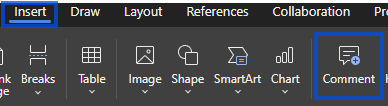
You can add a comment to selected text or content when you want to ask a question, suggest a change, or leave feedback for another user. Comments can be added from the toolbar or by using a keyboard shortcut.
- Select the text or content you want to comment on.
- Open the Insert tab, click Collaboration tab and choose Add Comment
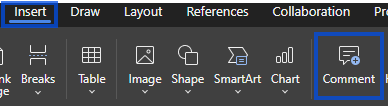
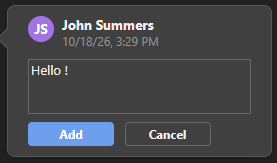
- Type your comment in the comment box or side panel.
- Add the comment to post it.
Viewing comments
Comments can appear next to the document content or inside the comments panel. This makes it easier to follow discussions and jump back to the exact place where feedback was left.
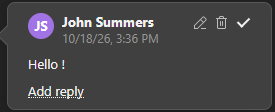
When you open a comment, you can usually:
- read the full comment text
- see who wrote the comment
- reply to the comment
- resolve or delete the comment
Comments panel
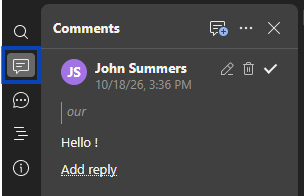
You can open the comments panel to see all comments in one place.
- The Comments panel is located in the left side panel of the editor, where you can view, reply to, resolve, and manage comments.
Replying to comments
Replies help keep discussions together inside the same comment thread.
- Click the comment you want to reply to.
- Click Add Reply.
- Type your response.
- Send the reply.
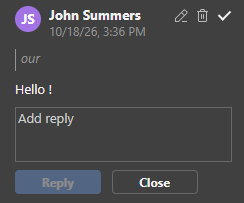
Comment threads help keep feedback organized and easier to review later.
Resolving comments
Once a comment has been addressed, you can mark it as resolved.
- Open the comment.
- Click Resolve or the resolve icon.

- The comment is marked as resolved and may be hidden from the main view, depending on your settings.


Deleting comments
You can remove comments that are no longer needed.
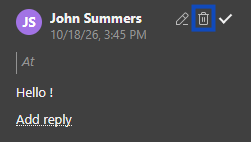
Delete a single comment
- Click the comment.
- Click Delete or the delete icon.
- Confirm the deletion if prompted.
Delete all comments
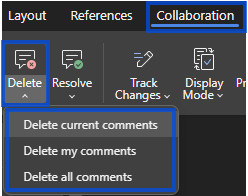
If your editor includes this option, you can remove all comments at once from the Collaboration tab.
- Open the comment management options.
- Select Delete All Comments.
- Confirm the action.
Comment best practices
These habits can help keep comments useful and easy to manage:
- be specific and refer to the exact text or issue
- be constructive when suggesting changes
- resolve comments once the issue is addressed
- delete outdated comments before finalizing the document