
Spell Check
OfficeDocs helps you catch spelling mistakes while you work so your documents stay clear and professional. This guide explains how to review flagged words, manage spell check settings, and work with language options.
Automatic spell check
Spell check can run as you type. When a word is flagged, it appears with a red underline so you can review it quickly.
Correcting spelling errors
You can correct spelling mistakes directly in the document using the right-click menu.
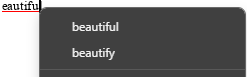
Using the context menu
- Right-click the underlined word.
- Select one of the suggested corrections.
- If you do not want to change the word, choose another action instead:
- Ignore skips this occurrence
- Ignore All skips the same word everywhere in the document
- Select language lets you assign a different language to that word or selection
- Add to Dictionary saves a word so it is no longer marked as misspelled. This option is available in the desktop version.
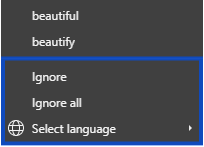
Spell Check Options
Turning spell check on or off
You can enable or disable spell check at any time.
- Open File, then Advanced Settings
- Enable or Disable Spell checking
- Click Apply if needed
Language settings
Spell check uses the language assigned to the document or selected text.
Set the document language
- Click the Set Document Language option on the status bar.
- Choose the language you want to use.
- Click OK.

Set the language for selected text
- Select the text you want to update.
- Use the language selector on the status bar.
- Choose the correct language for that selection.
Personal dictionary
If your OfficeDocs setup includes a personal or custom dictionary if available, you can use it for words that should not be marked as misspelled again, such as:
- technical terms
- company names
- product names
- abbreviations and acronyms
Ignoring certain text
Some words may be correct even if they are flagged, especially in technical or multilingual documents.
You may want to ignore:
- code samples
- commands
- names or abbreviations
- words written in another language
To skip these, right-click the word and choose Ignore or Ignore All. You can also assign the correct language to the selected text when needed.
Common spell check issues
A correct word is marked as misspelled
- Check whether the document language is correct
- Check whether the selected text uses the right language
- If available, add the word to your dictionary
A misspelled word is not flagged
- Spell check may be turned off
- The word may belong to another selected language
- Some spelling issues depend on context and may still need manual review
Too many words are flagged
- Make sure the document language is set correctly
- Check whether part of the text is using the wrong language
- Review technical terms, names, and abbreviations separately