
Settings - Domain Spam Filtering
Domain Spam Filtering and Security Settings
The Admin Panel allows you to establish default filtering and security preferences for an entire domain. These settings apply to all users unless they have configured their own personal preferences. A user's individual settings will always override these domain-wide defaults.
The spam report is designed to list emails currently held in your spam folder. Depending on your selection for the Spam Report Content setting, the report will either summarize the latest messages received within your chosen delivery frequency or display every message currently residing in the spam folder at the time the report is generated.
Accessing Filter Settings
- Go to the Admin Panel. Log in using your Admin username and password.
-
Click Filtering -> Settings in the navigation menu.
-
Use the Select Domain drop-down menu to choose the domain you wish to modify.
Filtering Preferences
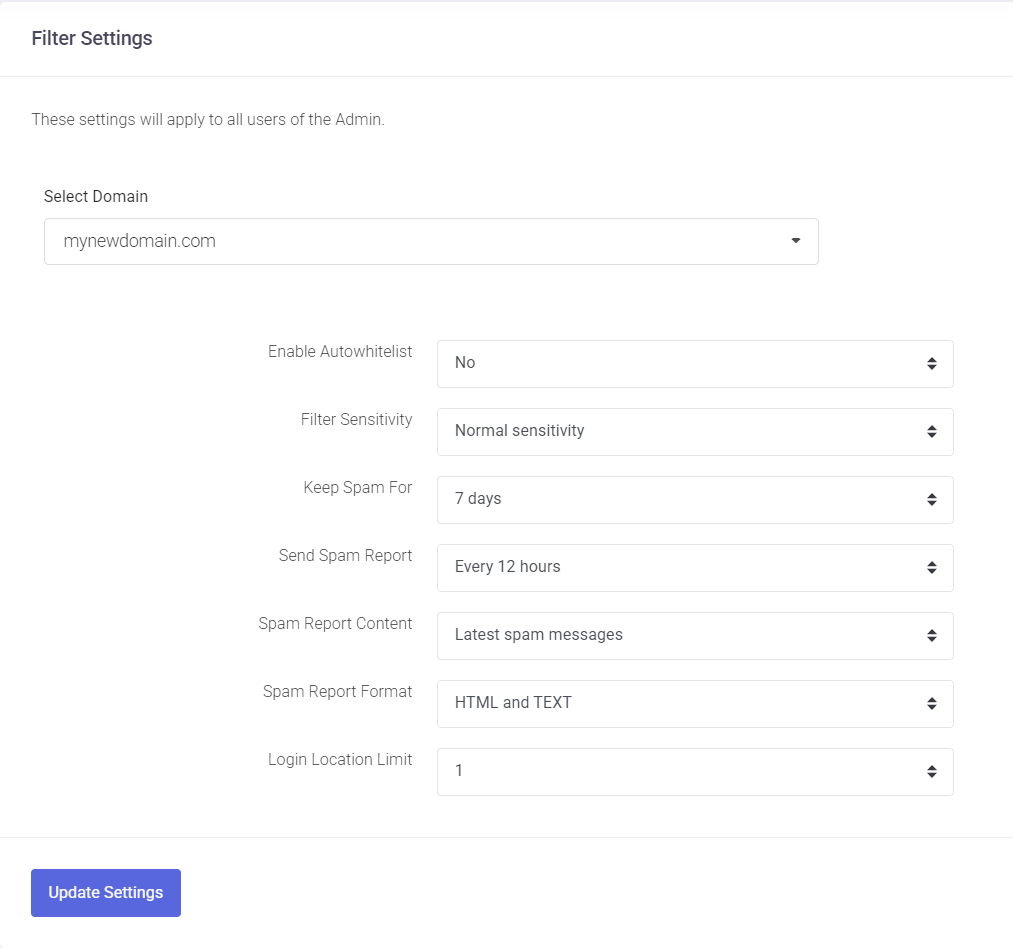
Enable Autowhitelist When enabled, the system automatically adds the email addresses of any external recipients contacted by your users to the domain-wide whitelist. While this reduces the chance of legitimate replies being marked as spam, use it with caution: if a user account is compromised and used for spamming, those recipients will be added to your whitelist automatically.
Filter Sensitivity This setting determines how aggressively the system scans for spam on a scale of 1 to 10.
-
1: Most permissive setting; more spam may reach the inbox.
-
10: Most restrictive setting; a higher volume of messages will be filtered.
-
Normal Sensitivity: This is the default setting and is recommended for most organizations.
Keep Spam For Choose how long messages remain in the Spam folder before being permanently deleted. You can set this duration between 1 and 30 days. The default retention period is 7 days.
Send Spam Report Specify how often users receive a summary of trapped spam messages in their inbox.
-
Frequency: Choose a range from every 1 hour to every 24 hours.
-
Don't Send: Select this to disable the automated reports.
Spam Report Content Determine which messages are included in the summary report:
-
Latest spam messages: Includes only the messages received since the last report was generated.
-
All spam messages: Lists all current messages residing in the user's spam folder.
Spam Report Format Select the delivery format for the report. The default is HTML and TEXT to ensure compatibility across all email clients.
Saving Your Changes Once you have adjusted the settings to your preference, click the Update Settings button at the bottom of the page to apply the changes to the domain.
Security Settings
Login Location Limit This setting helps identify and prevent unauthorized account access by monitoring geographic login patterns. For example, if an employee only works from a specific country, you can limit their account to 1 login location.
Our custom detection system reviews login attempts from new or unusual locations. Depending on the level of risk detected, the system may allow the login or block the account to protect sensitive data.