
Last Logins – Monitor User Login Activity
The Last Logins section in the Admin Panel allows you to monitor when users last accessed their mailboxes, from which IPs and locations, and what services or credentials were used.
This feature is useful for detecting unusual login patterns, troubleshooting access issues, or verifying account activity.
💡 Tip: Use this log to spot suspicious login attempts, such as logins from unexpected countries or unknown IP addresses.
How to Access the Last Logins Section:
- Log in to the Admin Panel using your Admin username and password.
- From the menu, go to Logs → Last Logins.
- Select the Domain, and set the Start Date and End Date to define the period you want to analyze.
- Optionally, use filters to narrow down the search (see below).
- Click Search to view the login activity.
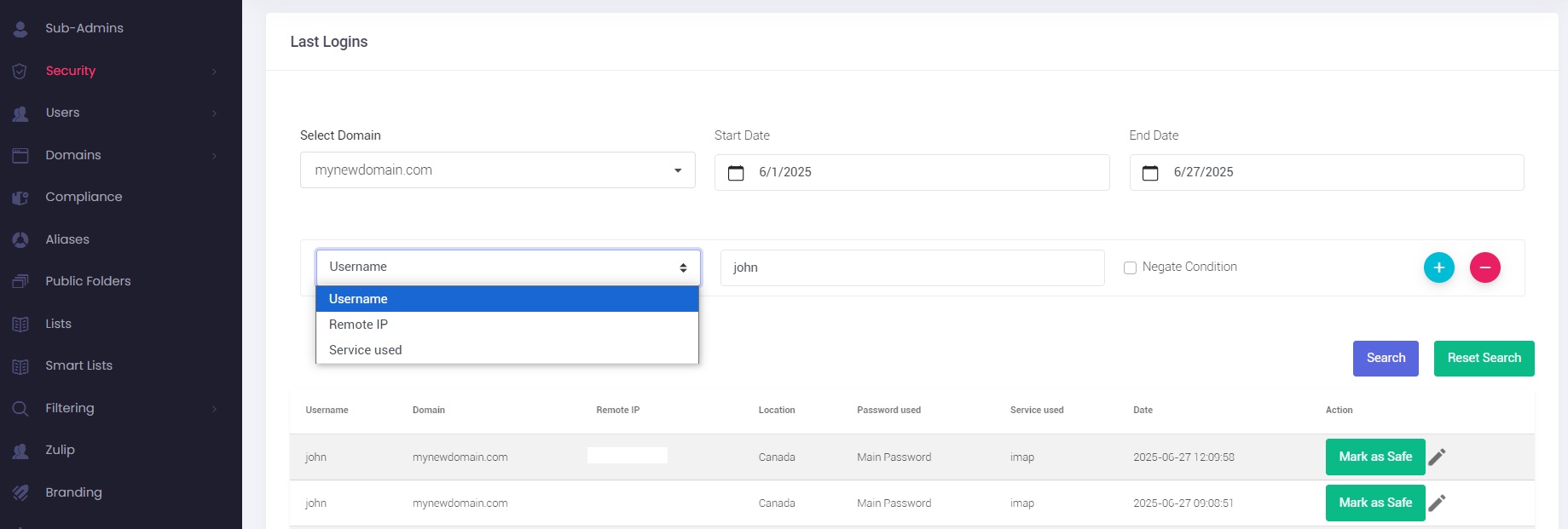
Filtering Options:
To refine your search, you can add one or more filters by clicking the + button. You can also exclude specific values by checking the Negate Condition box.
Available filters include:
-
Username – Search for logins by a specific user.
-
Remote IP – Filter by the IP address from which the login originated.
-
Service used – Filter by the protocol used (e.g., IMAP, SMTP, POP3).
Filters can be combined for more precise results.
Understanding the Results:
Each login entry includes the following information:
-
Username – The mailbox username that logged in.
-
Domain – The associated domain of the mailbox.
-
Remote IP – The IP address from which the login occurred.
-
Location – Estimated location based on IP.
-
Password used – Indicates whether the main mailbox password or an app-specific password was used.
-
Service used – The service used for the login (e.g., IMAP, SMTP, POP3).
-
Date – The exact timestamp of the login.
-
Action – You can Mark as Safe to acknowledge a known login.