
Spam filtering
Personalizing Your Spam Filter and Security Settings
You can customize your email experience by adjusting how the system handles incoming messages. While your administrator establishes domain-wide defaults, your personal settings always take priority and will override those defaults.
The spam report is designed to list emails currently held in your spam folder. Depending on your selection for the Spam Report Content setting, the report will either summarize the latest messages received within your chosen delivery frequency or display every message currently residing in the spam folder at the time the report is generated.
Accessing Your User Panel
There are two primary ways to manage your personal settings:
-
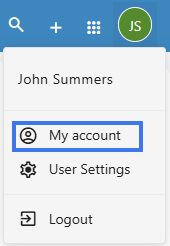
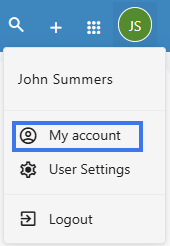
Via Webmail: click on the User icon to show the menu, and then go to User Settings. You will be automatically logged into your User Panel.
-
Direct Login: Navigate to the User Panel and log in using your full email address and current password.
Filtering Preferences
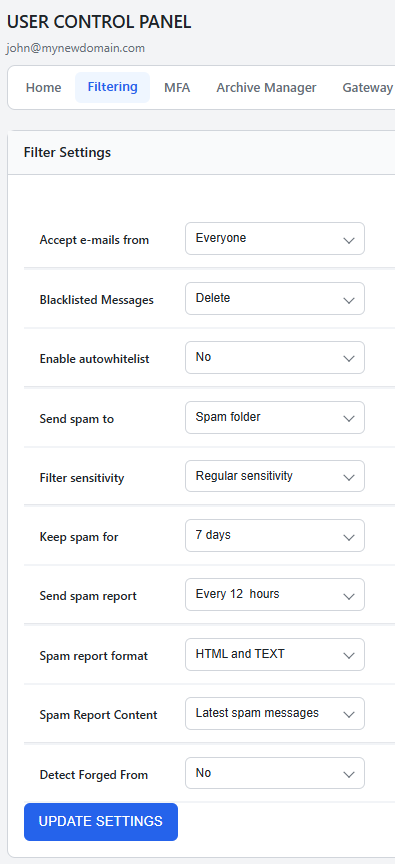
Once logged in, click FILTERING in the top navigation bar to view your options:
-
Accept e-mails from: Choose Everyone to receive all messages by default. Alternatively, select Whitelist & Address Book to permit only known contacts into your Inbox, sending everything else to the Spam folder. This would setup and exclusive "allowlist".
-
Blacklisted Messages: Decide what happens to mail from blocked senders. You can choose to move these messages to your Spam folder or select Delete to remove them automatically.
-
Enable autowhitelist: When enabled, this feature automatically adds the email address of anyone you message to your whitelist, ensuring their replies reach your Inbox. This is disabled by default in the interface but can be turned on for convenience.
-
Send spam to: Choose where identified spam is delivered. Options include the Spam folder, your Inbox (effectively disabling the filter), or Delete.
-
Filter sensitivity: Adjust the scanning threshold on a scale of 1 to 10.
-
1: Most permissive setting; more spam may reach the inbox.
-
10: Most restrictive setting; a higher volume of messages will be filtered.
-
Regular Sensitivity: This is the default setting and is recommended for most organizations.
-
-
Keep spam for: Set how many days messages remain in your Spam folder before they are permanently removed.
-
Send spam report: Specify how often you receive a summary of trapped messages. This is also helpful if you use a POP connection, which cannot view the Spam folder directly.
-
Spam report format: Select your preferred format for the email summary. HTML and TEXT is the default for maximum compatibility.
-
Spam Report Content: Determine if your report shows the Latest spam messages received since the last report or All spam messages currently in the folder.
-
Detect Forged From: This security feature checks if an incoming email claiming to be from your own address is authentic. If the message did not originate from your account, it is moved to the Spam folder to prevent spoofing. Click here for our wiki page about this topic.
Note on Spam Reports
The spam report is designed to list emails currently held in your spam folder. Depending on your selection for the Spam Report Content setting, the report will either summarize the latest messages received within your chosen delivery frequency or display every message currently residing in the spam folder at the time the report is generated.
Managing Spams and False Positives
Email accounts include a folder titled Spam where filtered messages are stored. You can view this folder via Webmail or an IMAP-configured email client.
The automated Spam Reports are an efficient way to manage "false positives" (legitimate mail incorrectly marked as spam). From the report, you can:
-
Whitelist: Move the message to your Inbox and ensure the sender is never blocked again.
-
Deliver: Move the message to your Inbox once without whitelisting the sender.
-
Delete: Permanently remove the selected messages.
- Blacklist: This helps minimize future spam by deleting the message and blocking the sender. Use caution with this option, as spammers often forge addresses; you can verify the sender by rolling your mouse over the From field to see the actual address.
If you frequently encounter undetected spam or messages that are incorrectly identified, please reach out to our support team for assistance.
Tips for Reducing Spam
-
Use Email Aliases: Create an alias to use when filling out web forms or registering on sites that may expose your data. If an alias begins receiving spam, you can simply remove it without affecting your primary address.
-
Avoid Common Usernames: Spammers often target common names like "John." Using a format such as
firstname.lastname@domain.comis more secure. -
Never Reply to Spam: Responding confirms your address is active and may accidentally whitelist the spammer through the Autowhitelist feature.
-
Hide Your Address: Instead of publishing your email address directly on a website, use a contact form. If you must list your address, consider encoding it to prevent automated harvesting tools from finding it.