
Admin Settings
Managing Global Admin Settings
Accessing Admin Settings
To modify these settings:
-
Log in to your Admin Panel.
-
Navigate to Settings in the main menu.
-
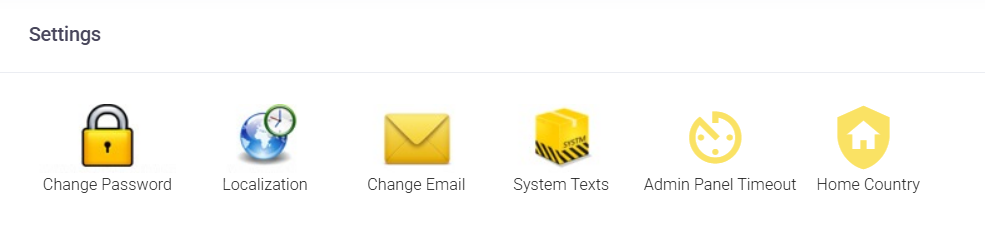
You will see several icons representing different administrative controls.
Security and Account Management
Keep your administrative access secure and up to date.
-
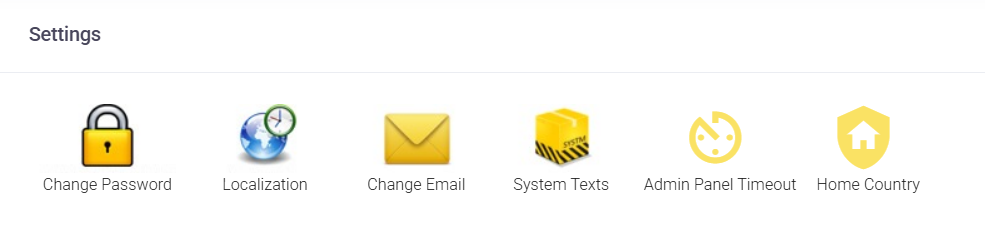
Change Password: Use this section to update your Admin Panel login password regularly to maintain high security for your infrastructure.
-
Change Email: Update the primary administrative email address. This address is critical as it is used for password reset requests and official system notifications.
-
Admin Panel Timeout: For security, you can define how many minutes of inactivity are allowed before the system automatically logs you out of the Admin Panel.
System-Wide Defaults and Localization
These settings allow you to establish a consistent experience across all domains and accounts under your management.
-
Localization: Set the default timezone and date format at the Admin level. Once saved, these preferences will automatically apply to all domains and users in your system.
-
Home Country: This feature helps us better detect and prevent unusual or fraudulent login attempts. You can set this globally for all domains, or choose to configure it individually for specific domains if your clients are located in different regions.
Automated Communications
Personalize how the system interacts with your end-users.
-
System Texts: This section allows you to customize the content of automated emails sent by the server. You can update the text for various alerts, such as mailbox quota warnings, to ensure the messaging aligns with your brand voice or language requirements.