
User Trusted Login IPs
Maintain seamless access for your users while keeping your infrastructure secure. The User Trusted Login IPs feature allows you to whitelist specific IP addresses used by your team or clients, ensuring that legitimate logins from known locations are never interrupted. By marking an IP as "Safe," you prevent future security incident warnings for that specific source, allowing for a smoother user experience without compromising enterprise-grade protection.
Manage User Trusted Login IPs
To manage the User trusted login IPs for an account:
- Log in to the Admin Panel
- From the menu, go to Security → User Trusted Login IPs
- Select the domain from the dropdown and click on the Search button.
- A list of all trusted IPs that were previously Marked as Safe will show.
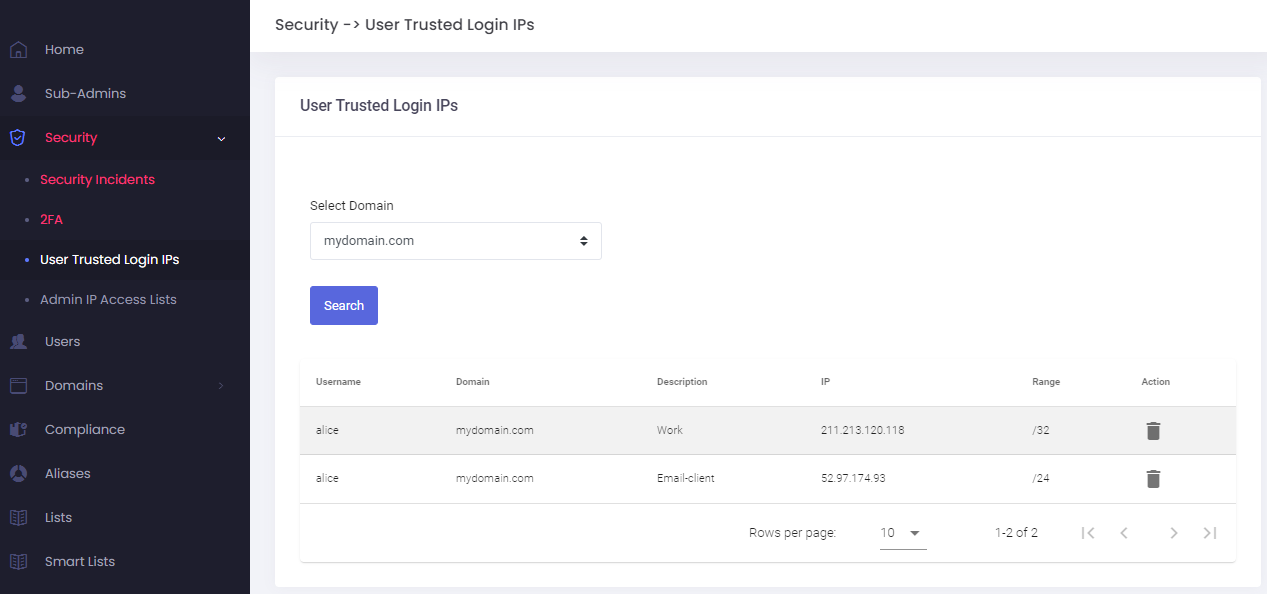
- You can delete an entry at anytime
- To add a new trusted IP, follow these steps to mark IP as safe.
Checking and Unblocking IP Addresses
If a user is unable to connect, it may be because their IP address has been temporarily restricted due to security protocols. You can check the status of an IP and mark it as "Safe" directly from the management panel.
How to Check if an IP is Blocked
Adding an IP to the Safe List
When you choose to mark an IP as safe, a configuration window will open. To ensure the security of the account, please provide the following details:
- Domain & Username: Select the specific domain and user account this rule should apply to.
- Description (Required): Provide a brief note (minimum 2 characters) explaining why this IP is trusted, such as the office location or the specific service name.
- Range: Choose whether to whitelist only the specific Remote IP (/32) or the entire network range.
- Single IP (/32): Use this for individual users working from a fixed location, like a home office with a static IP. It is the most secure option because it only whitelists one specific address.
- IP Range (Network): This is ideal for larger corporate offices where many employees share a single network. Mark the whole network as safe to prevent repeated blocks for different users in the same building.
Security Note: Only whitelist an entire range if you are certain the network is private and managed. Whitelisting large public ranges can leave accounts vulnerable to unauthorized access from other users on that same network.
Once submitted, logins from this IP will no longer trigger security warnings or connection blocks for that user.