
Recovering Your Emails: Archive vs. Gateway Manager
Mistakes happen. Whether you accidentally emptied your trash or a filter rule moved a message to a mystery location, we have two powerful tools to help you get your data back.
Think of these as your "Safety Nets." While they look similar, they serve different purposes.
Which tool should I use?
| Feature | Best For... | How it works |
| Archive Manager | Restoring a message from a specific folder or a snapshot of your mailbox from a previous day. | A daily "photo" of your entire mailbox. |
| Gateway Archive | Finding an incoming email from the last 30 days, regardless of which folder it ended up in. | A log of every external message received. |
1. Archive Manager (Mailbox Snapshots)
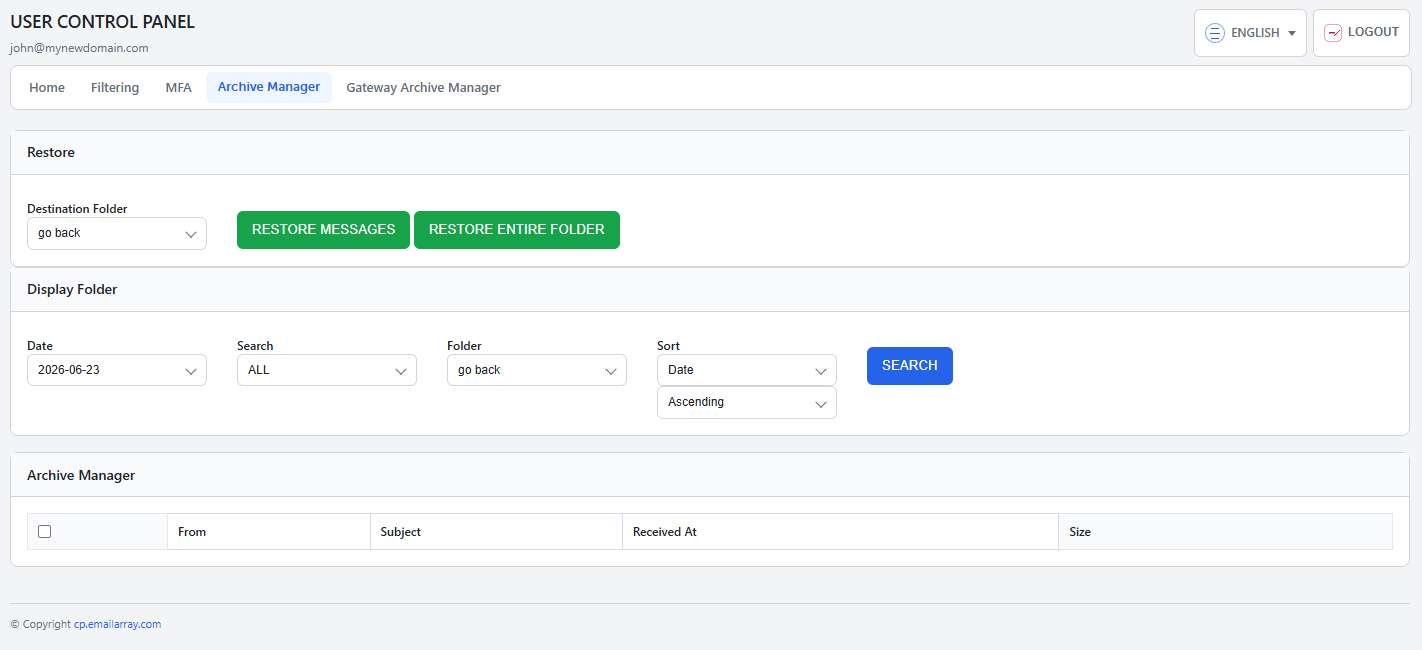
The Archive Manager allows you to look back at your mailbox exactly as it appeared on a specific date. This is best if you know exactly where the email was before it went missing.
How to restore messages:
Go to the User Panel and log in using your full e-mail address ( user@domain.com ) and your current e-mail password.
Go to Archive Manager.
-
Choose your date: In the Display Folder section, select the date you’d like to view.
-
Select the folder: Choose the folder you want to inspect. The Archive Manager section will automatically load a list of every message that existed in that folder on that specific day.
-
Find your email: Use the search and sort tools to narrow down the list.
-
Select and Restore:
-
Check the box next to the message(s) you need.
-
Scroll back to the Restore section at the top.
-
Choose a destination: You can restore the email to its original folder or a temporary "Troubleshooting" folder to keep things organized.
-
Click Restore Messages.
-
Select Folder: The folder menus act as a hierarchy navigator. You can click into subfolders to go deeper into your mailbox structure. If you need to return to a previous level, simply select the "go back" option at the top of the menu to move up one level.
Restore Entire Folder: You can also restore a full folder at once. Note that this may create duplicates of emails that are already in your mailbox.
2. Gateway Archive Manager (30-Day Incoming Log)
The Gateway Archive is your "Master Log" for incoming mail. If you received an email in the last 30 days but can't find it (perhaps because a rule moved it or you don't remember the folder) look here.
How to restore messages:
Go to the User Panel and log in using your full e-mail address ( user@domain.com ) and your current e-mail password.
Go to Gateway Archive Manager.
-
Select the date: In the Display Folder section, pick the day the email was received. A list of all incoming mail for that day will load below.
-
Filter your results: Use the search bar to find the specific sender or subject line.
-
Select and Restore:
-
Select your messages.
-
Scroll up to the Restore section.
-
Select your destination folder.
-
Click Restore Messages.
-
Select Folder: The folder menus act as a hierarchy navigator. You can click into subfolders to go deeper into your mailbox structure. If you need to return to a previous level, simply select the "go back" option at the top of the menu to move up one level.
Note: Messages restored from the Gateway bypass your existing filters and rules, delivering them straight to your chosen folder.
Seeing a "Could not get folder list" error? Don't worry! This just means the system is currently indexing your folders. Please wait about 10 minutes and try again.