
Sharing Email Folders
Folder sharing allows you to give colleagues access to specific folders in your mailbox. You can grant "Read-only" access for viewing or "Full" access for those who need to manage and reply to messages on your behalf.
How to Share a Folder
Option 1: From the Webmail (Recommended)
- Go to the Webmail. Log in using your full e-mail address and your current e-mail password.
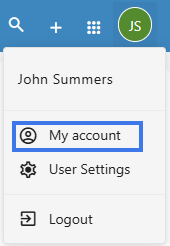
Click on the User icon from the top right to activate the menu. Then click on My account -
Access Settings: Click on the User icon in the top-right corner and select My account.
-
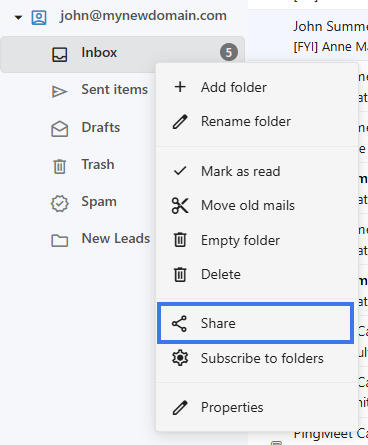
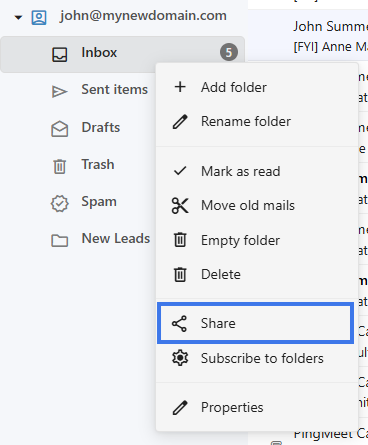
Right-Click to Share: In the folder list on the left-hand side, find the folder you wish to share and right-click on it.
-
Open Share Settings: Select Share from the context menu.
-
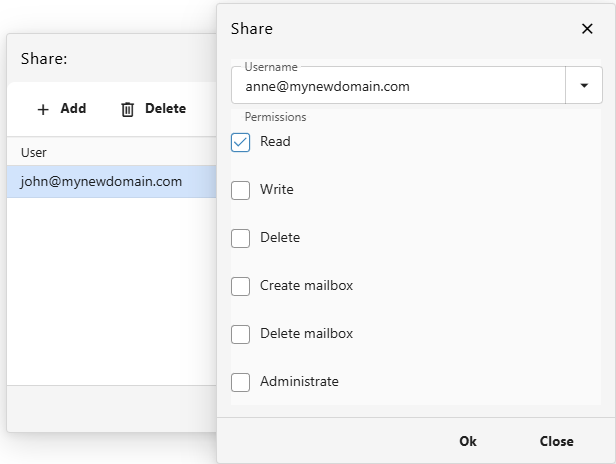
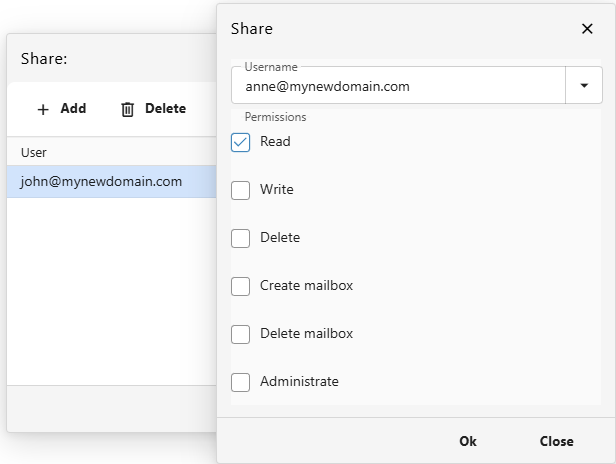
Add a new User and sharing permissions:
-
Click the Add button.
-
Select the user you wish to share with from the list.
-
Choose the appropriate Permissions (see the guide below).
-
Click on Ok button to save.
-
Option 2: From the User Panel
-
Visit the User Control Panel (https://cp.emailarray.com). Log in using your full email address and password.
-
Click on the Folders icon.
-
Click the Edit (pencil) icon next to the folder you want to share.
-
Click New Share, select the user and their permissions, and click Share.
Managing or Removing Permissions
From the User Panel
-
In the User Control Panel, click the Folders icon.
-
Click the Edit (pencil) icon next to the folder.
-
Click the "-" (minus sign) next to the user you wish to remove.
Understanding Permissions
| Level | What can they do? |
| Read-only | Can see and read messages, but cannot move, delete, or mark them as read/unread. |
| Read/Write | Can read, move, and flag messages. |
| Full | Can read, write, delete, and manage the folder's contents entirely. |
Don't Lock Yourself Out: By default, your own account has "Full" permissions. Do not remove your own permissions from the list, or you will lose access to that folder and will need an administrator to restore it for you.