Folder Cleanup Rules
Folder Cleanup allows you to automate your mailbox maintenance by automatically deleting items older than a specific number of days. This is a powerful tool for managing storage and keeping folders like Trash or Spam from accumulating excessive data.
System Default: Please note that by default, the Trash folder is automatically emptied of all emails older than 30 days. You can create additional rules to manage other folders or adjust this timeframe as needed.
1. Set up Folder Cleanup from Webmail
Managing your cleanup rules directly in Webmail is the most efficient way to maintain your folders.
-
Log into the Webmail using your full email address and current password.
-
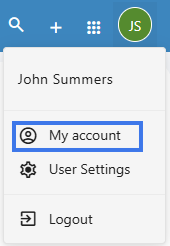
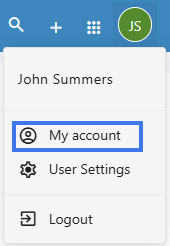
Click on the User icon in the top right corner to open the menu and select My account.
-
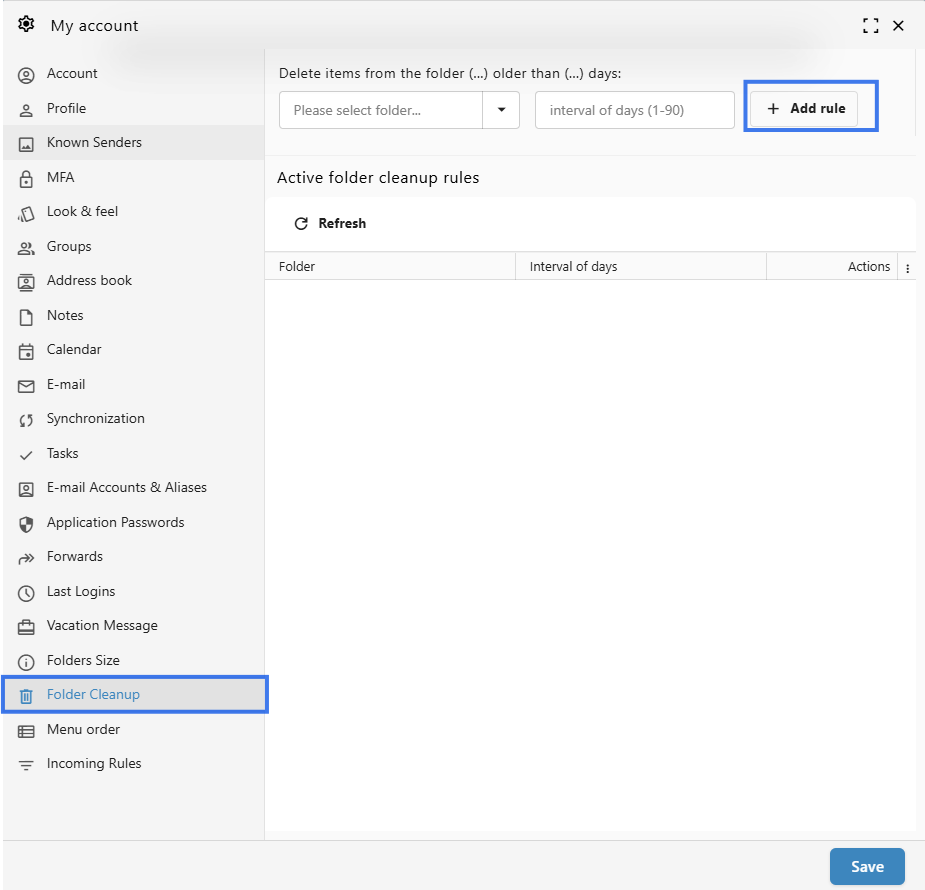
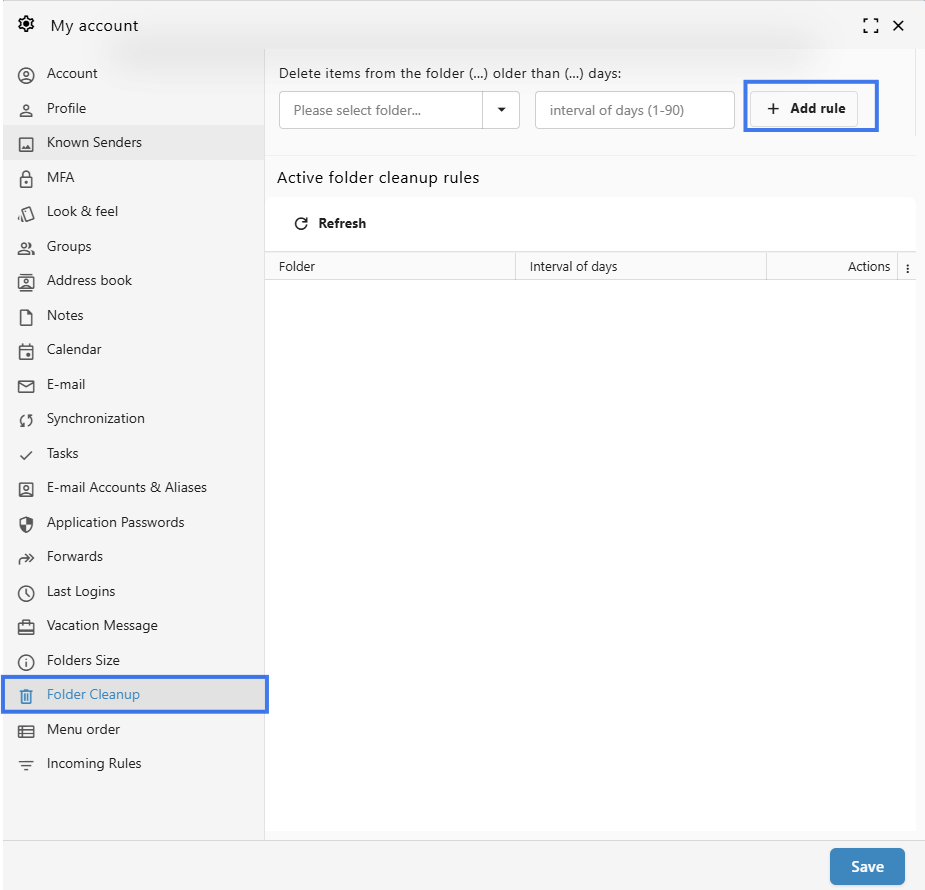
In the sidebar on the left, click on Folder Cleanup.
-
Add a new rule: * Select the Folder you wish to clean (e.g., Trash, Monitor, or Inbox).
-
Enter the Interval of days (1-90). Items older than this number will be permanently deleted.
-
Click + Add rule.
-
-
Manage existing rules: Your active rules are listed at the bottom.
-
Edit: Hover over the Actions column and click the pencil icon to change the number of days for an existing rule.
-
Delete: Hover over the Actions column and click the delete (trash) icon to remove a rule and stop automatic cleanup for that folder.
-
2. Set up Folder Cleanup from the User Panel
You can also manage these rules through the central User Control Panel.
-
Go to the User Panel.
-
Log in using your full email address and current password.
-
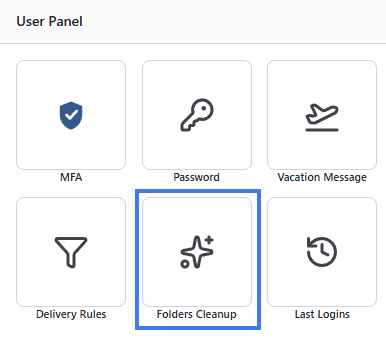
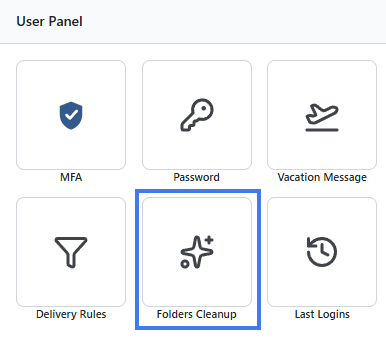
Click on the Folders Cleanup icon.
-
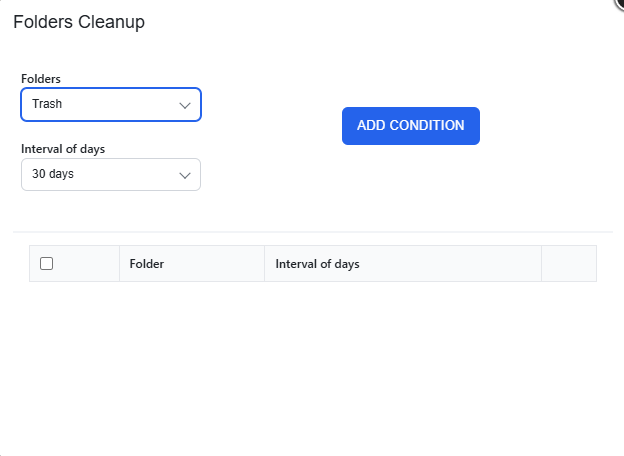
Add a condition:
-
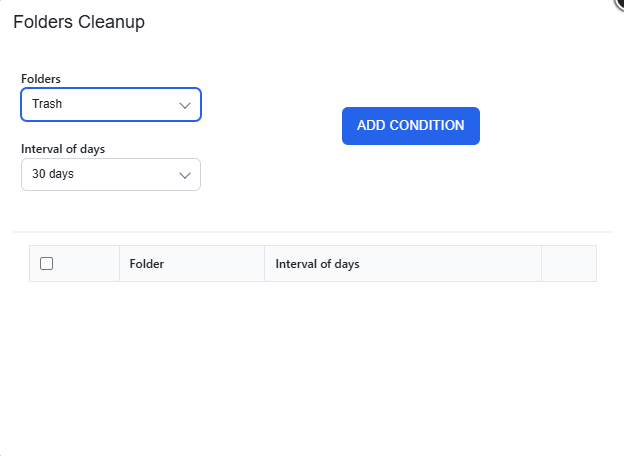
From the Folders dropdown, select the desired folder.
-
From the Interval of days dropdown, select the timeframe (up to 120 days depending on your account configuration).
-
Click the ADD CONDITION button.
-
-
Your new rule will appear in the list below. You can use the icons in the right-hand column to edit the interval or remove the condition entirely.