
Vacation Message (Autoresponder)
Setting Up Your Vacation Message (Autoresponder)
A vacation message automatically notifies people that you are away or unavailable. To prevent email loops and technical issues, the system sends one automatic reply per sender every hour.
How to Enable Your Vacation Message
Option 1: From the Webmail (Recommended)
- Go to the Webmail. Log in using your full e-mail address and your current e-mail password.
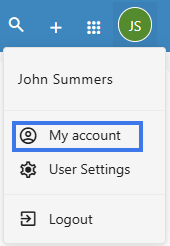
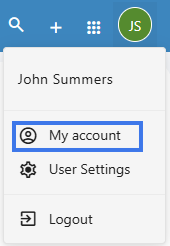
- Click on the User icon from the top right to activate the menu. Then click on My account
-
Access Settings: Click on the User icon in the top-right corner and select My account.
-
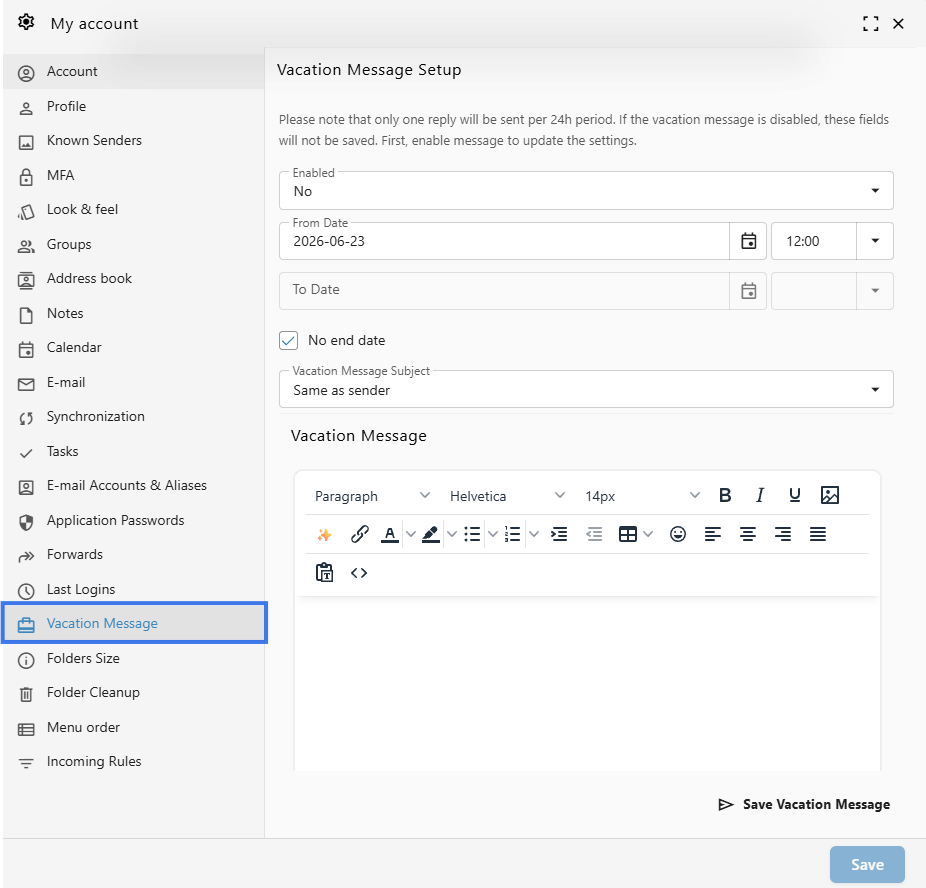
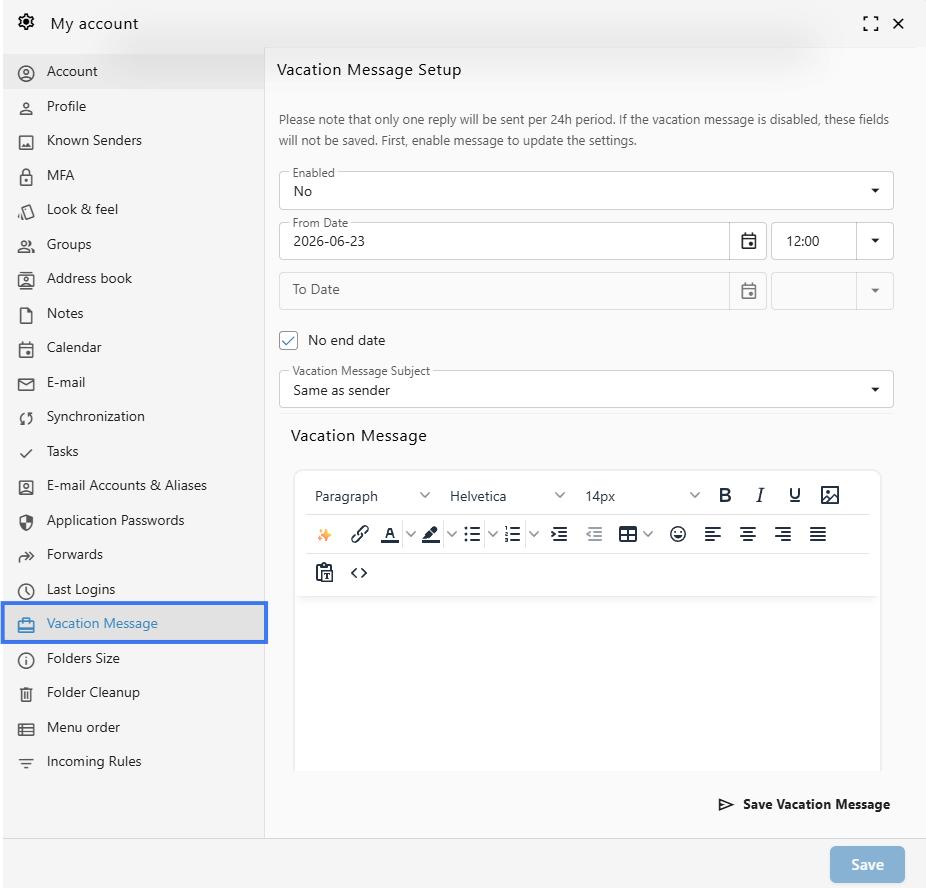
Configure: Navigate to the Vacation Message tab.
-
Set the Schedule:
-
Ensure the Status is set to Enabled.
-
Choose a From and To date. If you leave these blank, the message will remain active until you manually disable it.
-
-
Write your Message:
-
Enter your text in the Vacation Message box.
-
-
Save: Click the Save Vacation Message button.
Option 2: From the User Panel
-
Visit the User Control Panel (https://cp.emailarray.com).
-
Log in using your full email address and password.
-
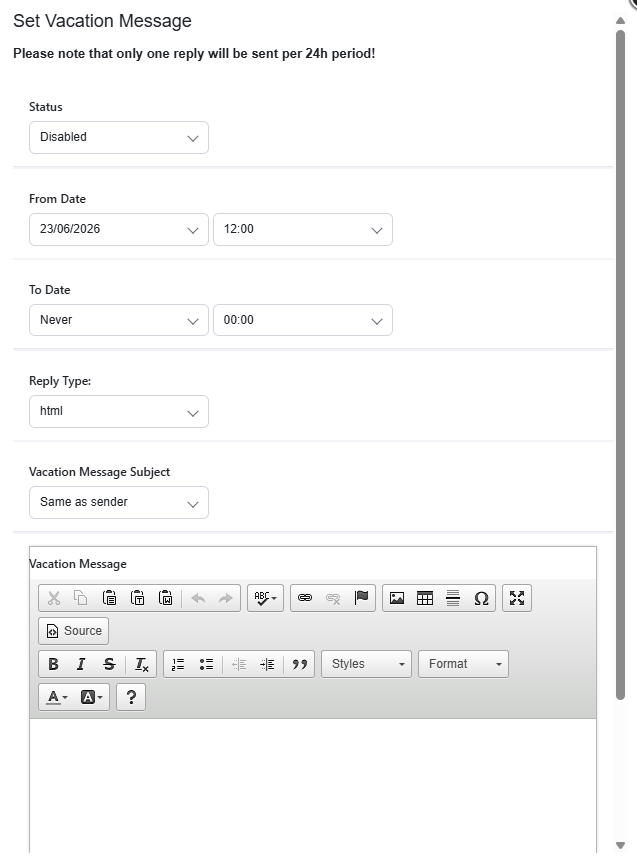
Click the Vacation Message icon (the envelope with an arrow).
-
Set the Schedule:
-
Ensure the Status is set to Enabled.
-
Choose a From and To date. If you leave these blank, the message will remain active until you manually disable it.
-
-
Write your Message:
-
Enter your text in the Vacation Message box.
-
- Save: Click the Update button.
How to Disable Your Vacation Message
Option 1: From the Webmail (Recommended)
-
In the Webmail, go to User Icon > My account > Vacation Message.
-
Switch the Enabled to No
-
Click Save.
Option 2: From the User Panel
-
In the User Control Panel, click the Vacation Message icon.
-
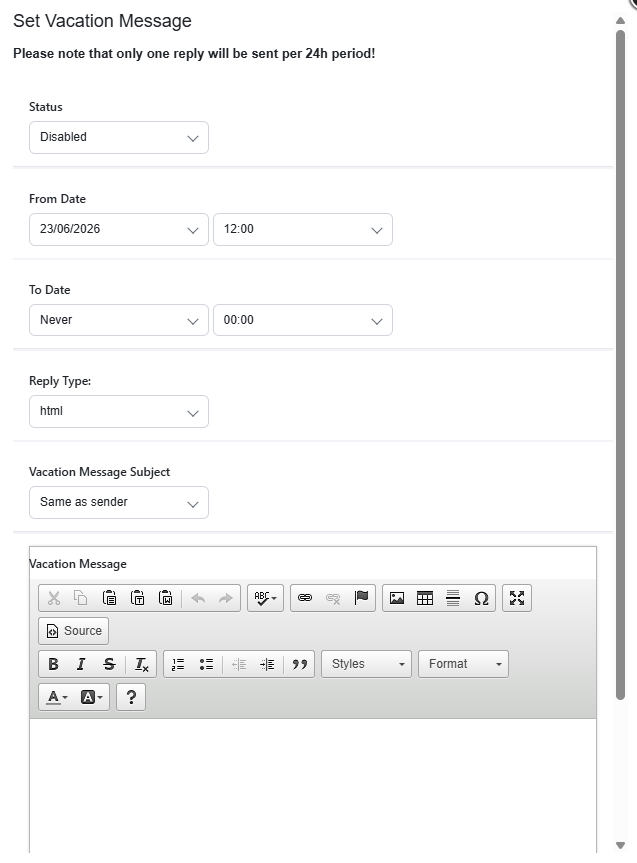
Select Disabled from the Status menu.
-
Click Update.
Pro-Tip: If you are using the date range feature, your vacation message will automatically stop sending at the end of your "To" date, so you don't have to worry about turning it off the moment you get back!