Forward Messages

Incoming e-mail messages to your account can automatically be forwarded to other accounts while also delivering a copy locally. E-mails detected by our server as spam are not forwarded.

Add a Forward

Option 1: from the Webmail
  • Go to the Webmail
  • Log in using your full e-mail address and your current e-mail password
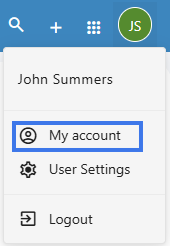
  • Click on the User icon from the top right to activate the menu. Then click on My account 

image.png


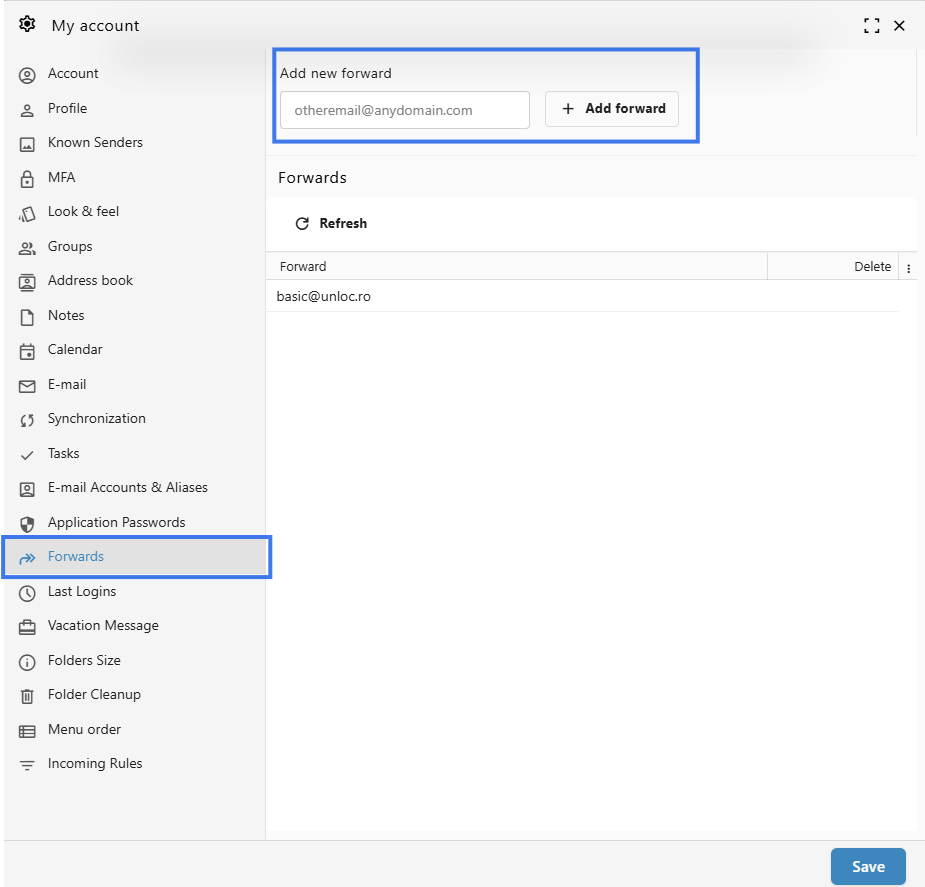
  • In the Forwards tab, fill in the Email address field with the destination e-mail address and click on the Add forward button.


image.png

Option 2: from the User Panel

  • Visit the User Control Panel (https://cp.emailarray.com)

  • Log in using your full e-mail address ( user@domain.com ) and current password.
  • Click on Forwards icon (envelope with arrow)
  • Enter the e-mail address where you wish to forward incoming messages
  • Click on the Add Forward button

Remove a Forward

Option 1: from the Webmail
  • Go to the Webmail
  • Log in using your full e-mail address and your current e-mail password
  • Click on the User icon from the top right to activate the menu. Then click on My account 

     image.png

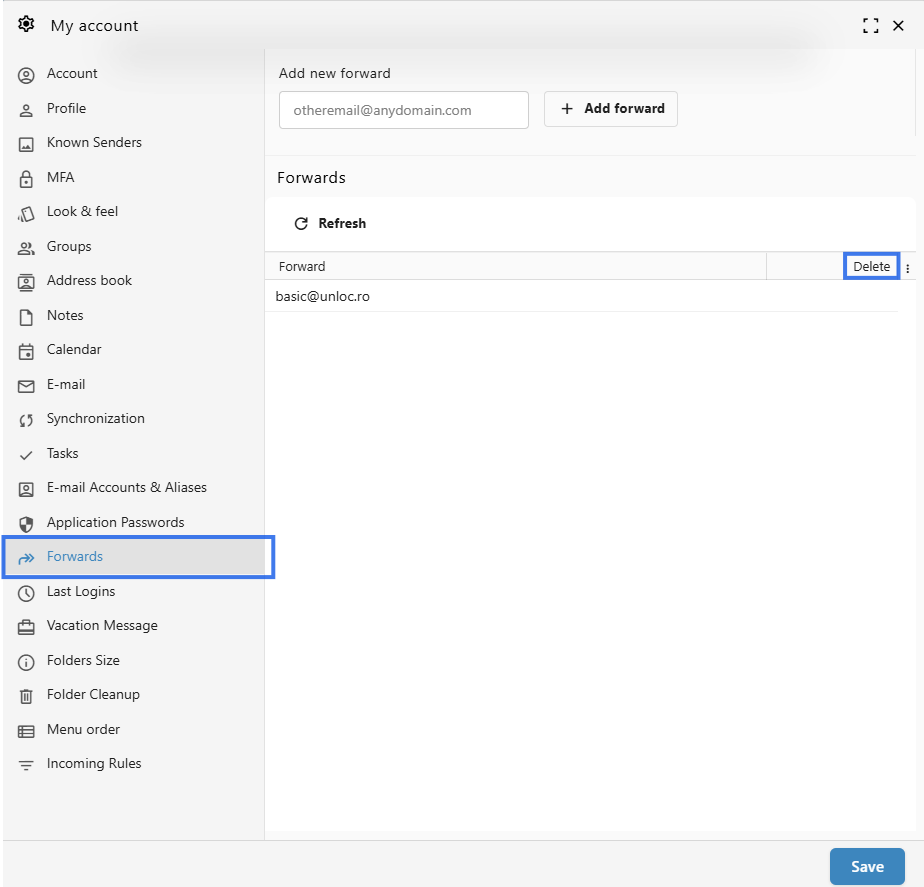
  • In the Forwards tab, hover over the desired forward and click on the Delete icon.


image.png

Option 2: from the User Panel

  • Visit User Control Panel (https://cp.emailarray.com)

  • Log in using your full e-mail address ( user@domain.com ) and current password.
  • Click on Forwards icon (envelope with arrow)
  • Click on the "-" icon (minus sign) next to the forward you wish to remove