# Recovering Your Emails: Archive vs. Gateway Manager

Mistakes happen. Whether you accidentally emptied your trash or a filter rule moved a message to a mystery location, we have two powerful tools to help you get your data back.

Think of these as your "Safety Nets." While they look similar, they serve different purposes.

#### Which tool should I use?

<table data-path-to-node="10" id="bkmrk-feature-best-for...-"><thead><tr><td>**Feature**</td><td>**Best For...**</td><td>**How it works**</td></tr></thead><tbody><tr><td><span data-path-to-node="10,1,0,0">**Archive Manager**</span></td><td><span data-path-to-node="10,1,1,0">Restoring a message from a specific folder or a snapshot of your mailbox from a previous day.</span></td><td><span data-path-to-node="10,1,2,0">A daily "photo" of your entire mailbox.</span></td></tr><tr><td><span data-path-to-node="10,2,0,0">**Gateway Archive**</span></td><td><span data-path-to-node="10,2,1,0">Finding an incoming email from the last 30 days, regardless of which folder it ended up in.</span></td><td><span data-path-to-node="10,2,2,0">A log of every external message received.</span></td></tr></tbody></table>

## 1. Archive Manager (Mailbox Snapshots)

The Archive Manager allows you to look back at your mailbox exactly as it appeared on a specific date. This is best if you know exactly where the email was before it went missing.

### How to restore messages:

Go to the **[User Panel](https://cp.emailarray.com/)** and log in using your **full e-mail address** ( user@domain.com ) and your current e-mail **password**.   
Go to **Archive Manager**.

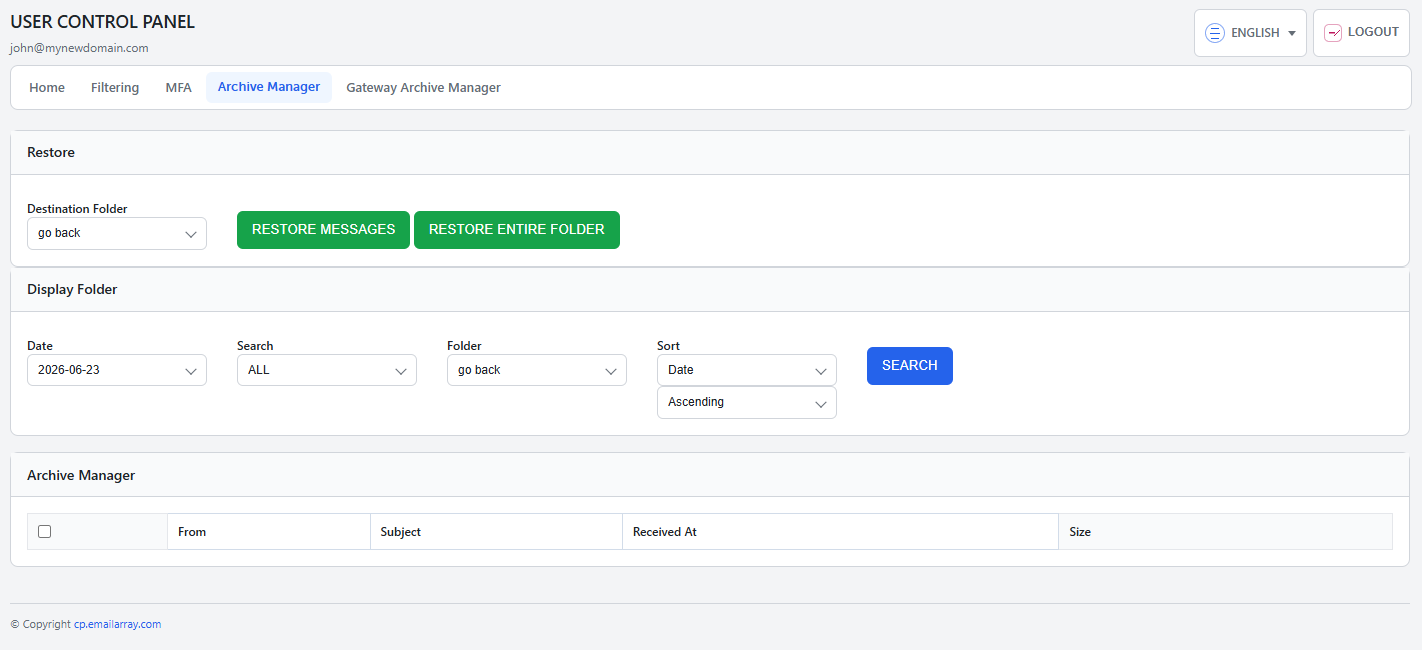
1. **Choose your date:** In the **Display Folder** section, select the date you’d like to view.
2. **Select the folder:** Choose the folder you want to inspect. The **Archive Manager** section will automatically load a list of every message that existed in that folder on that specific day.
3. **Find your email:** Use the search and sort tools to narrow down the list.
4. **Select and Restore:**
    
    
    - Check the box next to the message(s) you need.
    - Scroll back to the **Restore** section at the top.
    - **Choose a destination:** You can restore the email to its original folder or a temporary "Troubleshooting" folder to keep things organized.
    - Click **Restore Messages**.

<p class="callout info">**Select Folder**: The folder menus act as a hierarchy navigator. You can click into subfolders to go deeper into your mailbox structure. If you need to return to a previous level, simply select the **"go back"** option at the top of the menu to move up one level.</p>

<p class="callout warning">**Restore Entire Folder:** You can also restore a full folder at once. Note that this may create duplicates of emails that are already in your mailbox.</p>

[![User Panel - Archive Manager - select messages to be restored to the selected destination folders - explained.png](https://wikidev.emailarray.com/uploads/images/gallery/2026-02/scaled-1680-/user-panel-archive-manager-select-messages-to-be-restored-to-the-selected-destination-folders-explained.png)](https://wikidev.emailarray.com/uploads/images/gallery/2026-02/user-panel-archive-manager-select-messages-to-be-restored-to-the-selected-destination-folders-explained.png)

## 2. Gateway Archive Manager (30-Day Incoming Log)

The Gateway Archive is your "Master Log" for incoming mail. If you received an email in the last 30 days but can't find it (perhaps because a rule moved it or you don't remember the folder) look here.

### How to restore messages:

Go to the **[User Panel](https://cp.emailarray.com/)** and log in using your **full e-mail address** ( user@domain.com ) and your current e-mail **password**.   
Go to **Gateway Archive Manager**.

1. **Select the date:** In the **Display Folder** section, pick the day the email was received. A list of all incoming mail for that day will load below.
2. **Filter your results:** Use the search bar to find the specific sender or subject line.
3. **Select and Restore:**
    
    
    - Select your messages.
    - Scroll up to the **Restore** section.
    - Select your destination folder.
    - Click **Restore Messages**.

<p class="callout info">**Select Folder**: The folder menus act as a hierarchy navigator. You can click into subfolders to go deeper into your mailbox structure. If you need to return to a previous level, simply select the **"go back"** option at the top of the menu to move up one level.</p>

<p class="callout success">**Note:** Messages restored from the Gateway bypass your existing filters and rules, delivering them straight to your chosen folder.</p>

<p class="callout info">**Seeing a "Could not get folder list" error?** Don't worry! This just means the system is currently indexing your folders. Please wait about 10 minutes and try again.</p>