How to Change Your Super Password
Your Super Panel is the command center for your entire email infrastructure. To keep your account secure, we recommend updating your master password periodically and enabling additional security layers like Two-Factor Authentication (2FA).
How to Change Your Password
Updating your master access is a straightforward process that helps keep your account secure. It is recommended to update your password regularly to maintain enterprise-grade reliability.
-
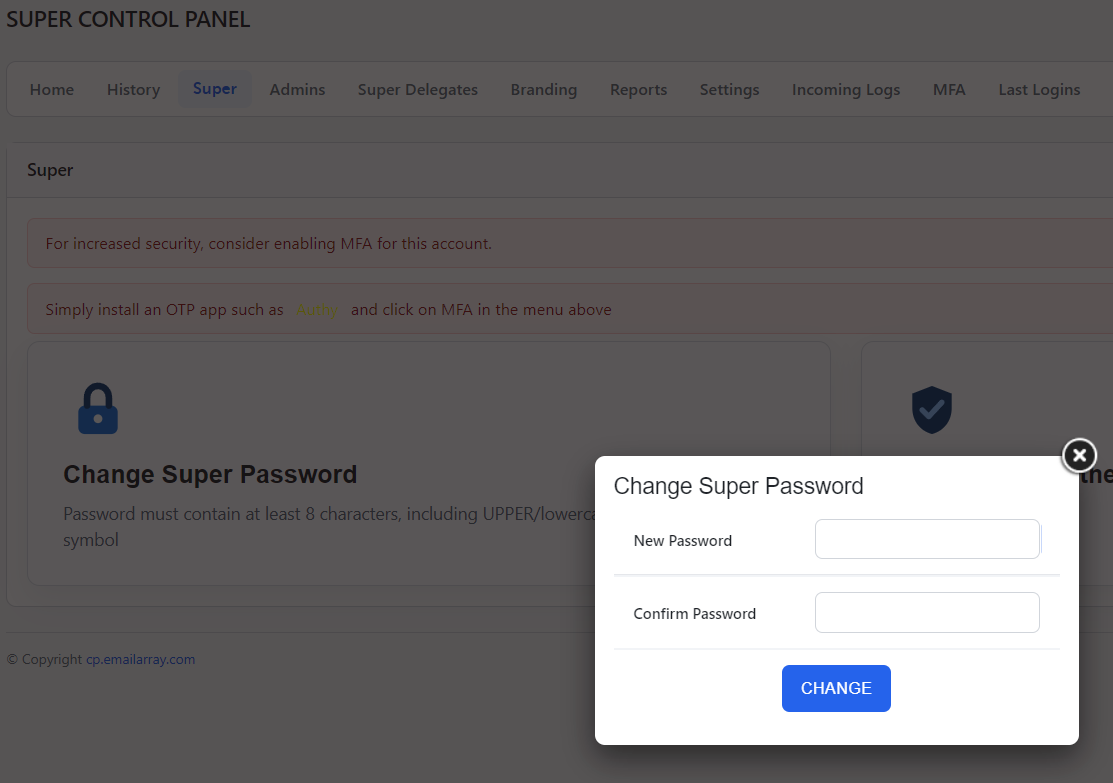
Access the Super Menu: From the Super Panel, in the main navigation menu, click on the Super tab.
-
Initiate the change: Click on the Change Super Password section.
-
Enter your new password: A pop-up window will appear. Enter your new secure password in both the New Password and Confirm Password fields.
Password requirements: To ensure your account remains protected, your new password must meet the following criteria:-
-
-
It must contain at least 8 characters.
-
It must include a mix of uppercase and lowercase letters.
-
It must include at least one number and one special symbol.
-
-
-
-
Confirm the update: Click the blue Change button to save your new settings.
How to Reset a Forgotten Password
If you have lost access to your Super Panel account, you can quickly request a reset link to regain entry. This process is managed through your recovery email address to ensure account security.
Steps to reset your password
-
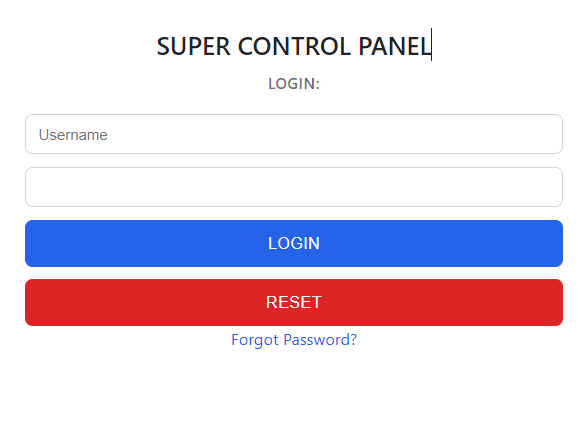
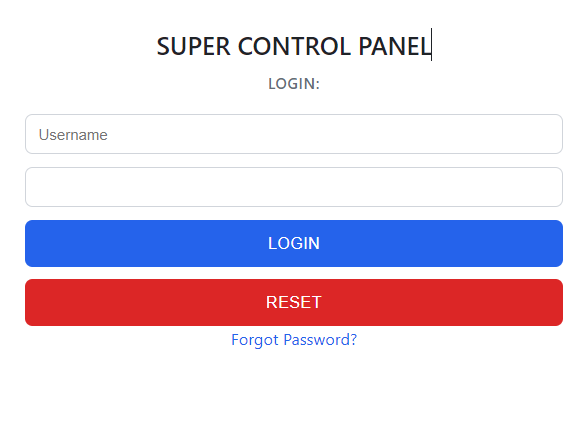
Open the login page: Navigate to your Super Panel login screen.
-
Initiate the reset: Click the Forgot Password? link located at the bottom of the login box.
-
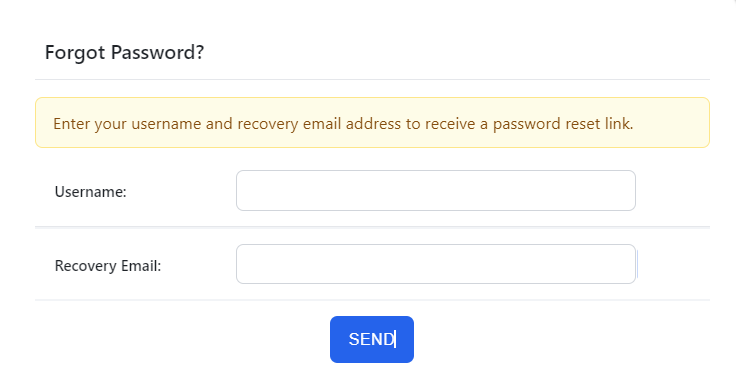
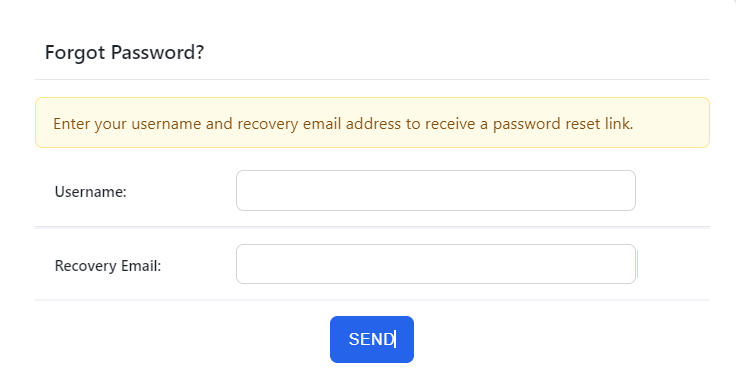
Provide your details: On the next screen, enter your Username and your registered Recovery Email address.
-
Request the link: Click the blue SEND button to receive a password reset link via email.
-
Check your inbox: Follow the instructions sent to your recovery email to choose a new secure password and log back in.
Quick Tips
-
No email? If you do not receive the reset link within a few minutes, please check your spam or junk folder.
-
Accuracy is key: The reset will only trigger if both the username and the recovery email match our records.
-
Need more help? If you cannot remember your recovery email or username, please contact our support team for assistance.
Secure Your Account with Two-Factor Authentication
A strong password is your first line of defense, but adding Two-Factor Authentication (2FA) provides a vital extra layer of security for your account.
Why use 2FA / MFA?
Even if someone manages to obtain your password, they cannot access your account without a unique, time-sensitive code generated by your mobile device. This simple step significantly reduces the risk of unauthorized access.
How to set it up
Setting up 2FA is quick and straightforward:
-
Download an authenticator app: Install a trusted app like Google Authenticator, Authy, or Microsoft Authenticator on your smartphone.
-
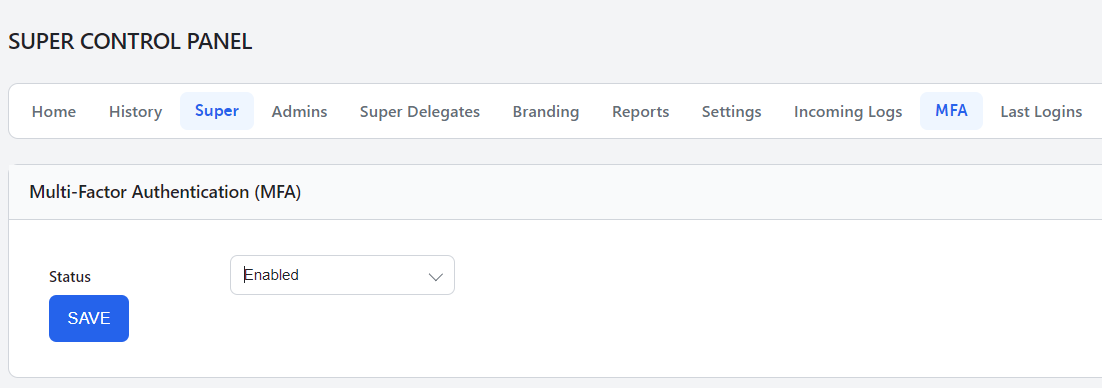
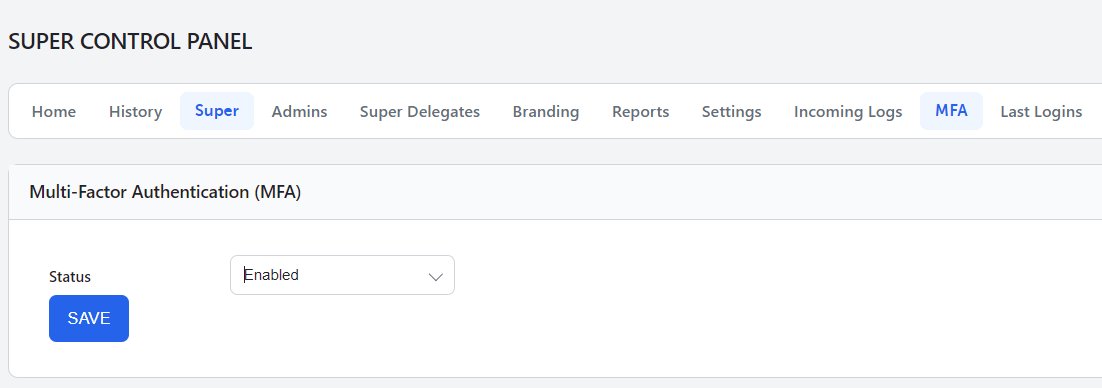
Access the MFA settings: In the top menu of your Super Panel, click on the MFA tab.
- Enable the service: In the Multi-Factor Authentication (MFA) section, change the Status to Enabled and click the Save button.
-
Scan and link: Use your authenticator app to scan the QR code that appears on your screen.
-
Verify the connection: Your app will generate a 6-digit code. Enter this into the Challenge field in the Super Panel. Click Save before the code in your app expires.