# How to Change Your Super Password
Your **Super Panel** is the command center for your entire email infrastructure. To keep your account secure, we recommend updating your master password periodically and enabling additional security layers like Two-Factor Authentication (2FA).
### How to Change Your Password
Updating your master access is a straightforward process that helps keep your account secure. It is recommended to update your password regularly to maintain enterprise-grade reliability.
1. **Access the Super Menu**: From the [Super Panel](https://cp.emailarray.com/super), in the main navigation menu, click on the **Super** tab.
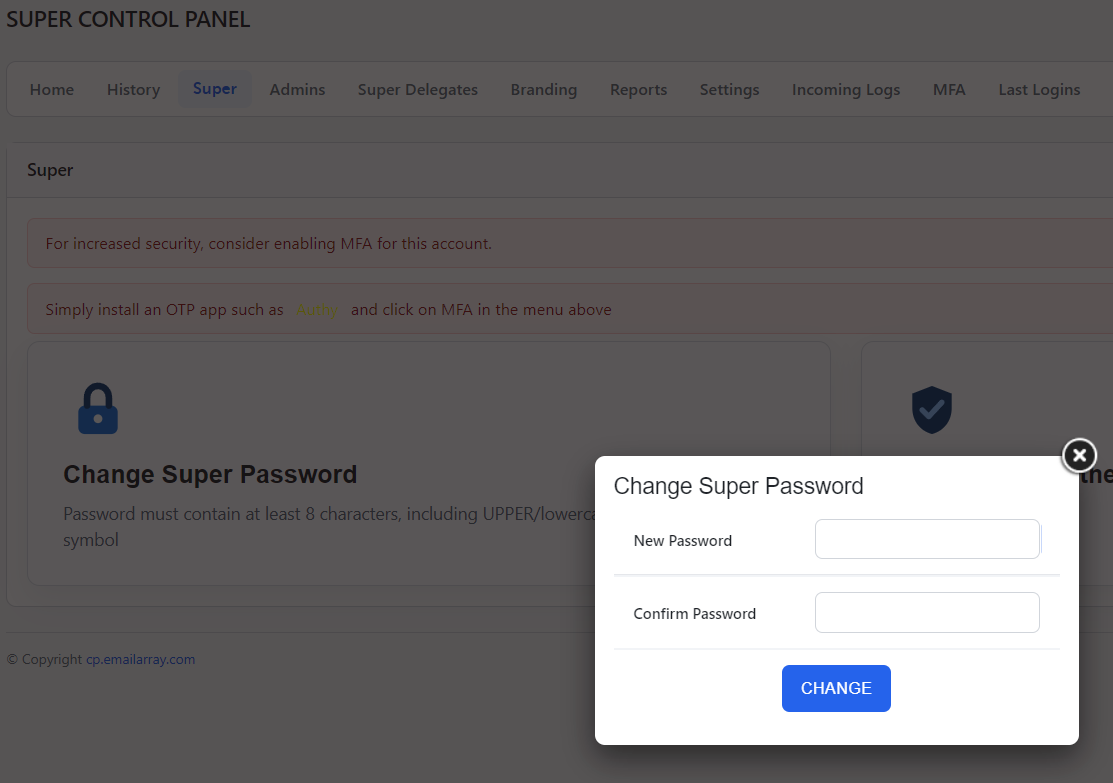
2. **Initiate the change:** Click on the **Change Super Password** section.
3. **Enter your new password:** A pop-up window will appear. Enter your new secure password in both the **New Password** and **Confirm Password** fields.
**Password requirements:** To ensure your account remains protected, your new password must meet the following criteria:
- - - It must contain at least 8 characters.
- It must include a mix of uppercase and lowercase letters.
- It must include at least one number and one special symbol.
4. **Confirm the update:** Click the blue **Change** button to save your new settings.
[](https://wikidev.emailarray.com/uploads/images/gallery/2026-04/super-panel-update-super-password.PNG)
### How to Reset a Forgotten Password
If you have lost access to your Super Panel account, you can quickly request a reset link to regain entry. This process is managed through your recovery email address to ensure account security.
####
#### Steps to reset your password
1. **Open the login page:** Navigate to your [Super Panel](https://cp.emailarray.com/super) login screen.
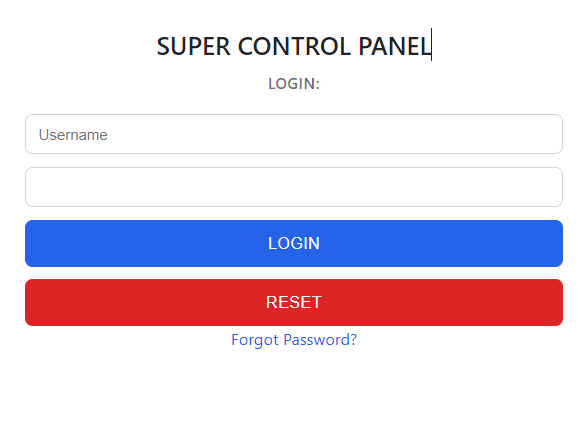
2. **Initiate the reset:** Click the **Forgot Password?** link located at the bottom of the login box.
[](https://wikidev.emailarray.com/uploads/images/gallery/2026-04/super-panel-login-screen-with-forgot-password-option.PNG)
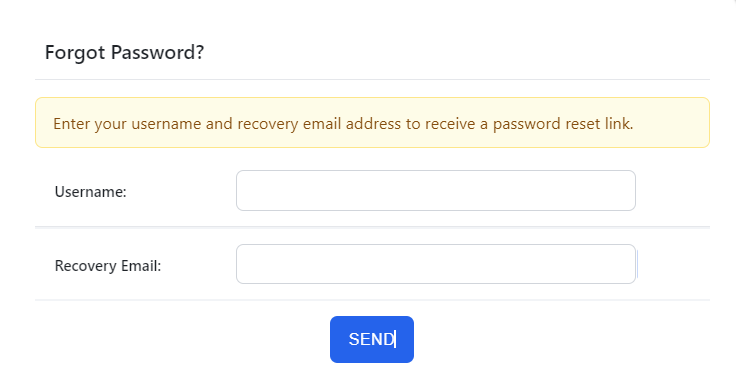
3. **Provide your details:** On the next screen, enter your **Username** and your registered **Recovery Email** address.
[](https://wikidev.emailarray.com/uploads/images/gallery/2026-04/super-panel-forgot-password.PNG)
4. **Request the link:** Click the blue **SEND** button to receive a password reset link via email.
5. **Check your inbox:** Follow the instructions sent to your recovery email to choose a new secure password and log back in.
#####
##### Quick Tips
- **No email?** If you do not receive the reset link within a few minutes, please check your spam or junk folder.
- **Accuracy is key:** The reset will only trigger if both the username and the recovery email match our records.
- **Need more help?** If you cannot remember your recovery email or username, please contact our support team for assistance.
###
###
### Secure Your Account with Two-Factor Authentication
A strong password is your first line of defense, but adding **Two-Factor Authentication (2FA)** provides a vital extra layer of security for your account.
#### Why use 2FA / MFA?
Even if someone manages to obtain your password, they cannot access your account without a unique, time-sensitive code generated by your mobile device. This simple step significantly reduces the risk of unauthorized access.
#### How to set it up
Setting up 2FA is quick and straightforward:
1. **Download an authenticator app:** Install a trusted app like Google Authenticator, Authy, or Microsoft Authenticator on your smartphone.
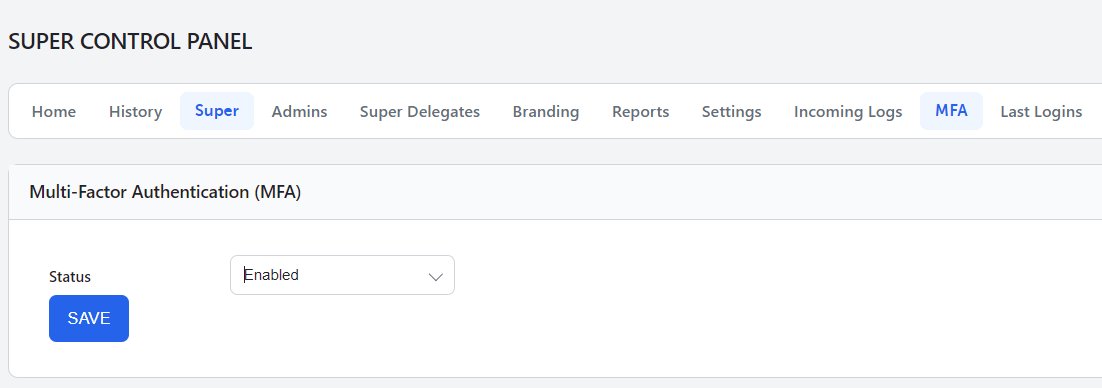
2. **Access the MFA settings:** In the top menu of your Super Panel, click on the **MFA** tab.
3. **Enable the service:** In the **Multi-Factor Authentication (MFA)** section, change the **Status** to **Enabled** and click the **Save** button.
[](https://wikidev.emailarray.com/uploads/images/gallery/2026-04/super-panel-enable-two-factor-authentication-step-1.PNG)
4. **Scan and link:** Use your authenticator app to scan the QR code that appears on your screen.
5. **Verify the connection:** Your app will generate a 6-digit code. Enter this into the **Challenge** field in the Super Panel. Click **Save** before the code in your app expires.