
Super Panel Branding for Webmail
As a Super, you have the ability to customize the visual identity of the Webmail interface for your network.
Setting your branding at the Super Panel level establishes a default theme that automatically applies to all of your Admin accounts and their associated domains.
These branding settings apply exclusively to the Webmail. They do not change the appearance of the Super Panel or the Admin Panel.
How to Update Your Network Branding
-
Log in to your Super Panel.
-
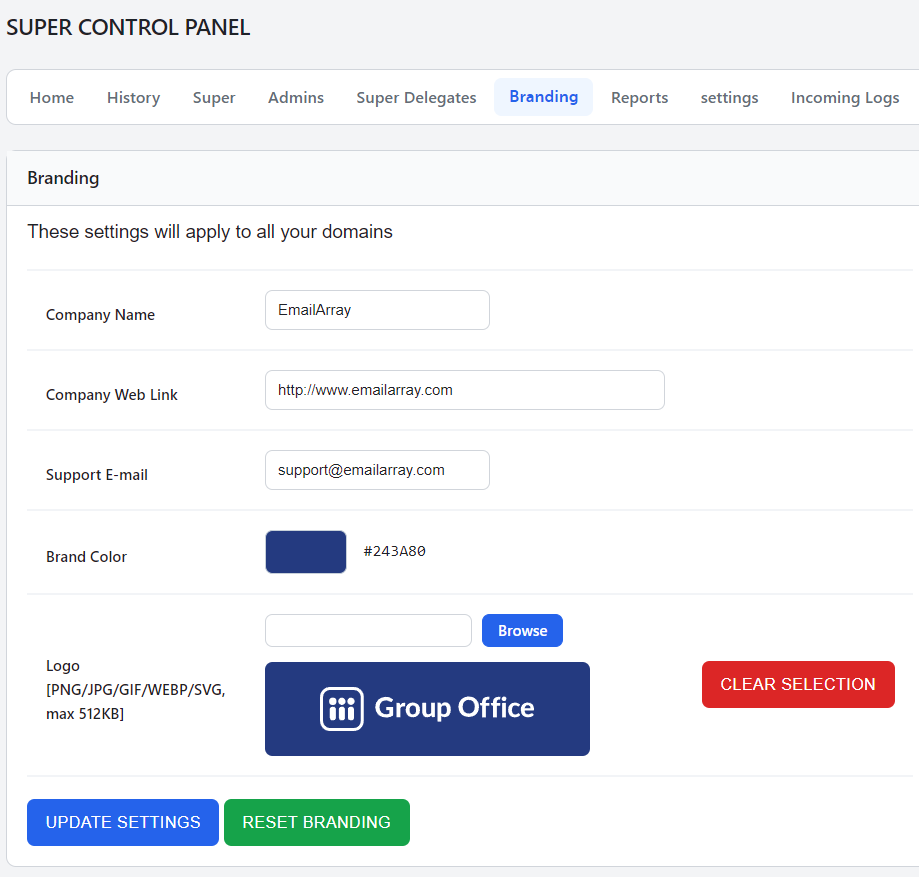
Click on Branding in the top menu bar.
-
Update the customization fields as needed:
-
Company Name: Enter your business name. This will be displayed as the Webmail page title in the browser.
-
Company Web Link: Enter the link to your primary website.
-
Support E-mail: Enter the email address used as the sender for support or spam reports.
-
Brand Color: Choose your primary brand color or enter a specific hex code (e.g., #243A80) to customize the Webmail interface.
-
Logo: Click Browse to upload your logo file (supported formats: PNG, JPG, GIF, WEBP, SVG; max size: 512KB). Use the Clear Selection button if you need to remove a previously uploaded image.
-
-
Click the Update Settings button to save your changes.
Admin Permissions and Resetting
You retain full control over whether your Admins can override your default branding. When creating a new Admin or editing an existing one in the Super Panel, you can toggle the "Can set branding" option.
-
If set to "Yes": The Admin gains the ability to define a global branding configuration for all of their domains, as well as apply unique branding at the individual domain level. If the Admin clicks "Reset Branding", their configuration will revert to the standard GroupOffice branding.
-
If set to "No": The Admin is restricted from configuring both global and domain-level branding. Their users will strictly see the branding dictated by the system hierarchy.
Branding Priority Hierarchy
When an Admin has the permission to set branding, the system determines which settings to display based on a strict order of priority. The Webmail interface will check for custom settings in the following order and apply the first one it finds:
-
Domain-Level Branding: Custom settings applied to a specific domain.
-
Admin-Level Branding: Global settings applied by the Admin for all of their domains.
-
Super Panel Branding: The default settings you establish in the Super Panel.
-
System Default: The base GroupOffice branding.