
Spam filtering
SetPersonalizing Your Spam filterFilter preferencesand Security Settings
You can logincustomize your email experience by adjusting how the system handles incoming messages. While your administrator establishes domain-wide defaults, your personal settings always take priority and will override those defaults.
The spam report is designed to thelist useremails controlcurrently panelheld insidein WebMail.your Onspam folder. Depending on your selection for the topSpam right,Report Content setting, the report will either summarize the latest messages received within your chosen delivery frequency or display every message currently residing in the spam folder at the time the report is generated.
Accessing Your User Panel
There are two primary ways to manage your personal settings:
-
Via Webmail: click
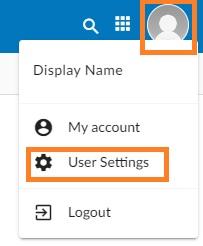
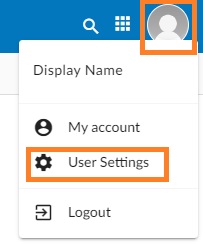
onon theControlUserpanellinkiconfollowedtobyshowthethe menu, and then go toAccessUserControl PanelSettingsbutton.. You will be automatically loggedin automatically tointo youruserUsercontrol panel, just be sure your browser doesn't block any pop ups and permit them if that happens. For Enhanced accounts, there is aControl Panellink inside WebMail, also on the top right.You can also access the user control panel directly:Go toPanel.
https://cp.emailarray.com
LogDirect Login: Navigate to the User Panel and log in using your full
e-mailemail address( user@domain.com )and current password.
Filtering Preferences
NoticeOnce youlogged can also set spam filter preferences on the domain level, to define settings for users that don't have custom preferences saved, however, our goal in this FAQ is to detail the user level preferences and management.
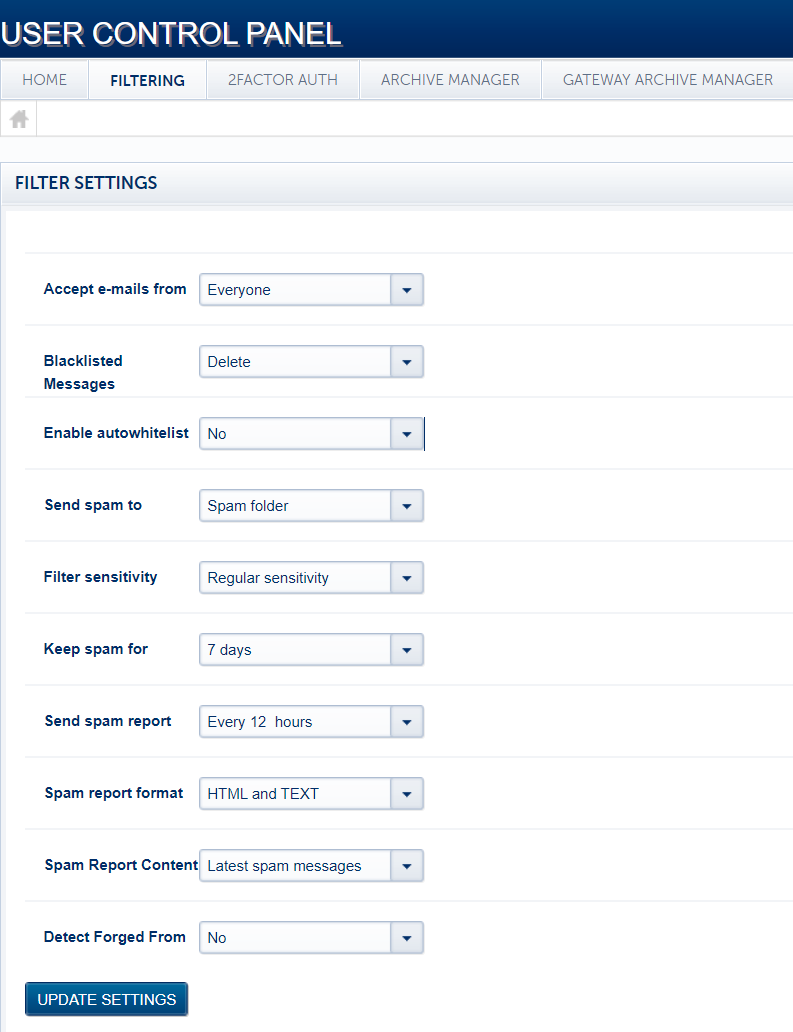
After logging in andin, click on FilteringFILTERING, onin the top bar,navigation thebar optionsto are:view your options:
-
Accept e-
mailmails from:- Choose
Everyone,EveryoneWhitelistto& Address book:This is the default option and letsreceive all messagesreachbyyou.default.FurtherAlternatively,down,selectwe mention the option that controls if you want to send spams to your spam box, but it depends on this option being set.- Whitelist & Address
book:BookThisoptionto permit onlyallowsknown contacts into your Inbox, sending everything else to the Spam folder. -
Blacklisted Messages: Decide what happens to mail from blocked senders. You can choose to move these messages
presentto your Spam folder or select Delete to remove them automatically. -
Enable autowhitelist: When enabled, this feature automatically adds the email address of anyone you message to your whitelist, ensuring their replies reach your Inbox. This is disabled by default in the
Whitelistinterface&butAddress book to reach the Inbox, the rest willcan besentturnedtoonyourforspamconvenience.folder.
System default is to accept emails from everyone, but the option to accept only from whitelisted senders and contacts in your address book is a nice alternate way of receiving practically no spams in your inbox, at the cost of having to check your spam folder or spam reports, from time to time.Blacklisted Messages: What to do with messages whose senders are in user's or domain's blacklist. The default is to delete them, but you can have them moved to your spam folder.Enable autowhitelist: All e-mails sent by this e-mail account have the recipient's address of each e-mail added to the domain's auto-whitelist. Can be dangerous if a user account is compromised, sends spams and automatically all recipients of such spams are added to the domain level auto-whitelist (accessible in Filtering > Auto-Whitelist, in the admin panel), which would require cleaning up the auto-whitelist. This option is enabled by default. -
Send spam to:
isthiscontrolsChoosewhat happens to messages which arewhere identifiedasspamSpam.- delivered.
- Options include the Spam
folder:folderPlaces, your Inbox (effectively disabling theSpamfilter),messagesorinDelete.the Spam folder Deliver to Inbox:Delivers the Spam messages to the Inbox, basically same as disabling anti-spam for this userDelete:Deletes the Spam messages
Filter sensitivity:
ThefilteringAdjustsystemthecanscanningbe adjustedthreshold on a scalefromof 1 to10,10.with10-
1: Most permissive setting; more spam may reach the
mostinbox. -
10: Most restrictive
whilesetting;1a higher volume of messages will be filtered. -
Regular Sensitivity: This is
the most permissive. We find thatthe default settingof Regular Sensitivityand isjust rightrecommended for mostusers.organizations.
being - Options include the Spam
-
Keep
Spamspam for:HowSet how many daystomessageskeep the Spam messagesremain in your Spamfolder.folder before they are permanently removed. -
Send
SpamspamE-mailreport:Report every:This definesSpecify how often youwish toreceivein your Inbox thea summary ofSpam messagestrappedovermessages.the past few hours (defaultThis iseveryalso12 hours), orhelpful if youwantuseitadisabled.POPUsingconnection, which cannot view the Spam folder directly. -
Spam report format: Select your preferred format for the email summary. HTML and TEXT is the default for maximum compatibility.
-
Spam Report Content: Determine if your report shows the Latest spam messages received
via e-mail, you can easily click onsince theitemlast report or All spam messages currently in theVia column, which opens up the user panel and lets you deliver & whitelist an email/sender, just deliver the email (deliver only) or delete it. In the From column, click on the sender to preview the e-mail in the browser.folder.Spam -
Detect Forged
FromFrom::CreatesThisasecurityrule for user whichfeature checks ifSMTPanauthenticationincominghasemail claiming to be from your own address is authentic. If the message did notoccurredoriginatewhenfromtheyoursender'saccount,e-mail address of a received e-mailit isthe same as the recipient account's address. Such messages aremoved touser'sthespamSpamfolder.folder to prevent spoofing. Click hereAfter
changes,
Note on the Update Settings button.
Managing spams
Note that e-mail accounts have a folder entitled "Spam", where messages detected by the system as spam are moved to. Such folder can be viewed via WebMail or using an email client with your account setup as IMAP, which may require right clicking the account root in your email program and subscribing to the Spam folder. If you use POP (not recommended), you should use the spam reports (described below), to release messages incorrectly detected as being spam (false positives) and you can also log o WebMail and view the Spam Folder, moving any false positive to your inbox.
Spam reports lead you to the user's control panel Spam quarantine and it is the best way to release false positives, as you can automatically deliver the email and at the same time, add the sender to your whitelist.
If you want to help us with undetected spam emails or emails incorrectly identified as spam, please contact our support. Consider also creating an account at SpamCop in order to use the system they provide to report spam.
Spam reports and Spam Quarantine
The systemspam sendsreport anis emaildesigned to your inbox, by default every 12 hours, detailing thelist emails caughtcurrently held in your spam folder,folder. soDepending you don't have to constantly checkon your spam box. The feature is extremely usefulselection for thosethe whoSpam useReport POPContent accountssetting, withthe anreport e-mailwill client,either sincesummarize the latest messages received within your chosen delivery frequency or display every message currently residing in that case, you cannot view the spam folder,folder exceptat the time the report is generated.
Managing Spams and False Positives
Email accounts include a folder titled Spam where filtered messages are stored. You can view this folder via WebMail.Webmail or an IMAP-configured email client.
The automated Spam reportsReports are sentan fromefficient way to manage "false positives" (legitimate mail incorrectly marked as spam). From the report, you can:
-
Whitelist: Move the message to your Inbox and ensure the sender
"SpamisMonitor"neverandblockedletagain.you -
onDeliver:
theViacolumn of each e-mail listed, which opens your account's control panel. Login with your email address and password and you will be directed to theSpam Quarantinesection. Click on theDisplaybutton to viewMove thelist of spams in your spam folder, being able to change the visualization criteria, such as view byDate(All or a specific date) orfilter bytext in the From, Subject or Unique ID fields.Click on theFromorSubjectcolumn on any of the listed e-mails to preview their content.When you view the list of spams in your Spam quarantine/box, notice there's a checkbox next to each e-mail, which lets you select several e-mails at once and take some action, such as "Deliver & Whitelist", which delivers amessageincorrectly detected as spamto yourinboxInbox once without whitelisting the sender. -
Delete: Permanently remove the selected messages.
- Blacklist: This helps minimize future spam by deleting the message and
allocatesblocking the sender. Use caution with this option, as spammers often forge addresses; you can verify the senderonby rolling yourwhitelist. Other options include "Blacklist & Delete", which can be useful to minimize the amount of spams received, as you can first deliver & whitelist the legit e-mails and then, possibly blacklist & delete from spam folder all the rest. Just be careful as, if there's some spam with a forged FROM address, you might end up blocking a legit sender. To check each senders FROM address, rollmouse over the From fieldof each e-mail listed.Other options include "Delivery only", which only delivers a spamtoyour inbox but does not whitelistsee thesender,actualusefuladdress.
Remember you can always view all your blacklist and whitelist entries, as well as add new entries manually, as per our respective FAQ.
Tips
The Anti-Spam tips below are also very important to have better results.
- If you receivefrequently tooencounter muchundetected spam inor yourmessages account,that considerare creatingincorrectly aidentified, newplease emailreach addressout andto preserveour it.support team for assistance.
Tips for Reducing Spam
-
Use Email Aliases: Create an
alternate email address created on a free email service such as Hotmail,alias tobe useduse when filling out web formsinorwebregisteringsites,onespecially thosesites thatcanmay expose yourdata,data. If an alias begins receiving spam, you can simply remove it without affecting your primary address. -
Avoid Common Usernames: Spammers often target common names like "John." Using a format such as
yourfirstname.lastname@domain.comdomain'sisregistriesmoreWhois.secure. -
ConsiderNeverhavingReplyantoalternateSpam: Responding confirms your addresstoispromote socially,active andmaintainmayyouraccidentallyown address domain restricted for work.- When you create a new e-mail account, avoid common words beforewhitelist the@spammersign,throughastheJohn.AutowhitelistPrefer to use, for example, johndoe@yourdomain.com.feature. -
-HideUseYourformsAddress:onInsteadyour site, withoutof publishing your email addressexplicitly.directlyFormsonallowayouwebsite,tousebeacontactedcontactwithout having to display your e-mail address, since spammers often track web pages looking for email addresses.-form. If youwantmustto publishlist youremailaddress,addressconsideron web page, considerencoding it.- Never replytospamprevente-mails,automatedsinceharvestingittoolsisfromoftenfindinga confirmation of the existence of your e-mail, as well as a trigger for auto-whitelisting, which adds all addresses to whom you send e-mail in your domain's auto-whitelist, feature which can be disabled in the Filtering section of your control panel.it.
- One interesting idea is to create aliases for your account and use them when informing your e-mail addresses in certain places, where you believe it could be exposed and spammed to. This way you can easily remove such alias, to stop receiving such emails. Another option is to create disposable addresses, such as a Dynamic (wildcard) extension.