
Webmail - Files and Folder Sharing
Sharing Files and Folders
The Webmail allows you to share folders and files with other members of your organization, enabling seamless collaboration.
How to Share a Folder
Follow these steps to activate sharing for a specific folder within your Webmail:
-
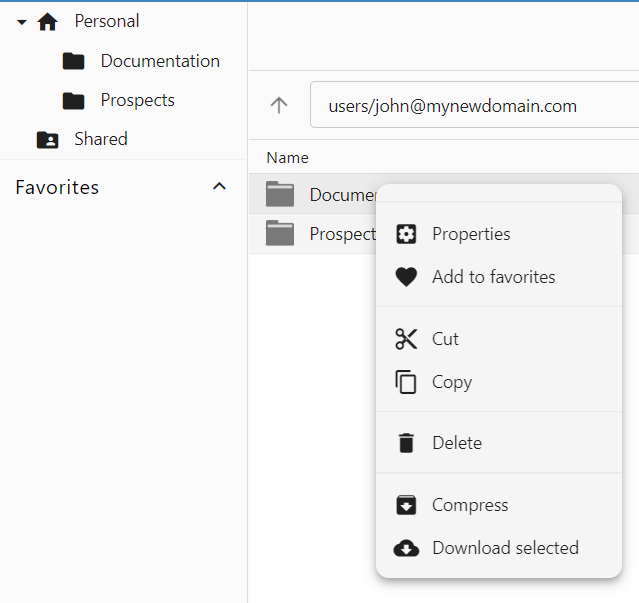
Select the Folder: In the Webmail files section, right-click on the folder you wish to share and select Properties.
-
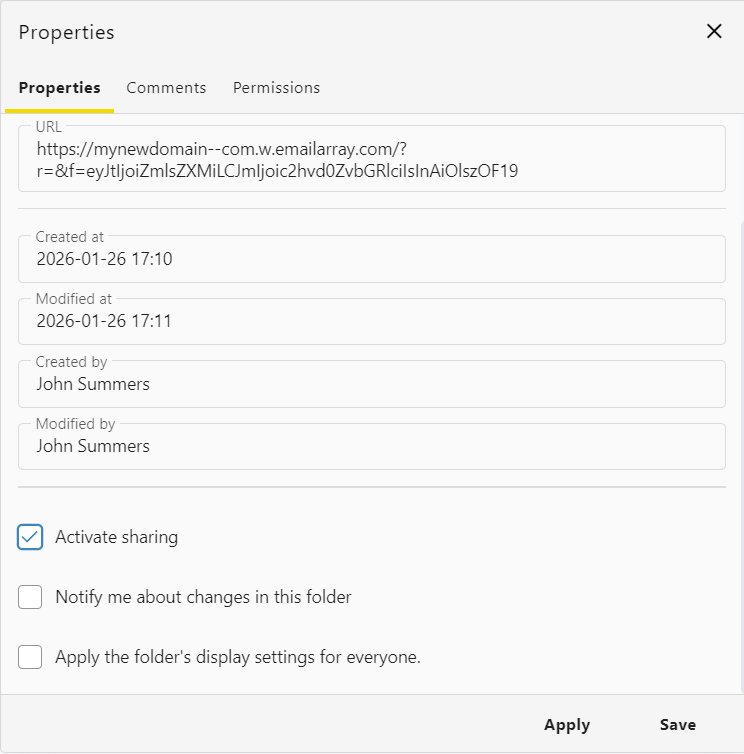
Activate Sharing: In the Properties tab, check the box labeled Activate sharing. This enables the sharing functionality for that specific directory.
-
Configure Notifications (Optional): You may also choose to:
-
Notify me about changes in this folder: Receive alerts when others modify files.
-
Apply the folder's display settings for everyone: Standardize the view for all collaborators.
-
-
Save Changes: Click Apply or Save.
Managing Permissions
Once sharing is active, you can define exactly who has access and what level of control they have.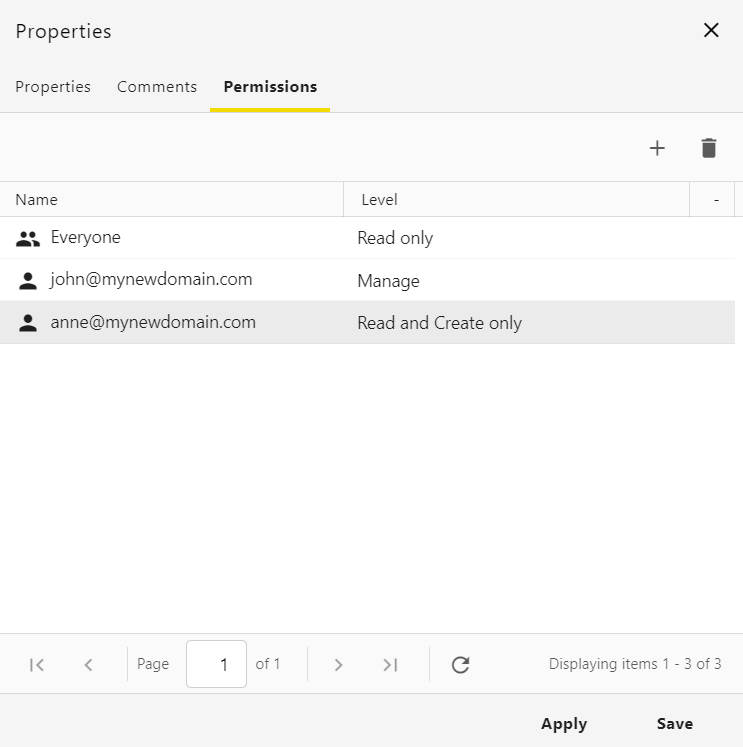
Accessing Shared Content
When a folder is shared with you, it will appear under the Shared section in your file navigation sidebar. This allows teams to maintain a central repository for shared documents, images, and project files.