How to Change Your Super Password
Your Super Panel is the command center for your entire email infrastructure. To keep your account secure, we recommend updating your master password periodically and enabling additional security layers like Two-Factor Authentication (2FA).
How to Change Your Password
Updating your master access is a quickstraightforward process handledthat directlyhelps fromkeep your dashboardaccount home.secure. It is recommended to update your password regularly to maintain enterprise-grade reliability.
-
Access the
HomeSuperScreenMenu:Once logged in, click onFrom theHOMESupertabPanel, in the main navigationmenu.menu, click on the Super tab. -
Locate Super Account Settings: Look forInitiate theSUPER ACCOUNTchange:sectionClick on therightChangesideSuperofPasswordthe page.section. -
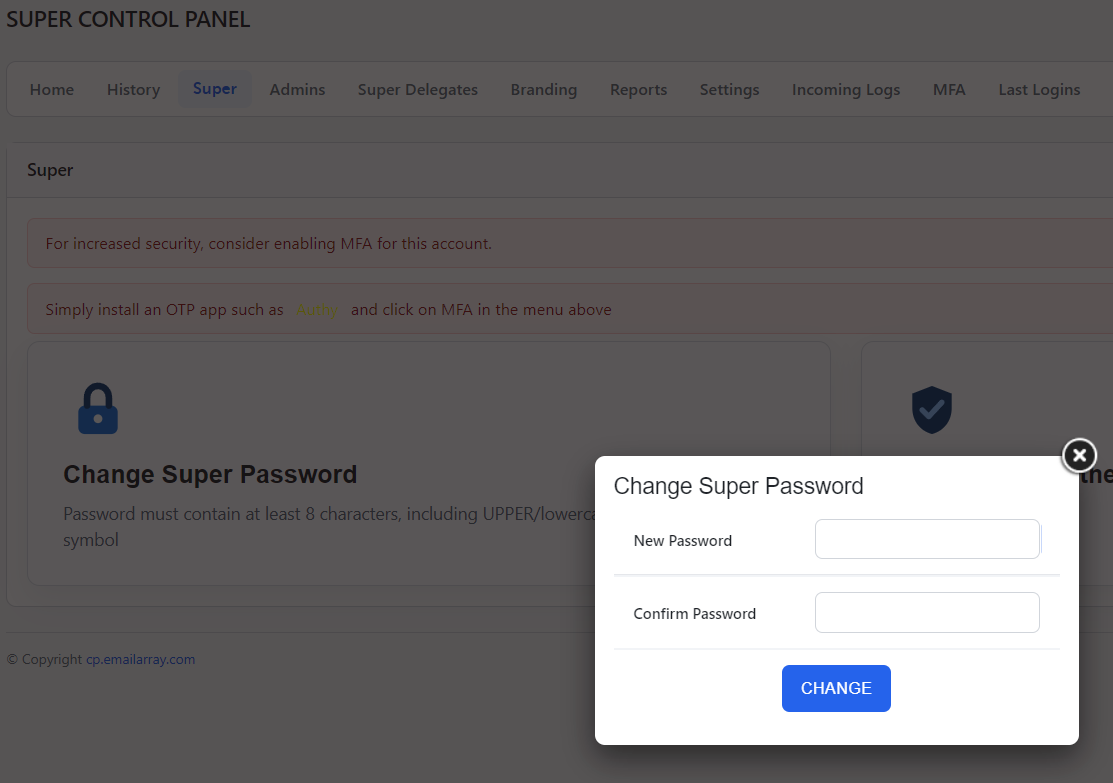
UpdateEnter your new password: A pop-up window will appear. Enter your new secure password in both the New Password:and Confirm Password fields.
Password requirements: To ensure your account remains protected, your new password must meet the following criteria:-
-
-
It must contain at least 8 characters.
-
It must include a mix of uppercase and lowercase letters.
-
It must include at least one number and one special symbol.
-
-
-
-
Confirm the update: Click the blue
CHANGE SUPER PASSWORDChangebutton. Confirm Changes: Follow the promptsbutton toentersave your newsecuresettings.password.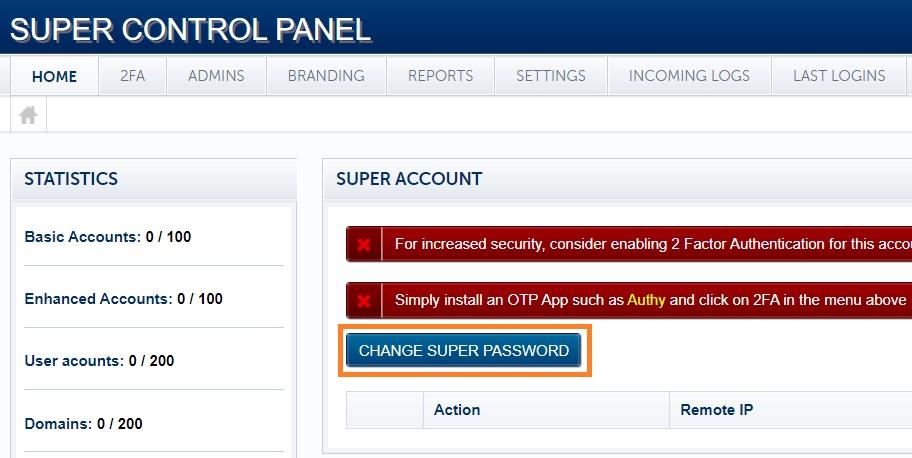
Pro-Tip: EnhanceSecure Your SecurityAccount with 2FATwo-Factor Authentication
While aA strong password is ayour greatfirst start,line weof highlydefense, recommendbut enablingadding Two-Factor Authentication (2FA) provides a vital extra layer of security for your Super Account.account.
- use 2FA?
Extra Protection:Even if someonediscoversmanages to obtain your password, theywon'tcannotbeaccessableyour account without a unique, time-sensitive code generated by your mobile device. This simple step significantly reduces the risk of unauthorized access.How to
logsetinitwithoutupyourSetting
uniqueupmobile2FAcode.is quick and straightforward: -
Easy Setup: Simply installDownload anOTPauthenticator(One-Timeapp:Password)Install a trusted app likeAuthyGoogle Authenticator, Authy, orGoogleMicrosoft Authenticator on your smartphone. -
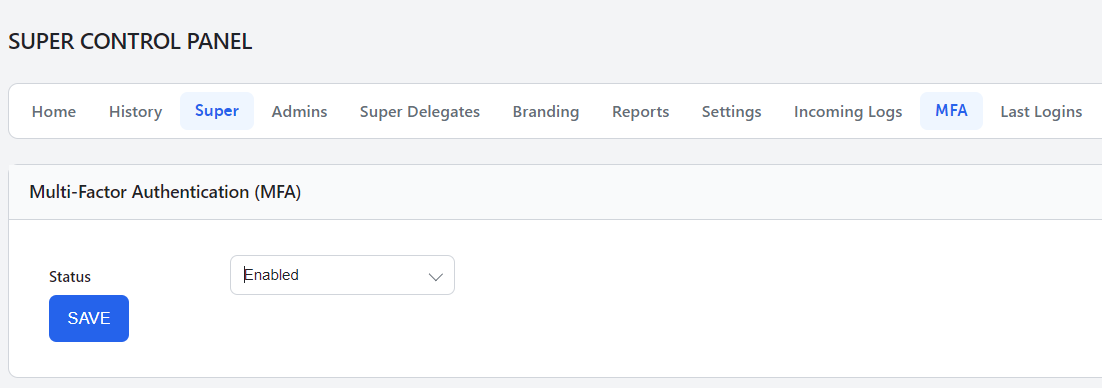
Enable: Click onAccess the2FAMFA settings:tab inIn the top menu of your Super Panel, click on the MFA tab. - Enable the service: In the Multi-Factor Authentication (MFA) section, change the Status to
linkEnabled and click the Save button.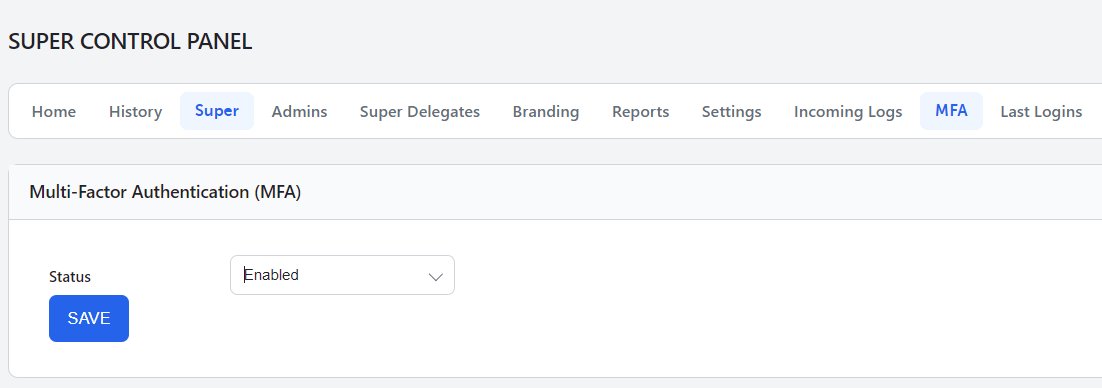
-
Scan and link: Use your authenticator app to scan the QR code that appears on your screen.
-
Verify the connection: Your app will generate a 6-digit code. Enter this into the Challenge field in the Super Panel. Click Save before the code in your app
and activate the feature.expires.