
Delivery Rules - Manage Incoming Email
Manage Your Incoming E-mailEmail Rules
You can specify severalEmail rules thathelp willyou applystay toorganized Cleanby automatically processing messages only, before they reacheven hit your Inbox.
ThisYou willcan allowuse youthese rules to deliversort certainnewsletters messagesinto specific folders, redirect important updates to speciala folderscolleague, or redirectdelete themunwanted to other e-mail addresses.clutter.
Rules willapply applyonly to clean messages (messages not marked as spam) and are processed in the order they were created.
Create a New Rule
Note: New rules are created in a DISABLED state by default. A rule will not process any email until you manually change its status to ENABLED. Whenever you create or modify a rule, you must click the status button to push your changes live.
-
Log in to your User Panel. Use your full email address and password to sign in.
-
Click the Delivery Rules icon on your dashboard.
-
Click the New Rule button.
-
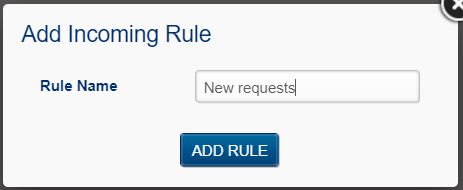
Name your rule. Enter a unique name (use underscores or hyphens instead of spaces) and click Add aRule.
-
Edit your rule. Click the pencil icon next to your new rule to define what it does.
A rule consists of two parts:
-
Conditions (what to look for) and
-
Actions (what to do with the message).
Log in to your User Panel. Use your full email address and password to sign in.
Click the Delivery Rules icon on your dashboard.
Click the New Rule button.
Name your rule. Enter a unique name (use underscores or hyphens instead of spaces) and click Add aRule.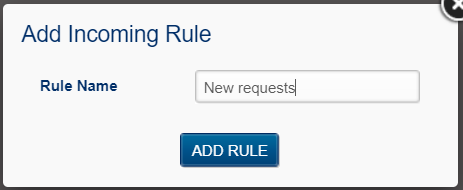
Edit your rule. Click the pencil icon next to your new rule to define what it does.
A rule consists of two parts:
-
Conditions (what to look for) and
-
Actions (what to do with the message).
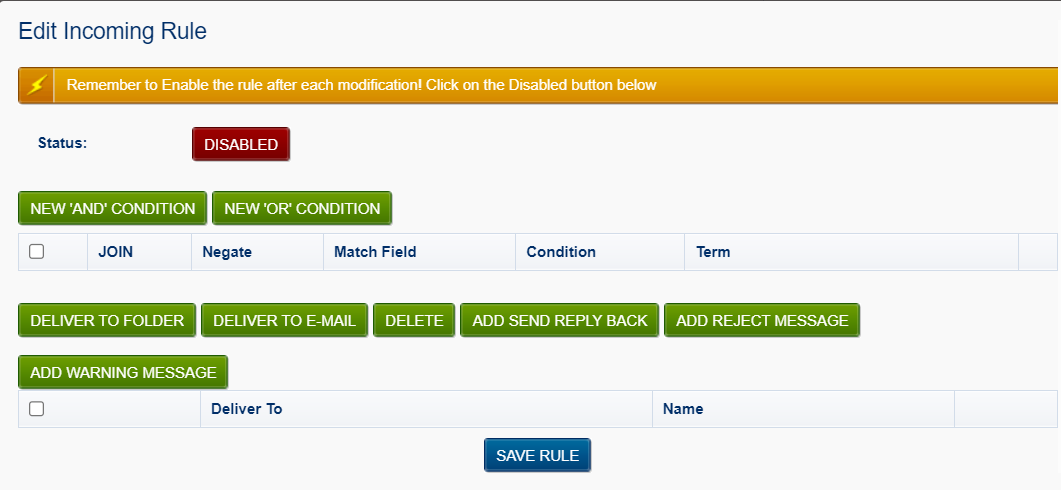
1. Define the Condition
Conditions tell the system which emails to pick up. You can filter by sender, recipient, subject, message size, or List-ID.
-
Click New 'AND' Condition (if all criteria must be met) or New 'OR' Condition (if only one of several criteria must be met).
-
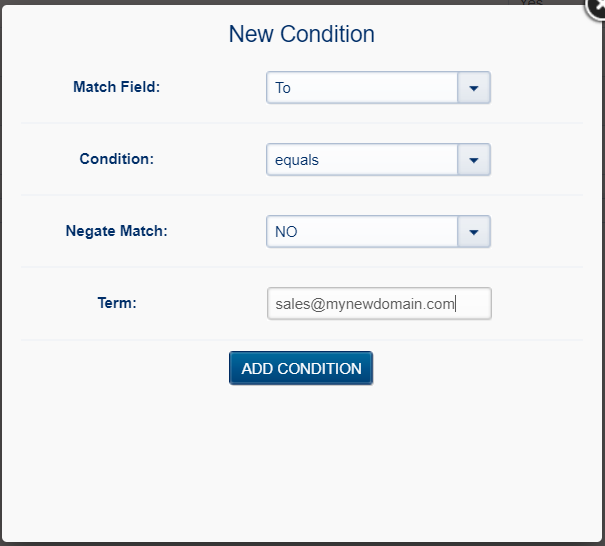
Match Field: Select the part of the email to scan (e.g., Subject, From, To).
-
Condition: Choose how to match the text (contains, equals, starts with, ends with).
- Negate Match: Select YES to target emails that do not match your term (perfect for external email warnings).
-
Enter your Term (the specific email address, domain, word or phrase you are looking for).
-
Click Add Condition.
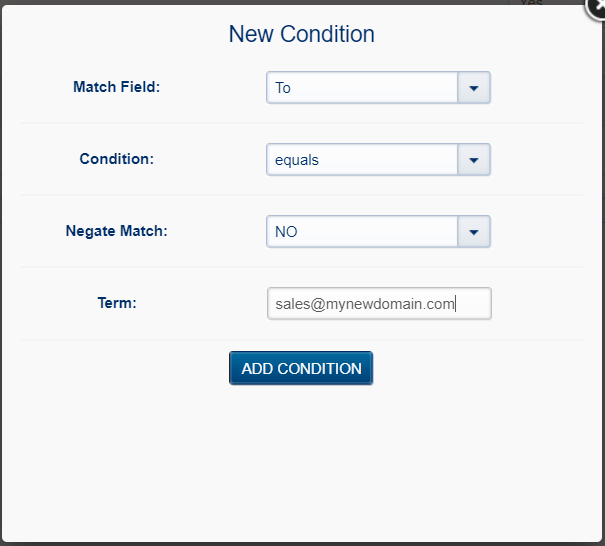
2. Choose Your Actions
Once an email matches your condition, decide what happens next by clicking one of the action buttons
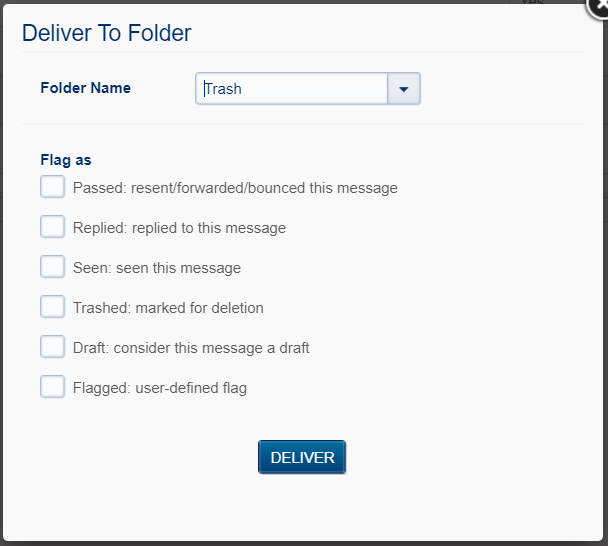
- Deliver to Folder: Move the email to a specific folder. Optionally "Flag" it as Seen, Answered, or Trashed.
For example: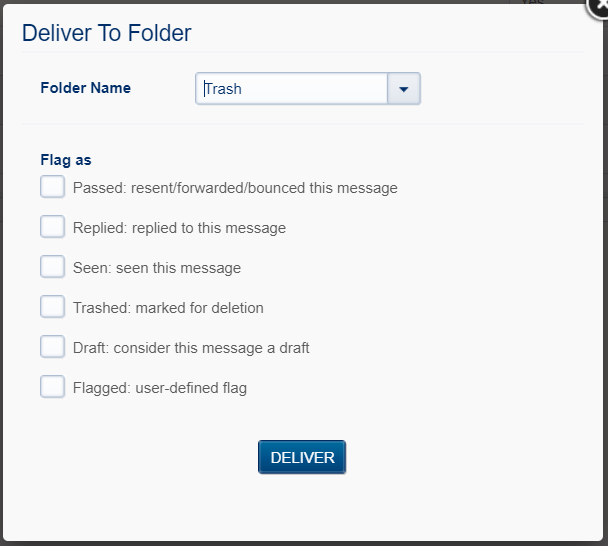
- Deliver to E-mail: Redirect or forward the message to another address.
- Delete: Automatically discard the message.
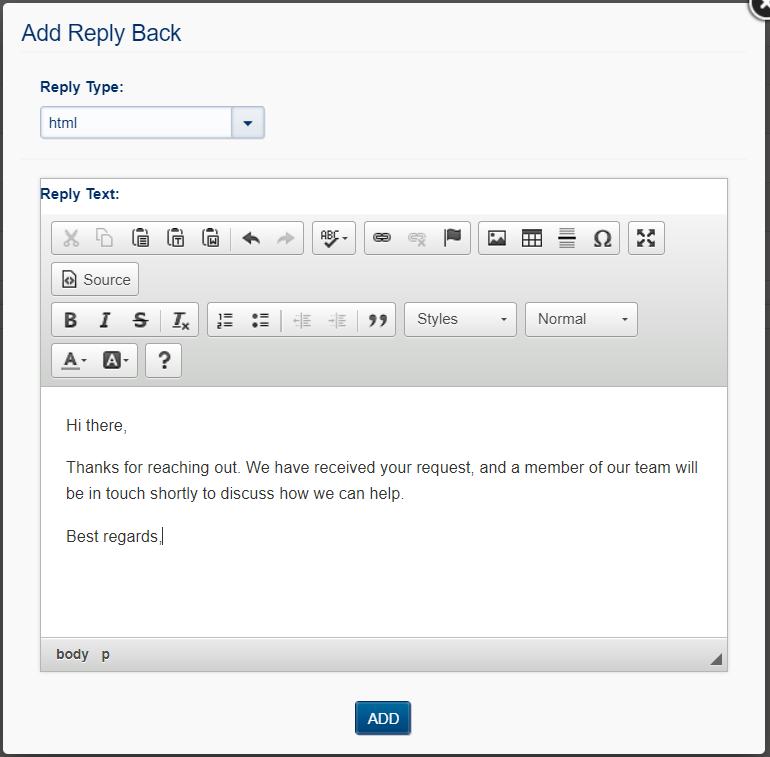
- Add Send Reply Back: Set up an automated response (Autoresponder) using the built-in HTML editor.
For example: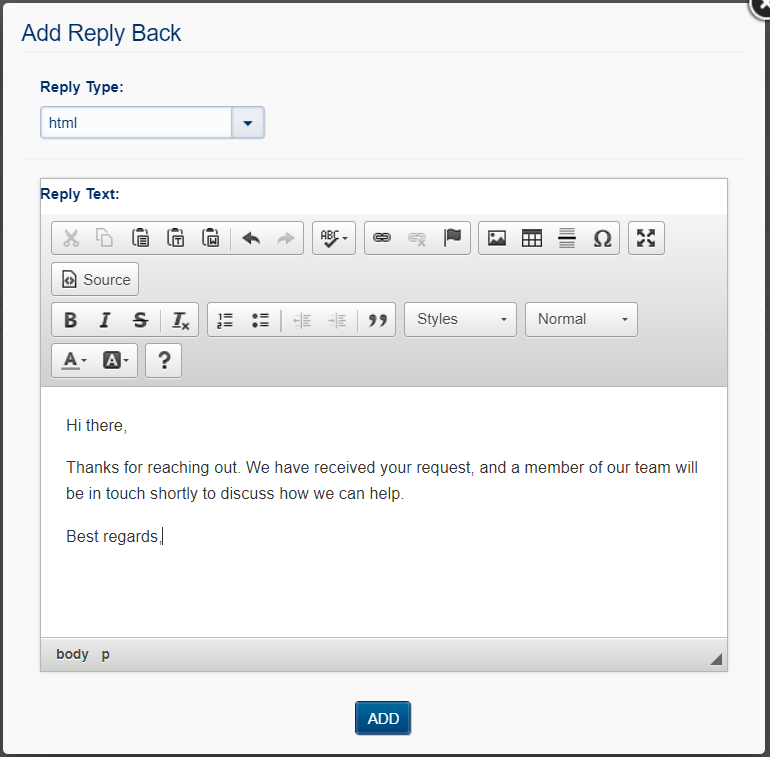
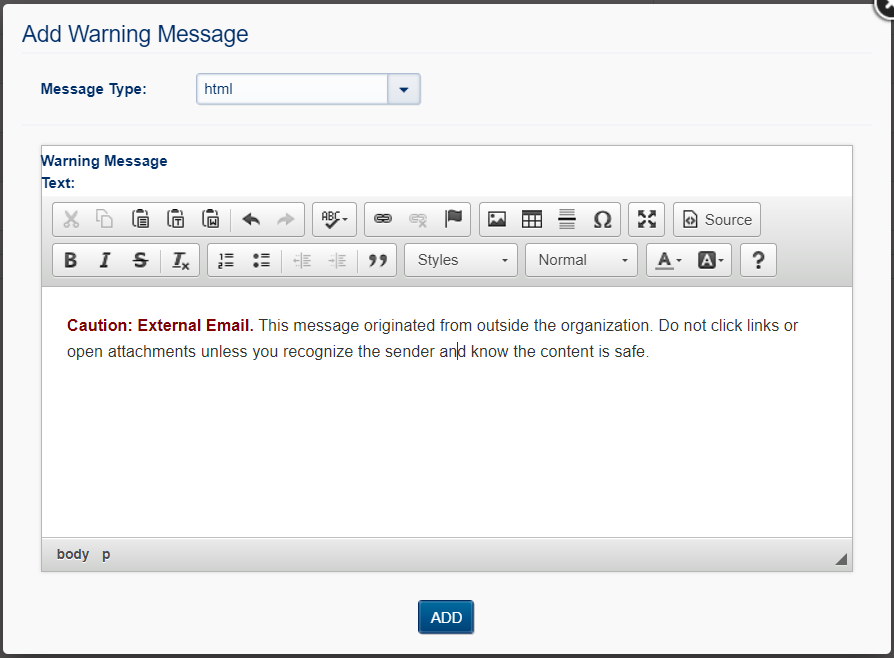
- Add Warning Message: Insert a security banner or custom notification at the very top of the email.
For example: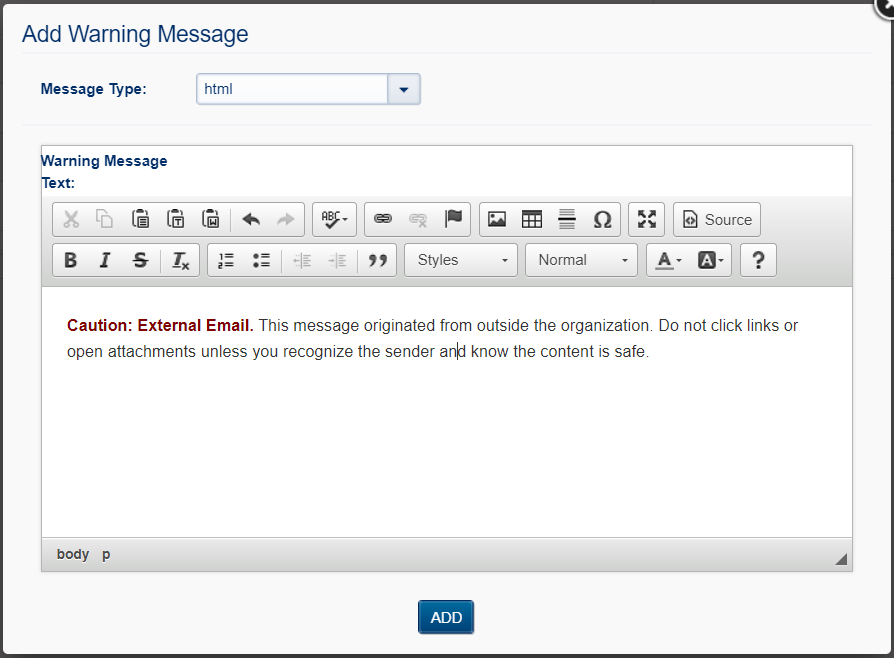
Pro Tip: If you want to forward a message but also keep a copy in your own Inbox, add two actions: one to "Deliver to Email" and a second one to "Deliver to Folder" (selecting your Inbox).
3. Enable and Activate Your Rule
To prevent unfinished rules from running, new rules are created in a Disabled state.
To make your rule active, you must update its status within the editor:
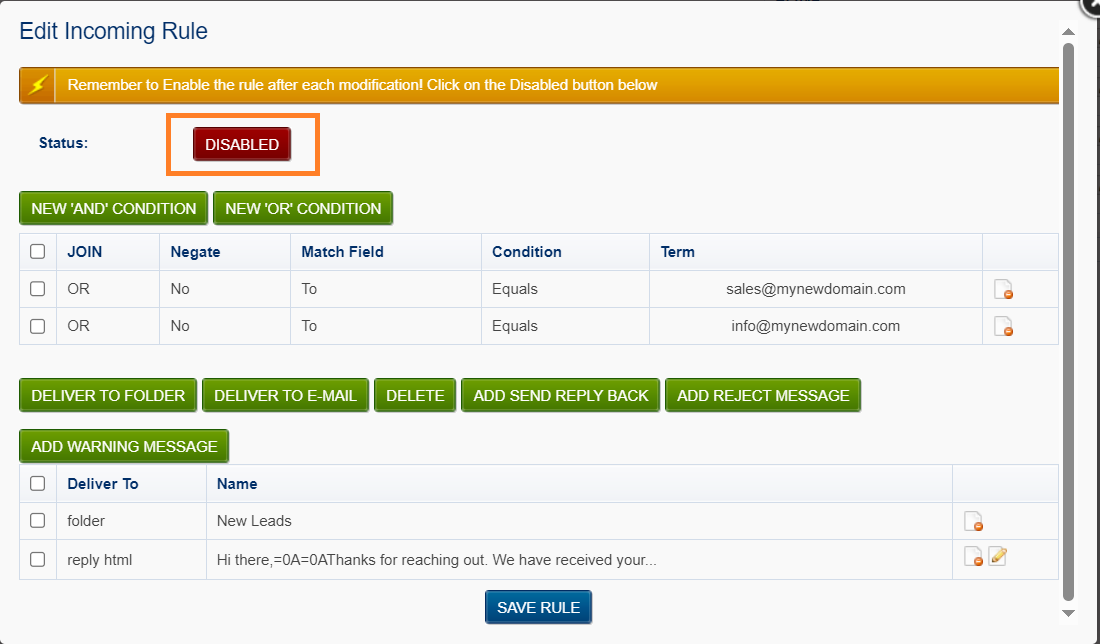
- Check the Status: Look for the Status indicator at the top of the "Edit Incoming Rule" screen.
- Toggle to Enabled: If the button shows a red DISABLED label, click it.
- The button will switch to a green ENABLED state. Click Save Rule at the bottom of the page to finalize your settings.
Remove a Rule
- Go to the User Panel
- Log in using your full
e-mailemail address ( user@domain.com ) andcurrent password. Click onDelivery RulesiconClick on theNew RulebuttonEnter a unique rule name ( without spaces in the name ) and click onAdd RulebuttonClick on theEditicon (pencil) next to the newly created rule
Rules are composed of two sections. Conditions and Delivery rules once a match is found
You can add multiple Conditions and multiple Delivery rules within one rule.
After you click on the Edit rule icon, you will see buttons to create Conditions and Delivery rules.
Within the Condition you can match a message on the From, To, CC, To or CC, Subject, List-ID fields, or according to Message size.
Let's setup up a condition for our new rule. Click on one the two buttons: NEW 'AND' CONDITION or NEW 'OR CONDITION'.
Define your conditioning. Below is an example of a condition that will check for a certain text in the e-mail's subject.
Match Field: SubjectCondition: ContainsNegate match: NoTerm: test subject
After the new conditions has been defined, click on the button Add Condition button.
You will see that your rule is now partially created, with a condition, but missing a delivery rule (action). Delivery Rules can be used to either deliver the message to a specific folder, send it to another e-mail address or delete it.
So now, let's choose our desired action. We will click on the Deliver to e-mail button, and inform a certain e-mail address, as we want to forward emails that have a subject "test subject" to this address. After that, click on the Deliver button.
Let's add yet one more rule, as we want the original account to also receive such emails. So let's click on Deliver to Folder an choose the original account's Inbox.
Now, check the Status of the rule, on the top. It will probably show as DISABLED. Click on top of DISABLED so it becomes ENABLED and, finally, click on the Save Rule button.
A new rule won't take effect until the Activate button is clicked after you finished building your rule. After each modification to the Clauses or Delivery rules, the Activate button must be clicked.
Remove a rule
Go to theUser PanelLog in using your full e-mail address ( user@domain.com ) and currentpassword.- Click on the Delivery Rules icon
- Click on the
"-"delete icon(minus sign)next to the rule you want to remove
