
Setup IMAP e-mail on iOS
|
If you have an Enhanced mailbox, you can use ActiveSync, to not only sync e-mails, but also contacts and calendars. Click here to see the steps. |
You can log in to the Webmail and download a profile to automatically setup the e-mail as IMAP. The profile will include calendars and contacts if you have an Enhanced mailbox.
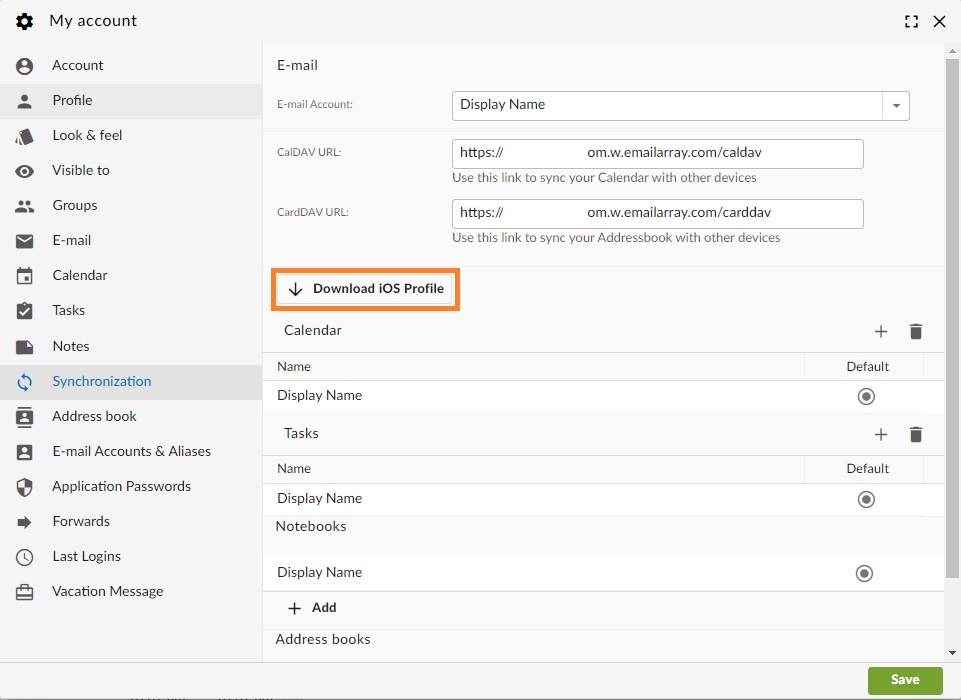
IMAP Setup for iOS
Here's the step by step for setting up an IMAP account on iOS.
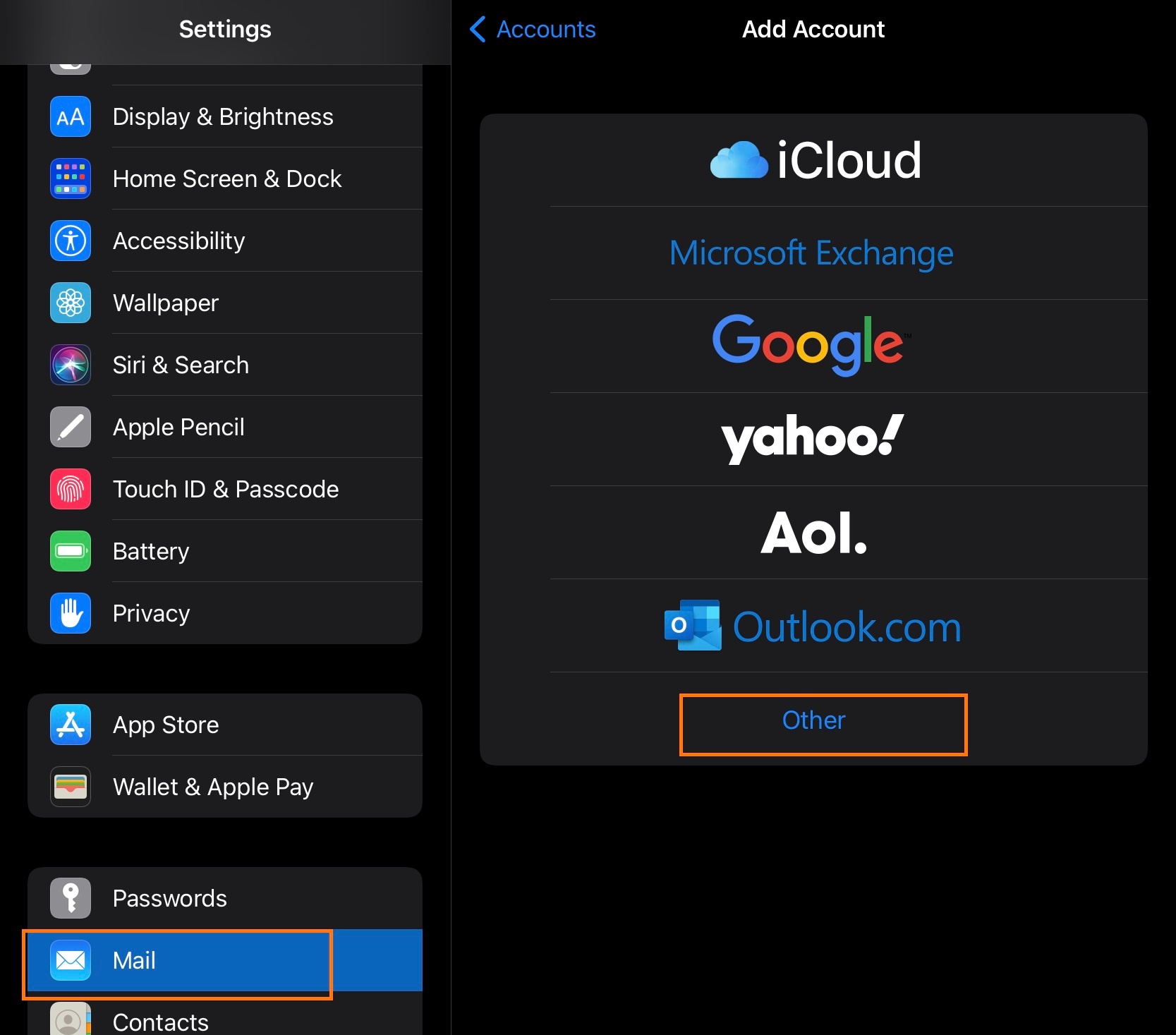
- Click on Settings
- Click on Mail, Contacts, Calendars
- Click on Add Account
- Click on Other
- Click on Add Mail Account
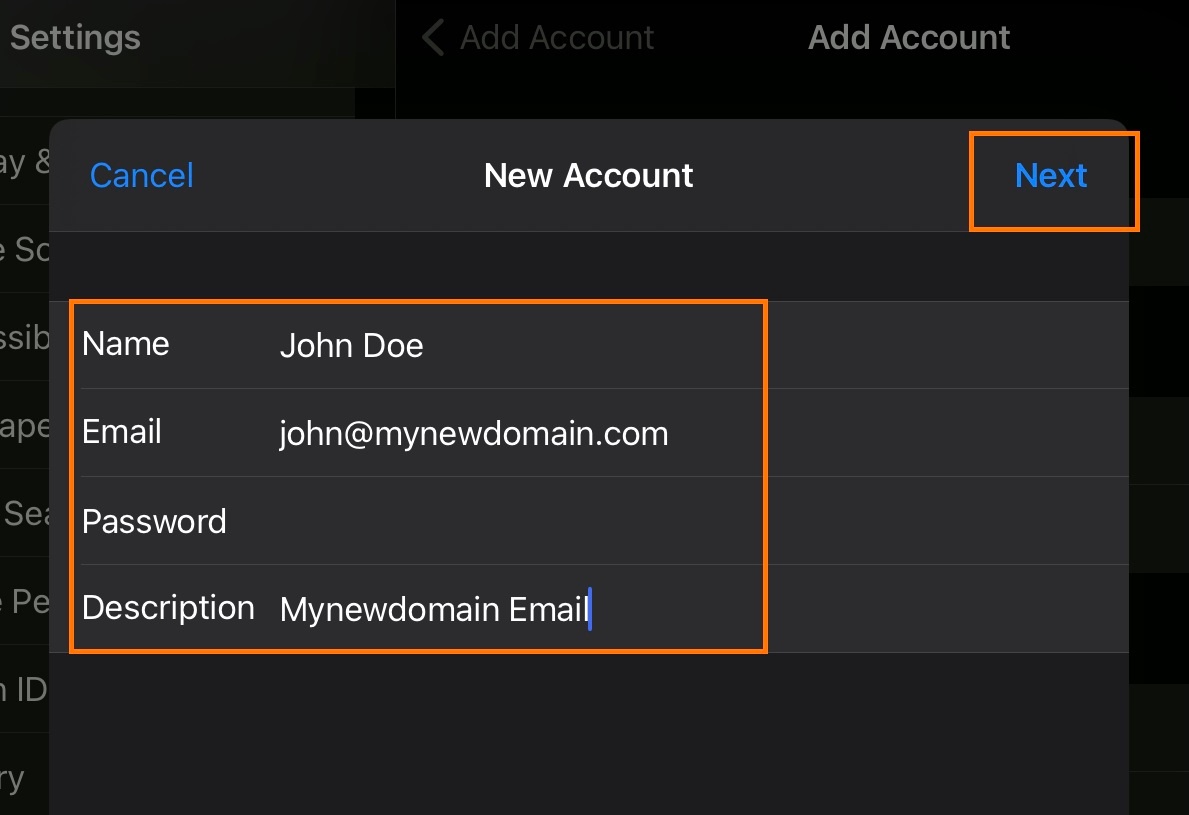
- Inform the following
- Name - The display name you want on your outgoing email
- Email - Your full email address
- Password - Your email password
- Description - A description for your account
- Click on Next
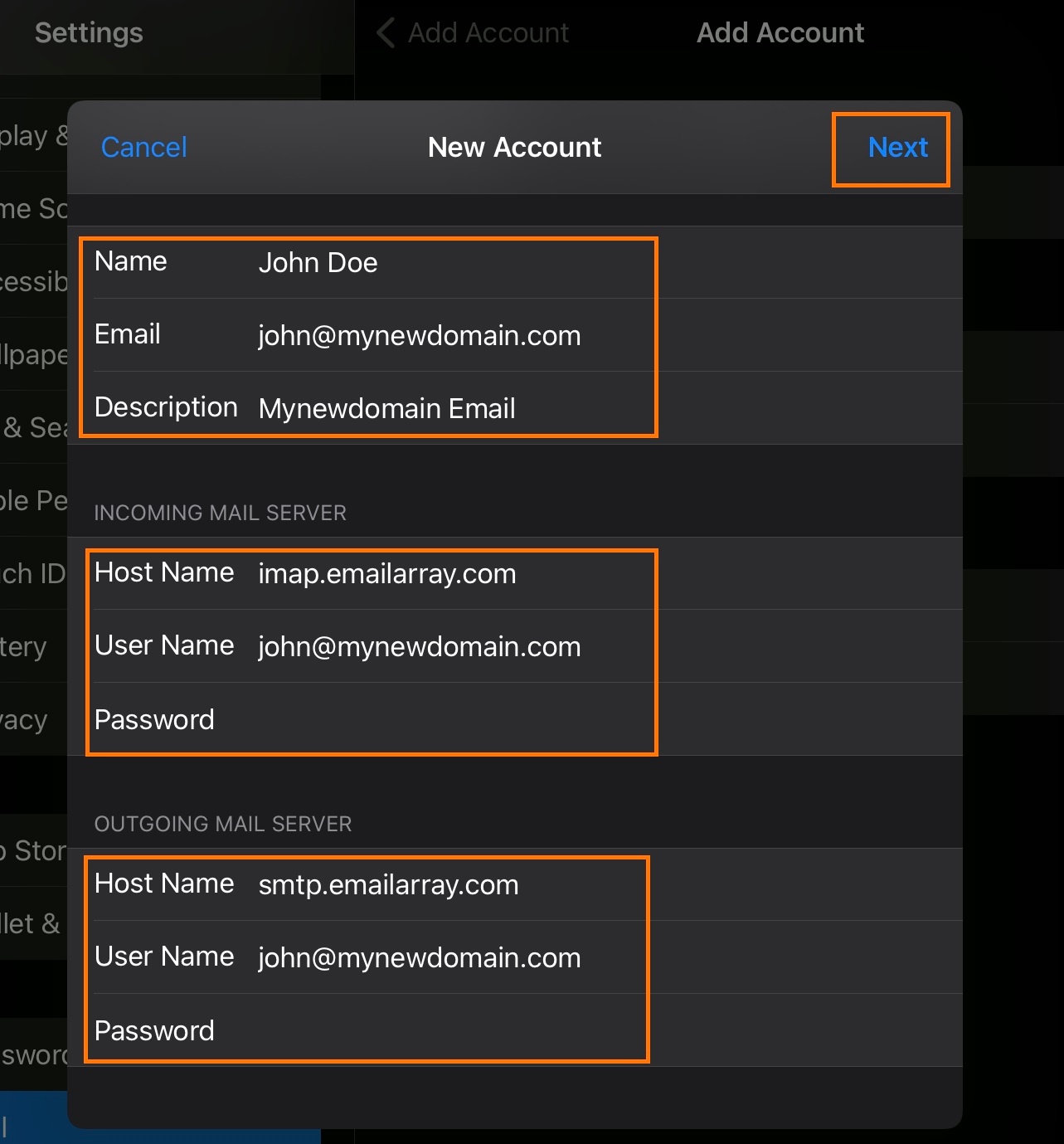
- IMAP is selected by default
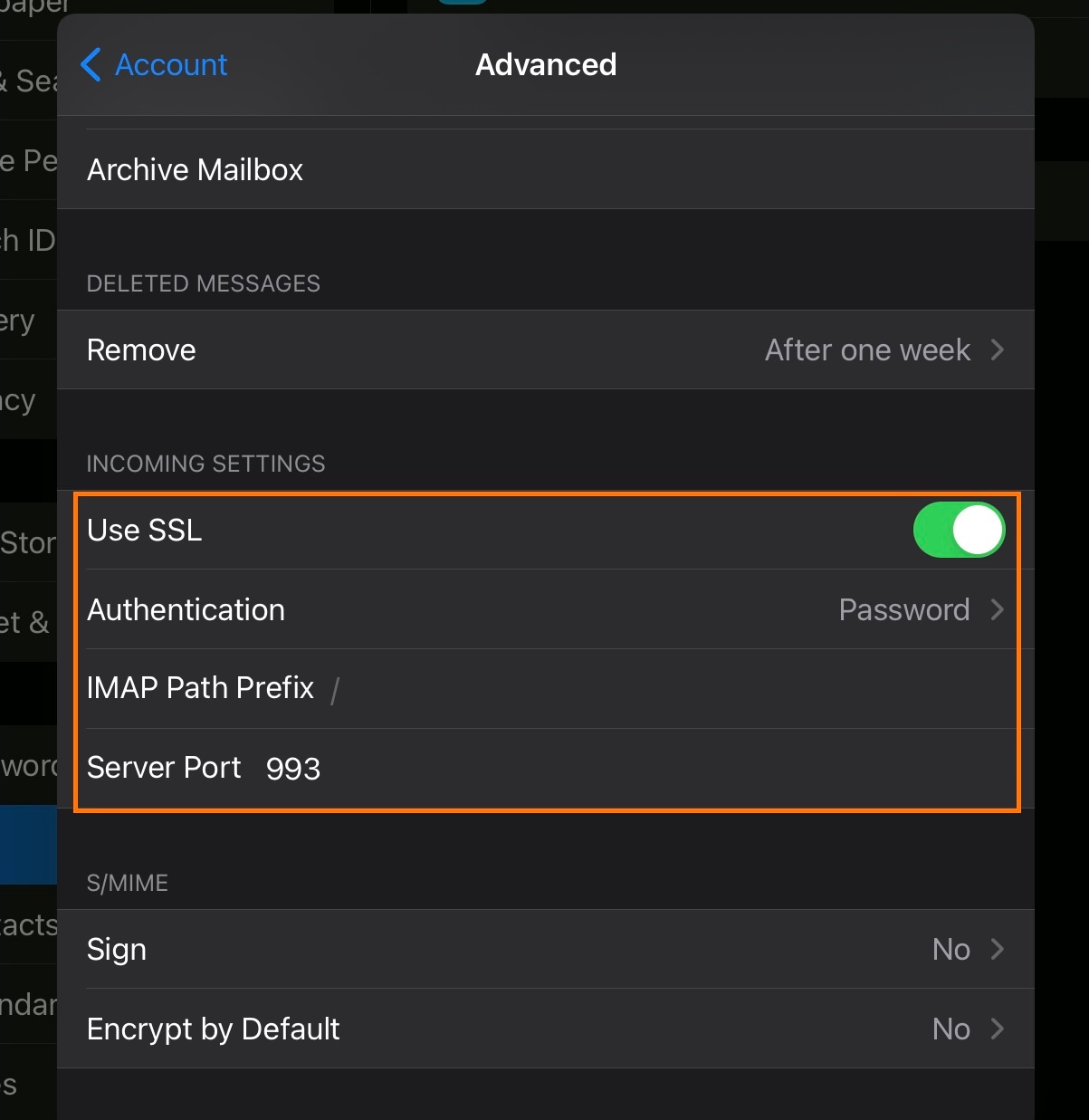
- Under Incoming Mail Server, enter as below:
- Host Name -
imap.emailarray.com - User Name - Your full e-mail address
- Password - Your password
- Host Name -
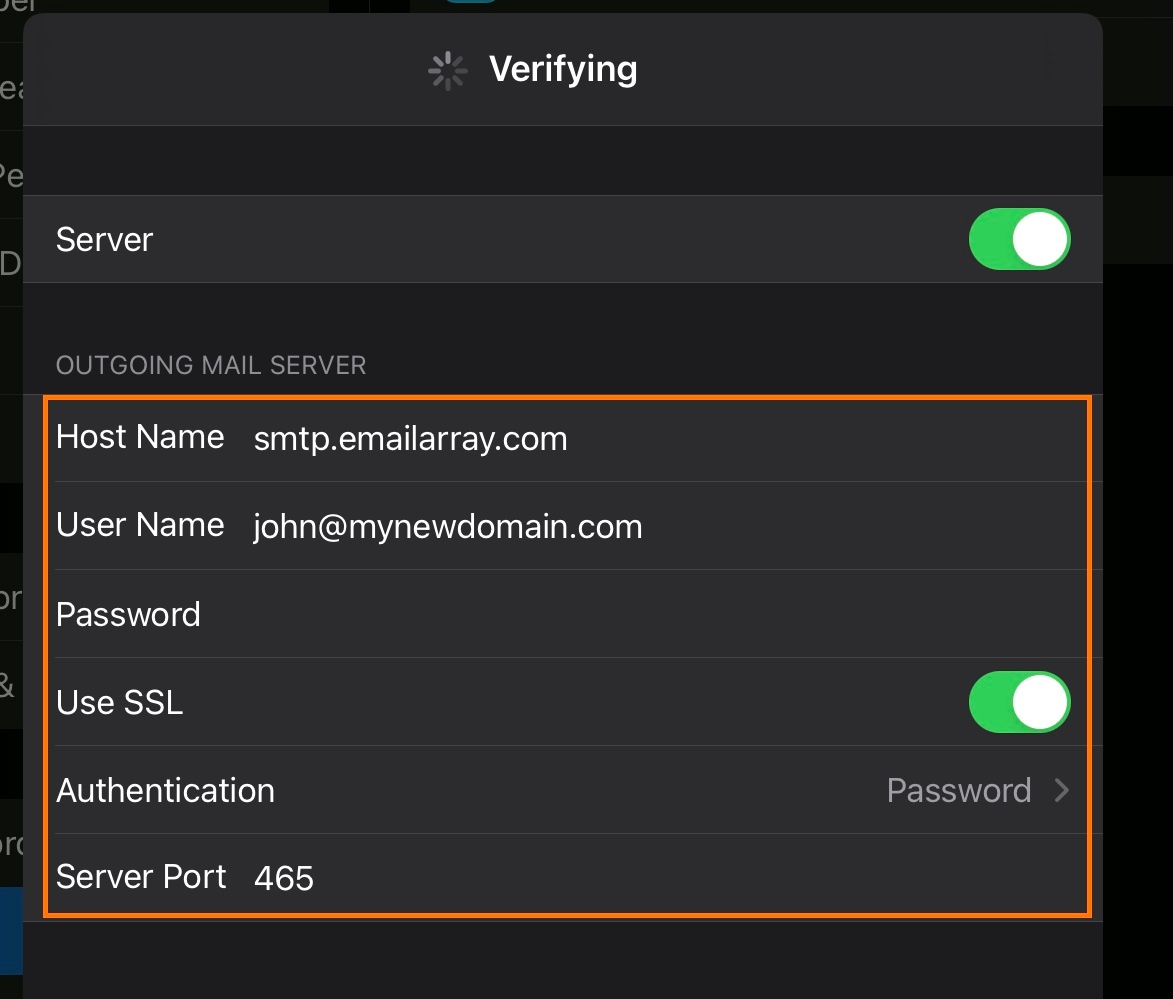
- Under Outgoing Mail Server, enter as below:
- Host Name -
smtp.emailarray.com - User Name - Your full e-mail address
- Password - Your password
- Host Name -
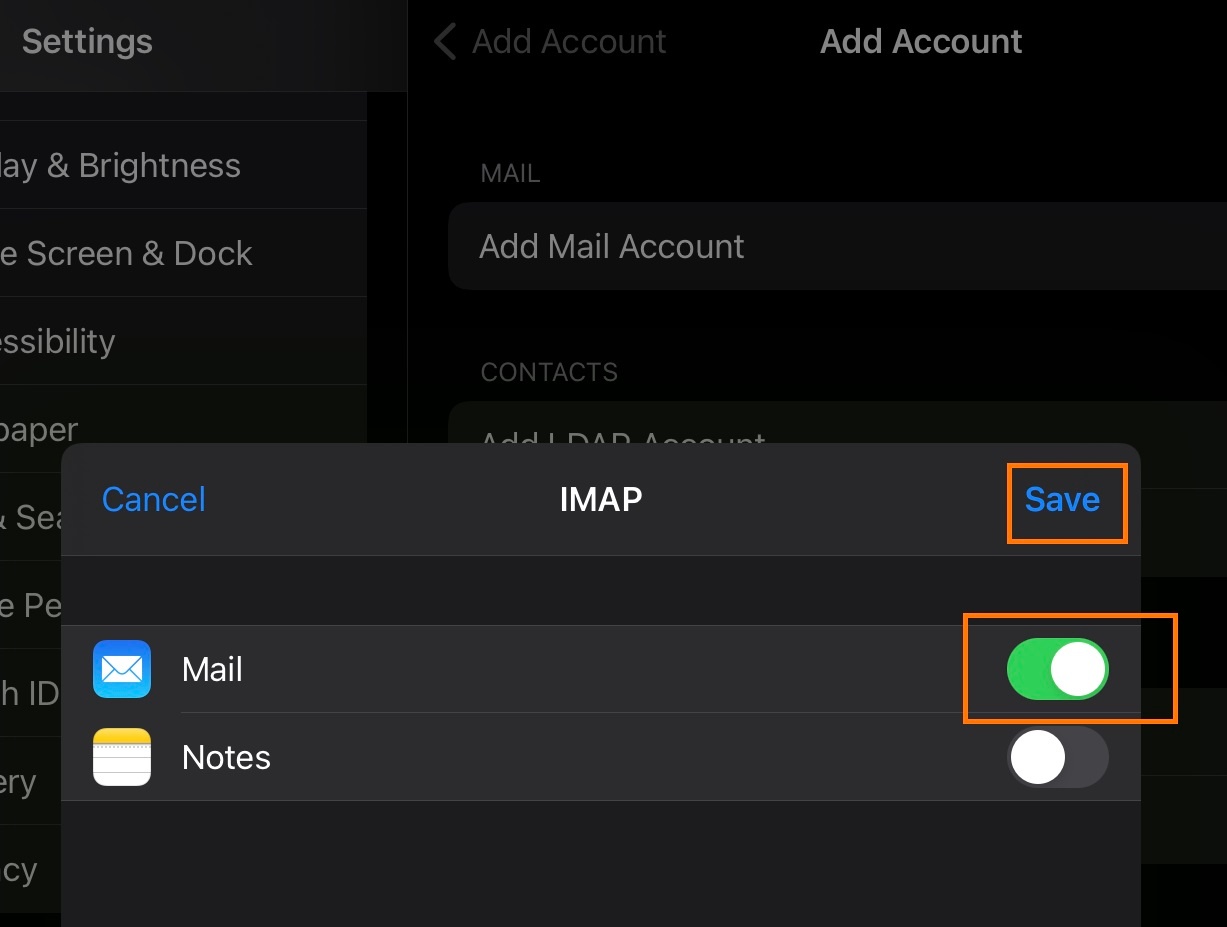
- Click on Next
- Click on Save
Note that IMAP is preferred over POP. If you want to set up the account as POP, you have to set it up manually. IMAP is a protocol made to support several devices accessing one same account, with all folders synced at our server, which also guarantees that our backups will be executed.
Example setup for iOS:
 |
 |
 |
 |
 |
 |