
Webmail - How to Send as an Alias
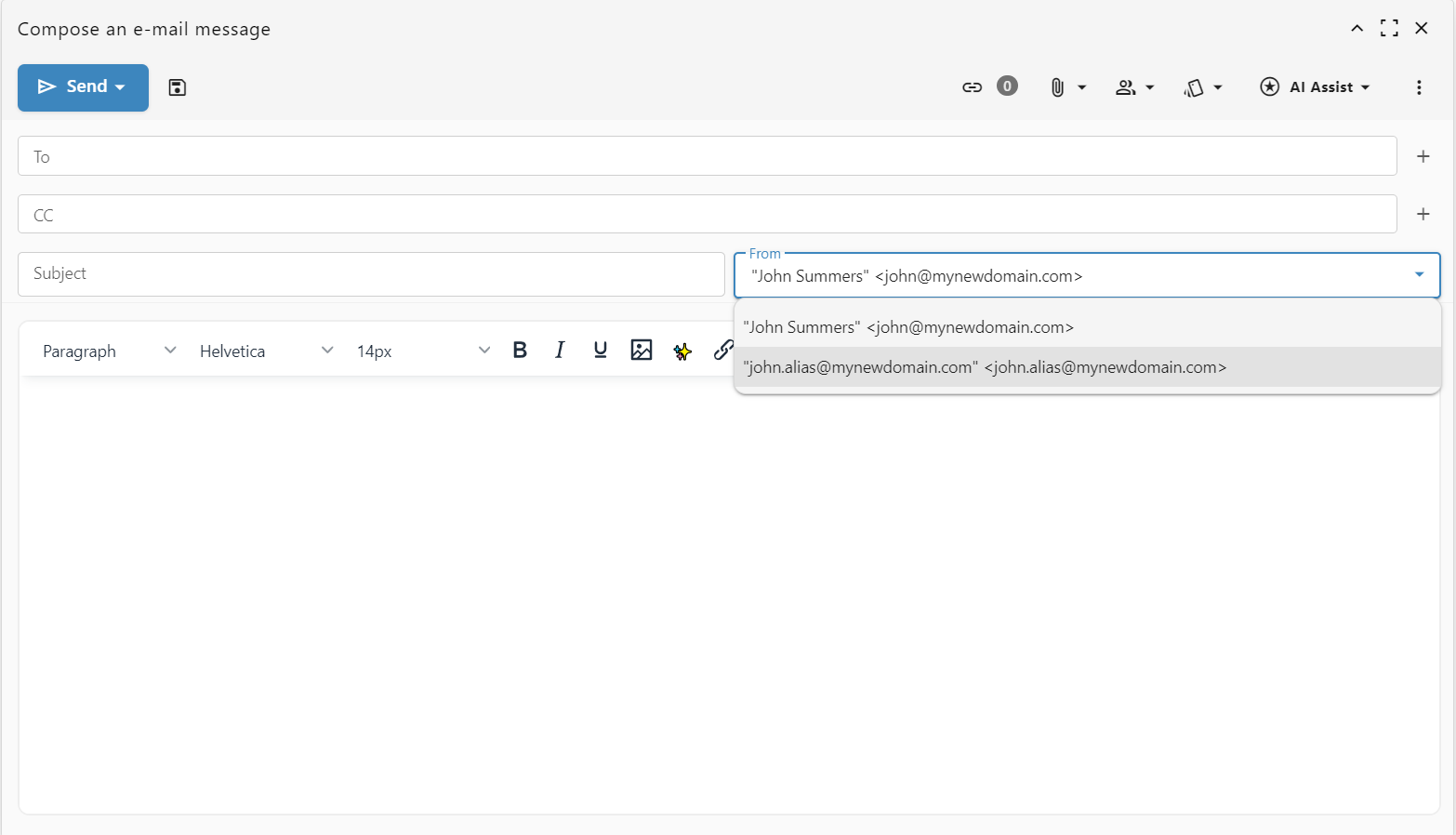
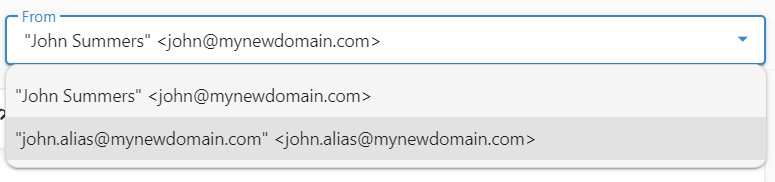
WhenSending emails from your alias is now fully automated. You no longer need to manually add aliases or domain aliases to your webmail settings.
If you have onean alias or morea Aliasesdomain foralias set up to forward to your primary email address, youit mightwill wantautomatically toappear beas ablea tosending sendoption from one of the Aliases. This is possible by adding the Alias toin your Webmail.webmail account.
Step-by-step guide
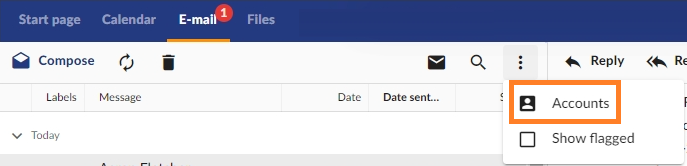
After you log
- and
Goopen a new compose window tothewriteE-mailatab.message.- Click on the
three"From"dotsfieldbutton onat therighttop of theemailmessagepanelwindow.andAthendropdownclickmenuonwillAccounts.appear.
Double clickSelect theemail account that has the Alias.Click on theAliasesbutton.
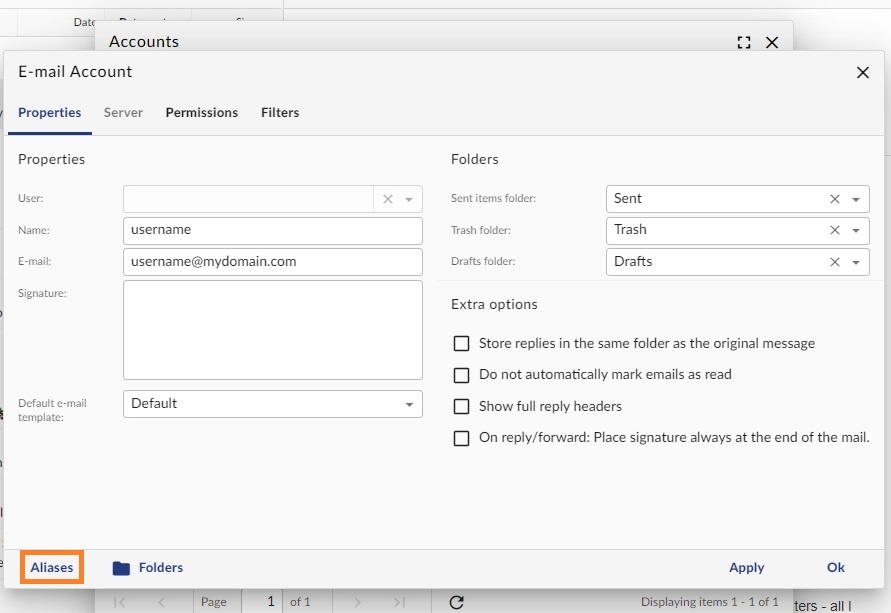
Fill inthe Alias information:Name: the namealias you want toappearuseinfor this specific email.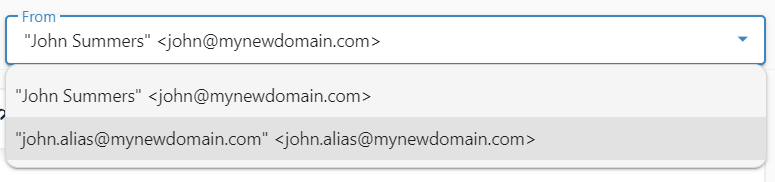
Your email will now be sent from your
"From"chosenfieldEmail: your full Alias addressSignature: is optional
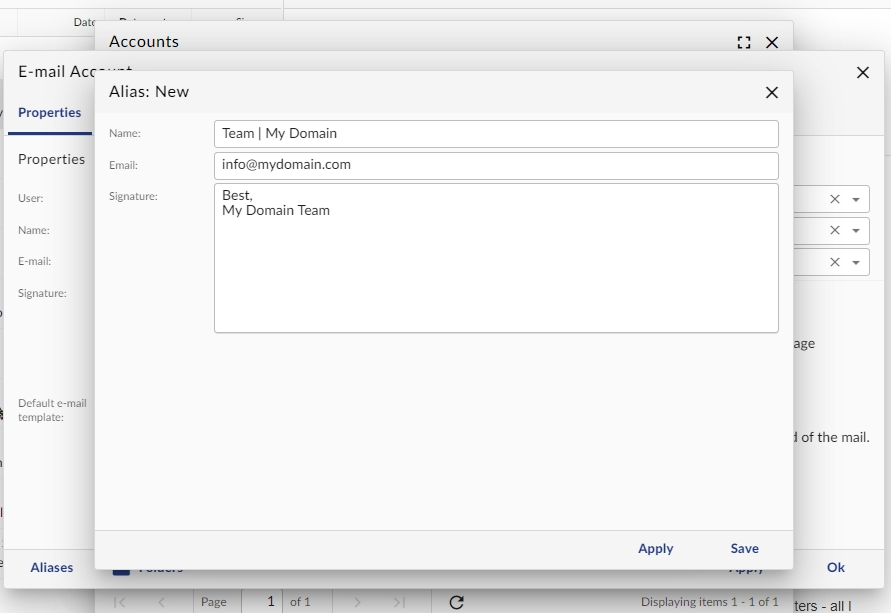
Click on theSavebutton.