Mailbox Sharing
Sharing your mailbox is a practical way to collaborate and ensure important messages are handled quickly. This feature is especially useful when you want to share your inbox with an assistant, or when a team manages a common address like "sales@domain.com" or "support@domain.com".
If your colleagues (for example, John or Alice) also need to reply to messages from this shared address, an administrator must grant them "can send as" permissions from the Admin Panel. This step ensures each colleague can send emails directly as the shared user.
How to Share Your Mailbox
Follow these steps to grant other users access to your account:
-
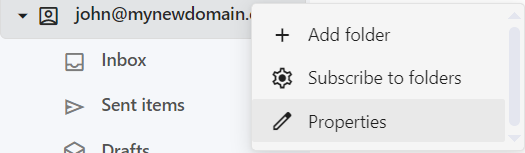
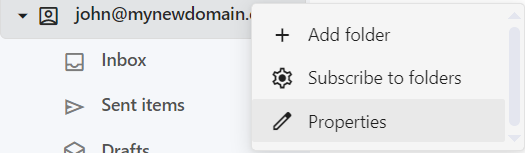
Open Mailbox Properties: Right click on the mailbox name and click on Properties.
-
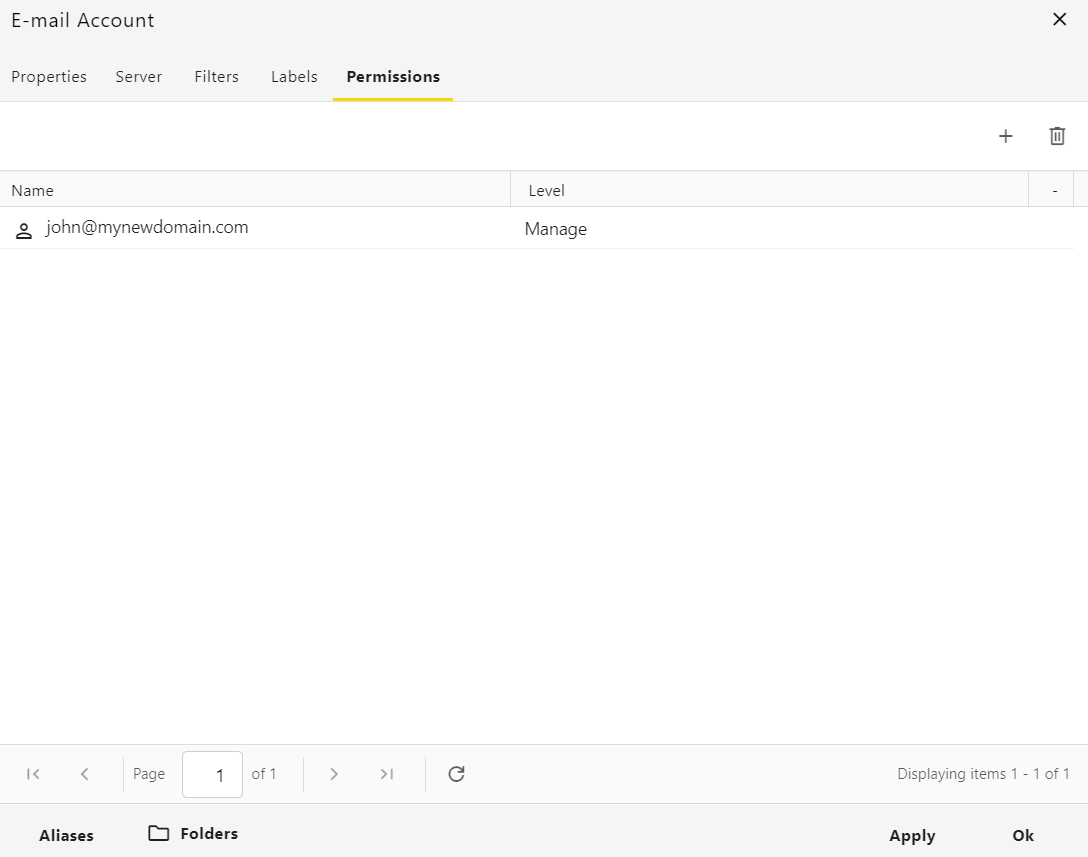
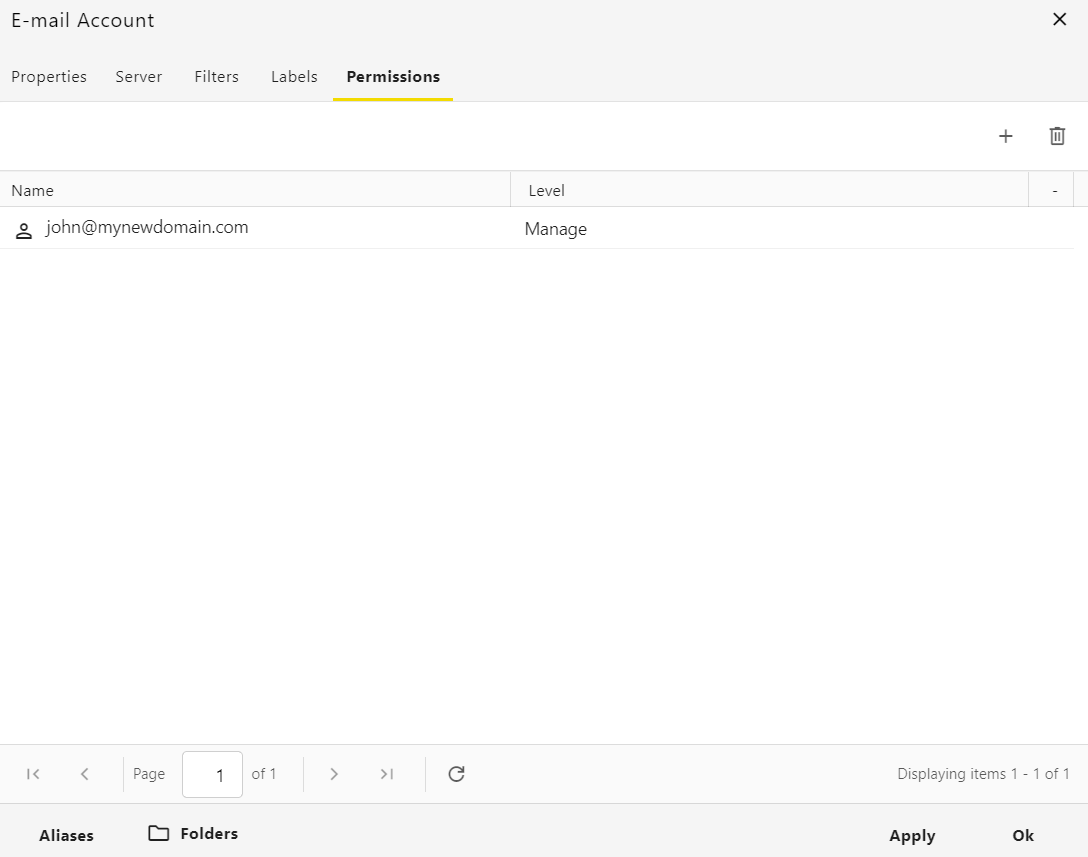
Navigate to Permissions: When the Properties pop-up opens, navigate to the Permissions tab.
-
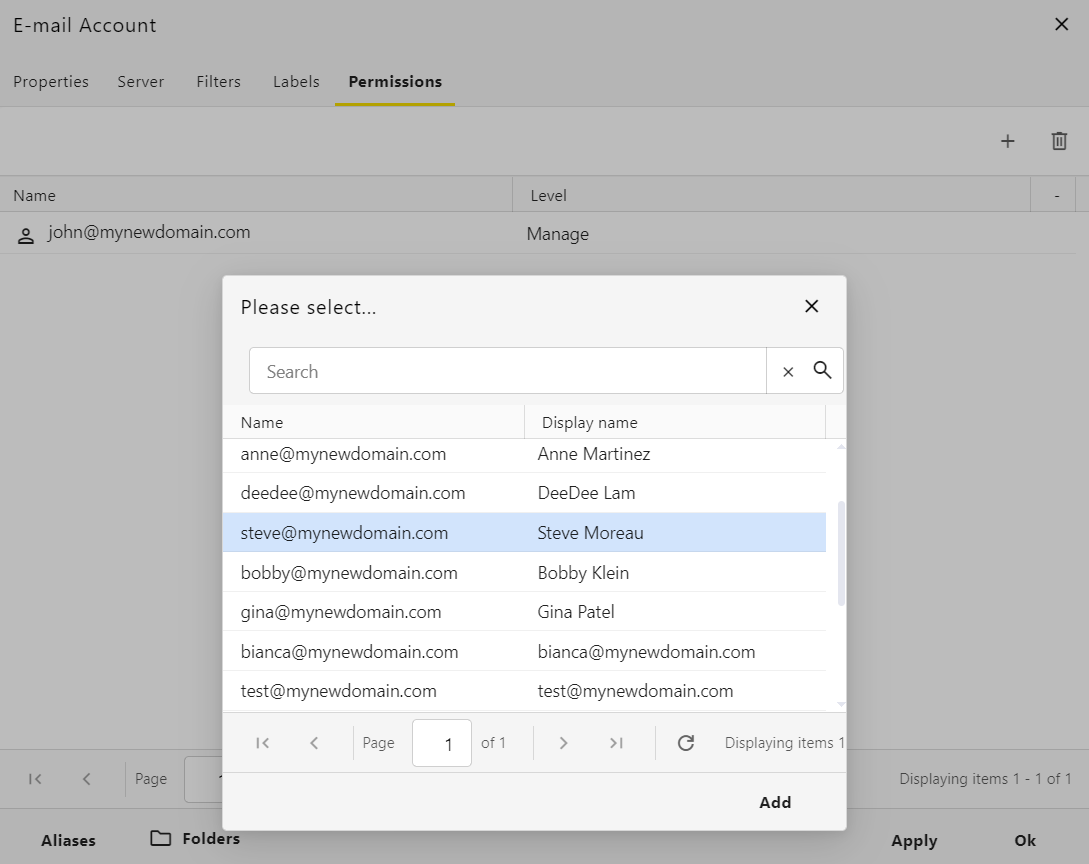
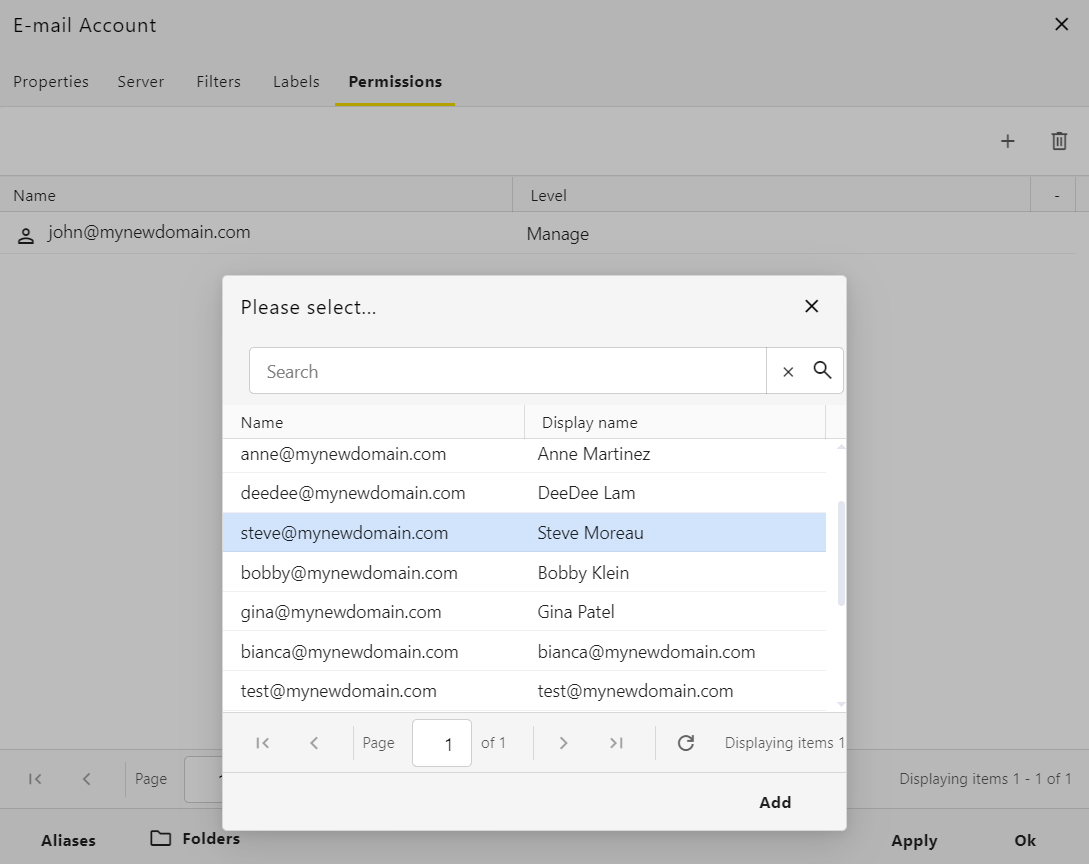
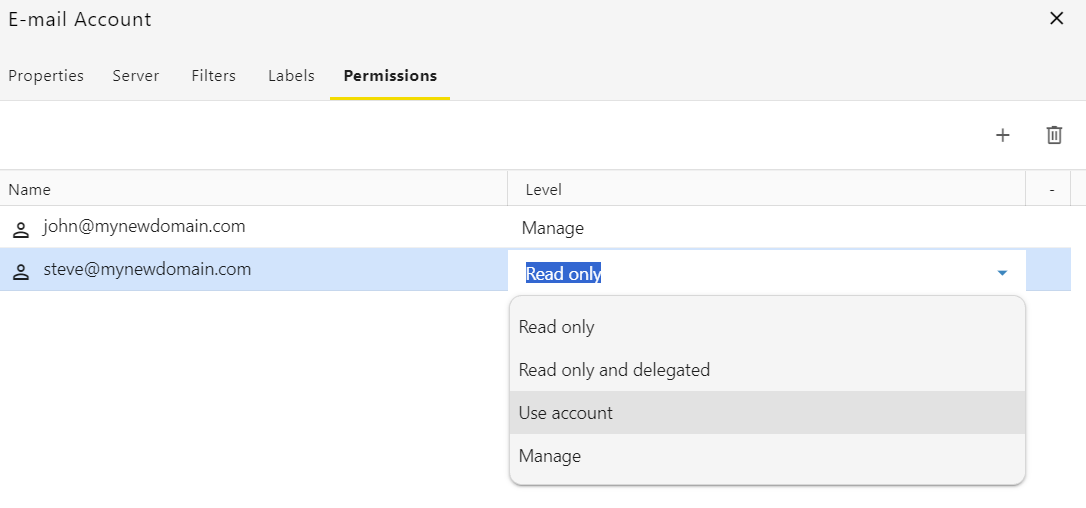
Add a User: Click on the plus icon to add new users that have permissions. Select the user and click on the Add button.
-
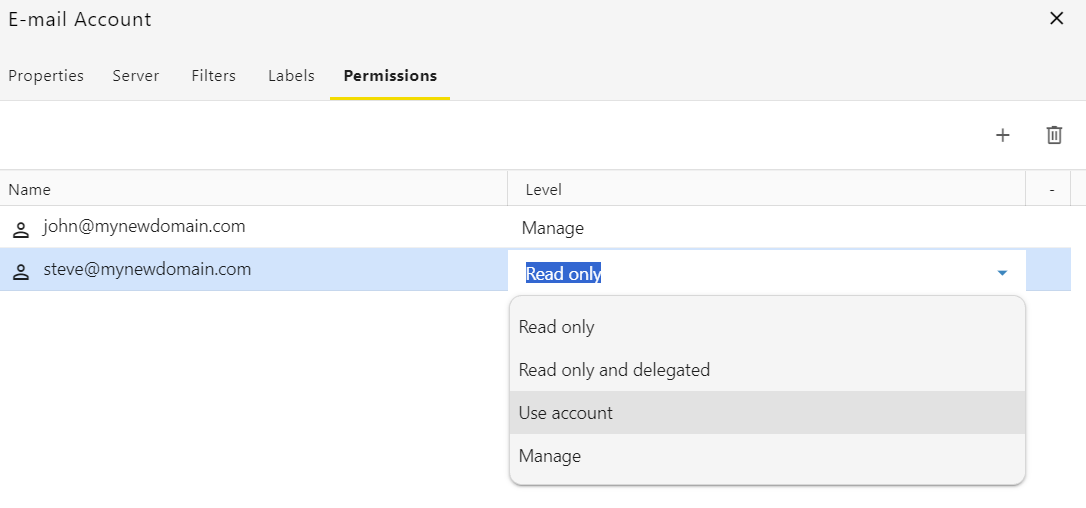
Adjust Access Levels: The default permission is "Read-only". Double click on the permission name ("Read-only") and a drop-down menu will appear so you can choose the needed permission.
-
Save Your Changes: Click on Save to apply the settings.
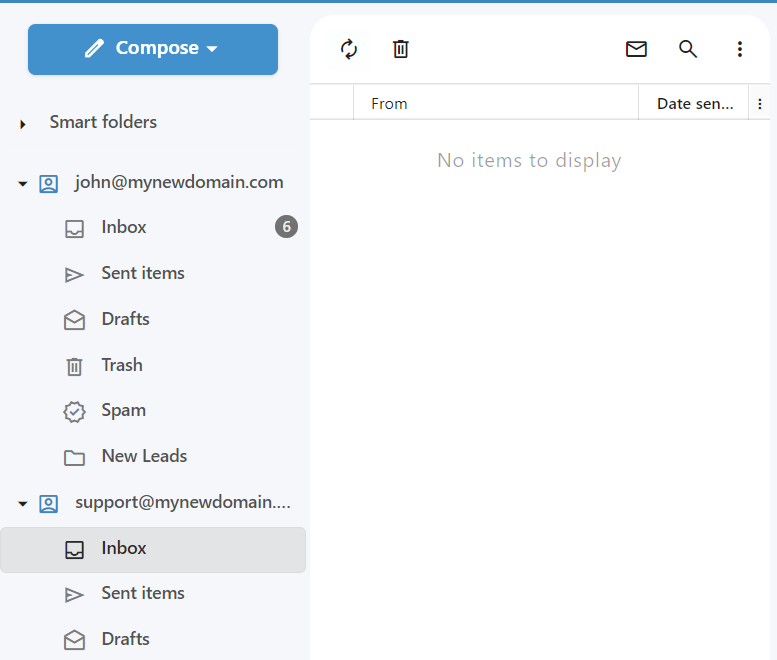
Once a mailbox is shared with you, it will automatically appear in your own webmail interface. From there, you can easily check incoming messages and move emails to other folders.
Sending as a Shared Mailbox
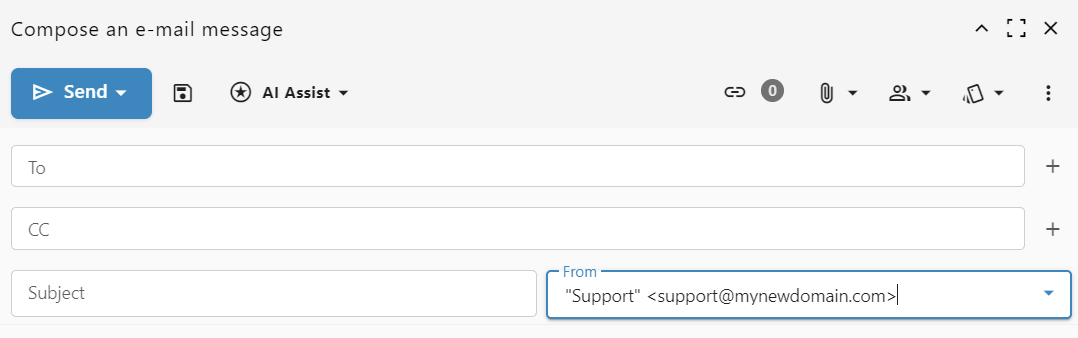
If an administrator has granted you "send as" permissions in the Admin Panel, you can reply or compose new messages on behalf of the shared address.
To change who you are sending the email as:
-
Open the compose email window.
-
Locate the From drop-down menu at the bottom of the composer.