
Uploading Files
Upload documents from your computer to OfficeDocs for editing, sharing, and collaboration.
Upload Methods
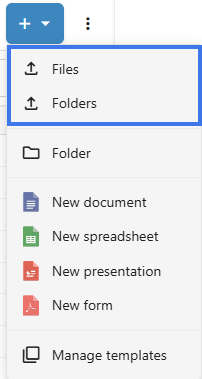
- Open the File tab then click on New or +.

- Click the Upload button.
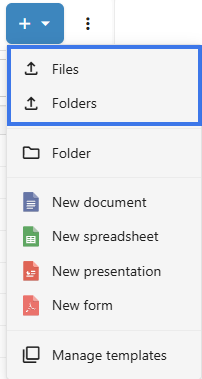
- Select files from your computer.
- Click Open to start the upload.

Drag and Drop
- Open the destination folder.
- Drag files from your computer.
- Drop them into the file browser.
- Files upload automatically.
Multiple Files
- Select multiple files when uploading
- Drag multiple files at once if needed
- All selected files upload together
Upload Progress
- A progress bar shows the upload status
- Each file may show its own upload progress
- You can cancel an upload while it is still in progress
Supported Formats
Editable document types include:
-
Documents: .docx, .doc, .odt, .rtf, .txt
-
Spreadsheets: .xlsx, .xls, .ods, .csv
-
Presentations: .pptx, .ppt, .odp
-
PDF: .pdf
File Size Limits
- Check with your administrator if upload limits apply
- Large files may take longer to upload
- Compress very large files if needed before uploading
After Upload
- Files appear in the selected folder
- You can click a file to open and edit it
- You can share the file with others if needed
- Version history begins once the file is opened and saved in OfficeDocs
Troubleshooting
Upload Fails
- Check your internet connection
- Make sure the file is not too large
- Try uploading fewer files at the same time
File Won't Open After Upload
- Check that the file format is supported
- Try uploading the file again
- Make sure the file is not corrupted
- Some older Microsoft Office formats may be converted before editing