
Sharing Folders
Sharing a Folder
- Navigate to the folder in the file browser.
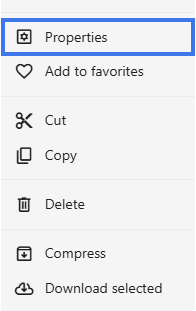
- Right-click the folder.
- Select Properties.
- Click on Permissions and add users.
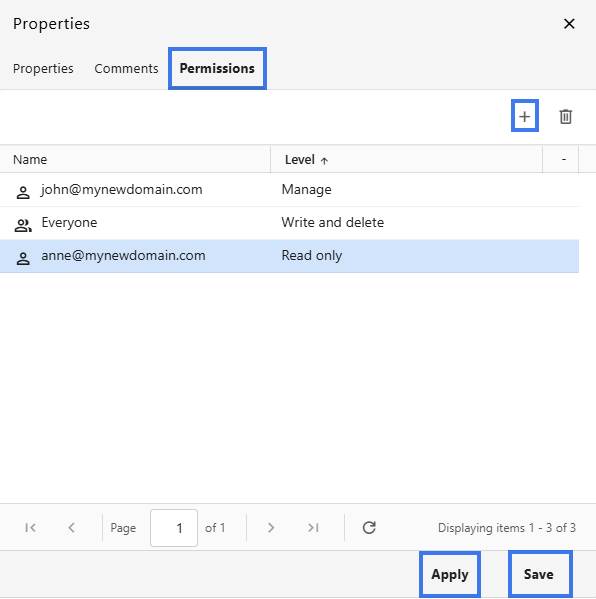
- Choose the permission level.
- Click Apply then Save.
What Folder Sharing Includes
- all files in the folder can become accessible to the people you shared it with
- subfolders can also be included
- new files added later can also become available through the shared folder
- the selected permissions can apply to the folder contents
Permission Inheritance
Folder sharing works well for project-based collaboration.
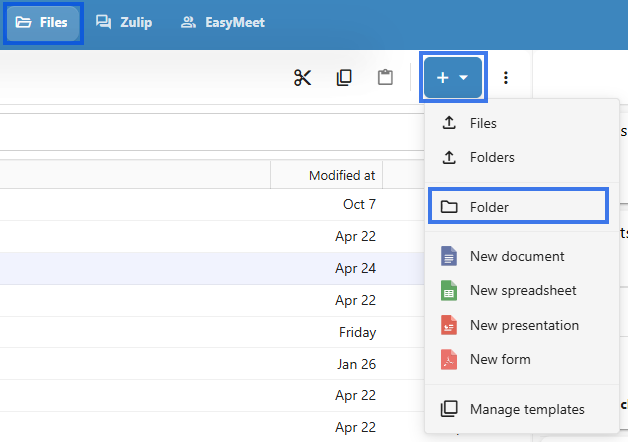
- Create a folder for the project.
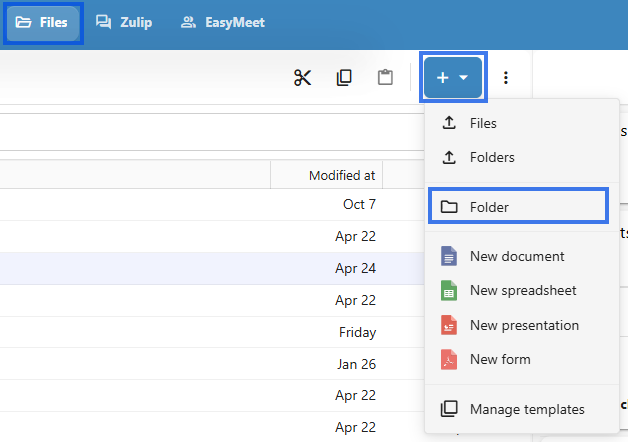
- Slide all project documents into the folder.

- Share the folder with the project team.
- Team members can then access the project files from one shared location.

Managing Folder Shares
You can review and update folder sharing settings whenever needed.
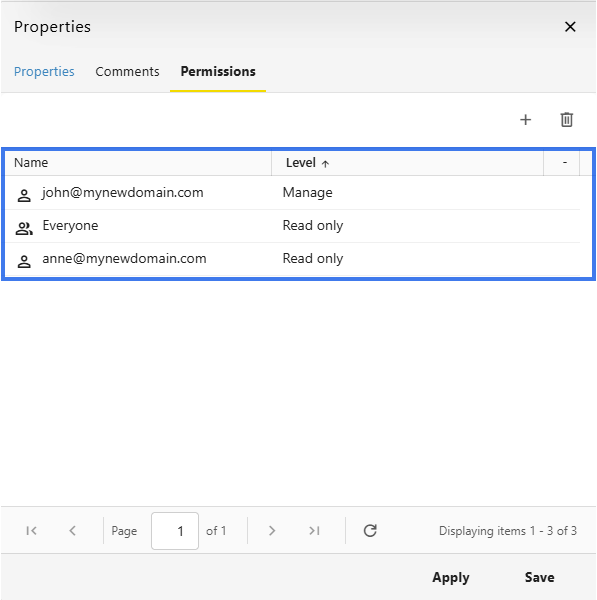
View Who Has Access
- Right-click the folder.
- Select Properties.
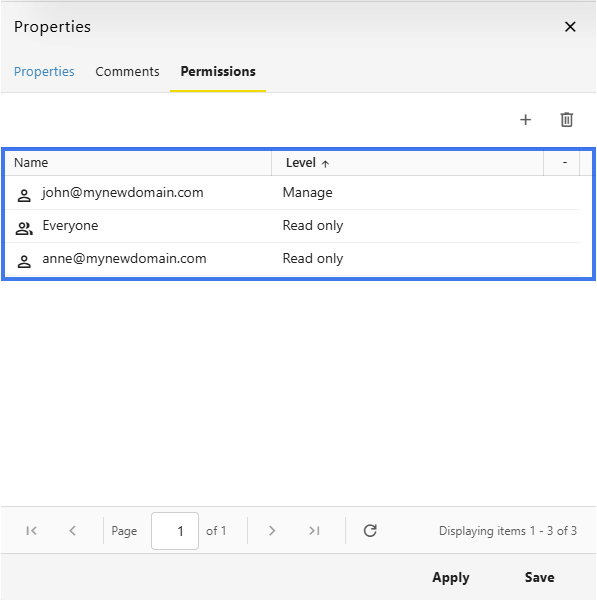
- View the list of users and groups with access.
Change Permissions
- Open the folder Properties settings.
- Find the user or group.
- Double-click and change their permission level.
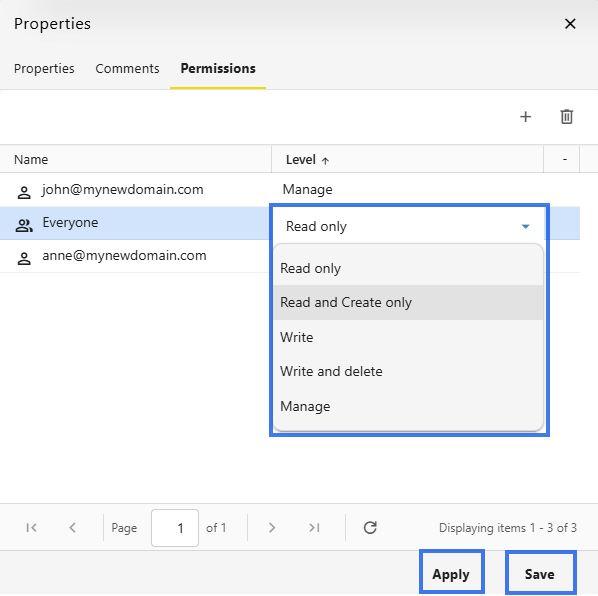
- Save the changes.
Remove Access
- Open the folder sharing settings.
- Find the user or group you want to remove.
- Click the Delete Icon.
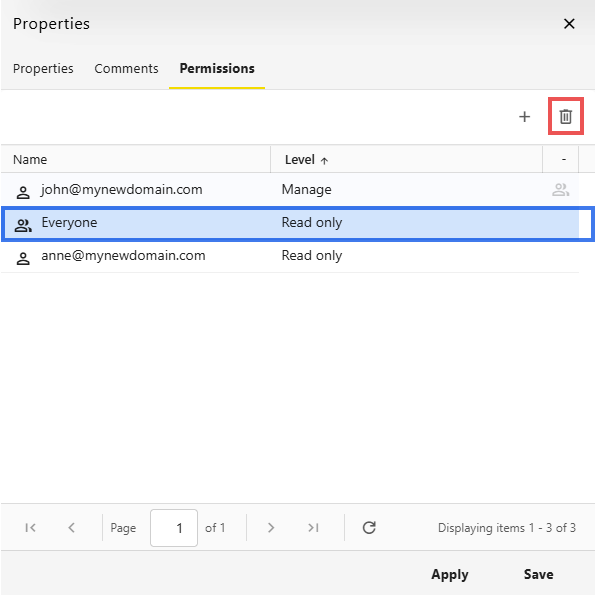
- Their access to the folder is removed.
Nested Folder Sharing
When folders are nested:
- sharing a parent folder can include its subfolders
- subfolders can also have their own sharing settings
- more restrictive permissions can take priority in some cases
Folder Sharing vs. File Sharing
Both folder sharing and file sharing are useful, but they are meant for different situations.
Folder Sharing
File Sharing
Best Practices
- organize files into clear folders before sharing
- use folder sharing for ongoing collaboration
- review folder permissions regularly
- remember that sharing a folder can also affect the files inside it