
Saving Documents
OfficeDocs saves your work automatically while you edit. This guide explains how saving works, how version history is created, and how to download a copy of your document when needed.
How saving works
OfficeDocs automatically saves changes as you work, so in most cases you do not need to save manually. A status indicator in the editor shows when changes are being saved.
If you want to save manually, you can:
- Press ctrl+s on Windows or Linux
- Press Cmd+s on Mac
- Click the Save icon in the toolbar
- Use File > Save
Manual saves can create version history entries, making it easier to return to earlier points in the document.
Version history
Each saved version can be reviewed later. Version history allows you to:
- View previous versions of a document
- Compare changes between versions
- Restore an earlier version if needed
If you want to learn more, refer to the Viewing Version History guide.
Download a copy of your document
To save a copy of the document to your device:
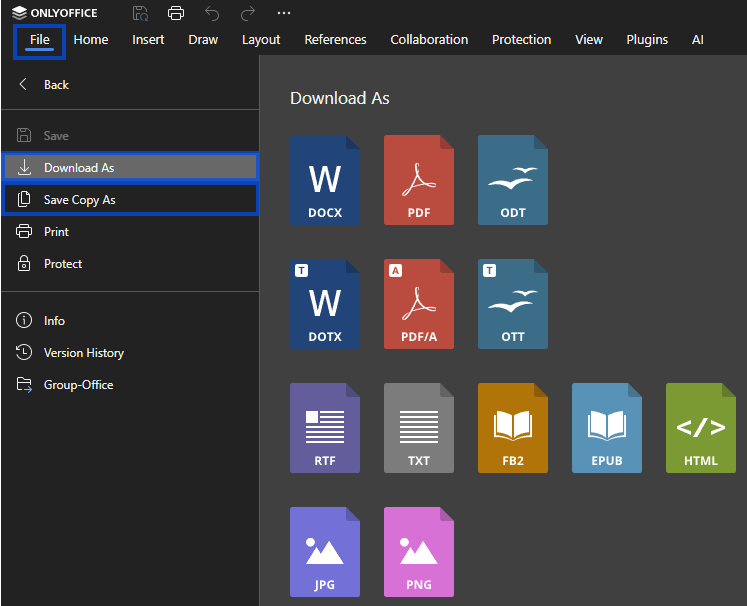
Available formats may include:
- Original format (.docx, .xlsx, .pptx)
- Other compatible file types
Offline editing
When using OnlyOffice Desktop Editors, documents may be cached locally for offline access. Any changes made offline are synchronized when the application reconnects to the server.
Troubleshooting
Changes are not saving
- Check your internet connection.
- Verify that you have edit permissions for the document.
- Refresh the page and reopen the document if needed.
A version does not appear in history
- Wait a few moments for the save to complete.
- Refresh the version history panel.
- Very small changes may be grouped with later saves.