
Restoring Previous Versions
If you need to return a document to an earlier state, you can restore a previous version from version history. This is useful when important content was removed, changes need to be undone, or an older draft should become the current version again.
When to Restore
Consider restoring a previous version when:
- important content was deleted by mistake
- recent changes made the document worse or incorrect
- you need to undo multiple edits at once
- an earlier draft is a better starting point going forward
Restoring from File Browser
You can restore a version directly from the file list.
- Open the folder that contains the file.
- Rick-click and select Properties.
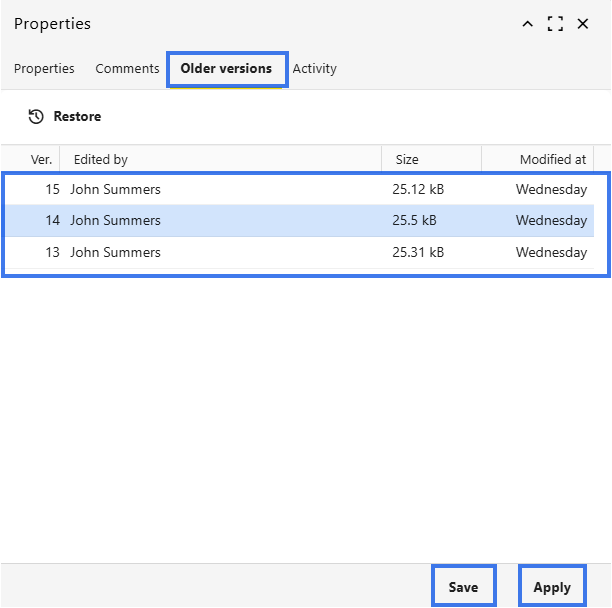
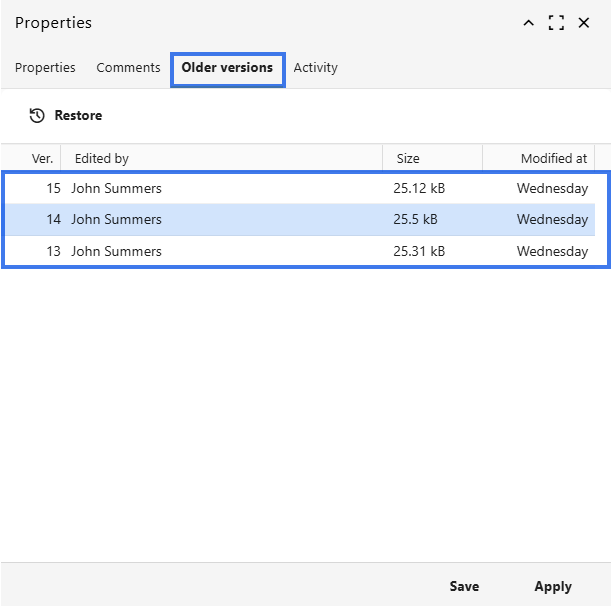
- Open the file’s Older Versions.
- Browse the saved versions.
- Select the version you want to restore.
- Click Save then Apply.
Restoring from the Editor
You can also restore a version while the document is open.
- Open the document.
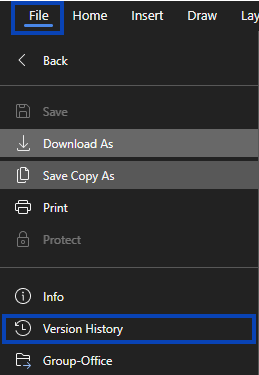
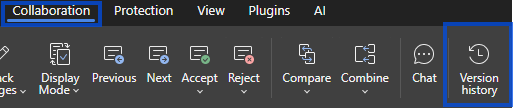
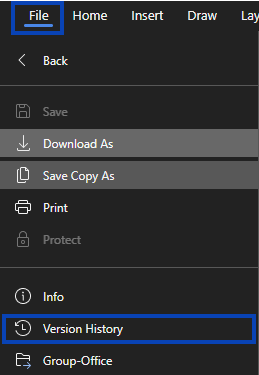
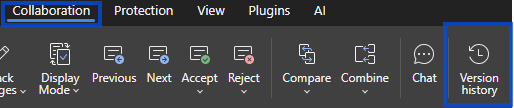
- Open Version History from File or Collaboration.
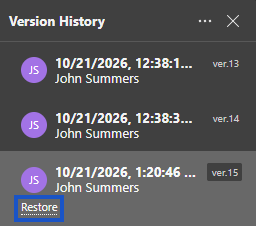
- Select the version you want to restore.
- Click Restore.
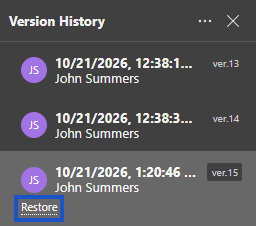
- The document returns to that version as the new current version.
What Happens When You Restore
When you restore a version:
- the selected version becomes the current document
- a new version is created to record the restoration
- earlier versions remain in version history
- you can restore another version later if needed
Partial Restoration
If you only need part of an older version, you do not need to restore the whole document.
- Open the older version in view
mode.mode by not Restoring. - Copy the content you need.
- Return to the current version.
- Paste the content where needed.
This lets you recover specific text while keeping the rest of the current document unchanged.
Restoration and Collaborators
- collaborators will see the restored version as the new current file
- recent changes may be replaced by the restored version
- the restoration is recorded in version history
- it is a good idea to inform collaborators before restoring a shared file
Download Instead of Restore
If you want to keep the current document unchanged but still keep a copy of an older version:
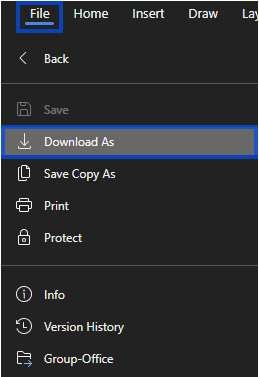
Downloading from the Editor
- Open Version History.
- Select the older version.
- Choose Download As
instead ofRestore. Savefrom theolderFileversiontab.as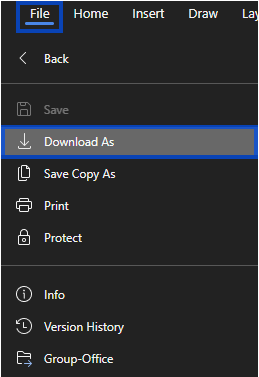
a separate file.- The current version remains unchanged.
Downloading from File Browser
- Open Version History from the file browser.
- Select the older version.
- Double-click on the version selected.
- The current version remains unchanged.
Restore Permissions
Restoring a previous version may depend on your access rights.
Restoration may require:
- permission to edit the document
- access to the document’s version history
- the required sharing or workspace permissions
If you do not see the restore option, your current access level may not allow restoration.
After Restoration
After a version is restored:
- review the restored document carefully
- make sure the needed content is present
- continue editing from that point if needed
- remember that version history still keeps earlier versions
Undoing a Restore
If you restore the wrong version, you can go back again using version history.
- Open Version History.
- Find the version that was current before the restore.
- Restore that version instead.
This allows you to reverse an accidental restoration by making another version current.