
Installing Desktop Editors
Download and install OnlyOffice Desktop Editors on your computer so you can work with OfficeDocs files locally.
Download
Download Desktop Editors from the official OnlyOffice website:
- Visit onlyoffice.com/desktop.aspx.
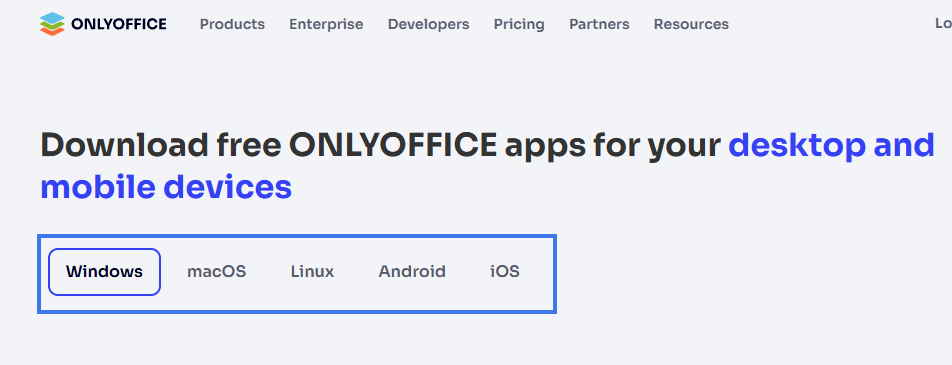
- Select your operating system.
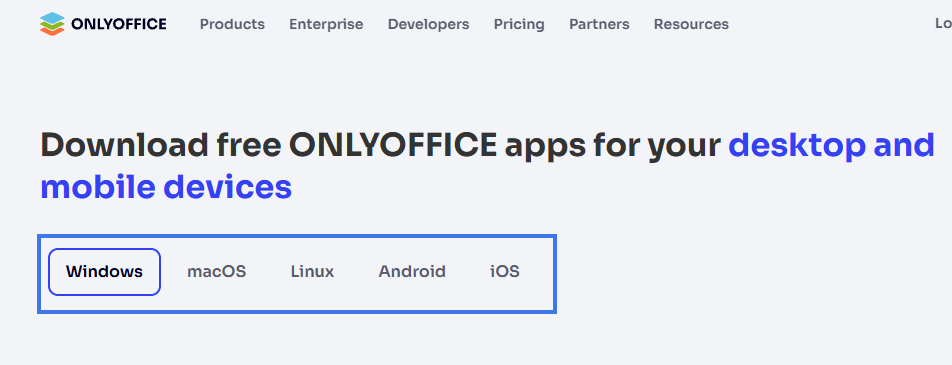
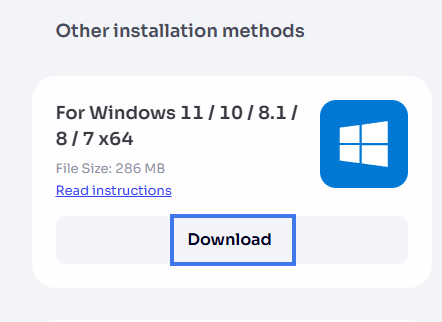
- Click Download.
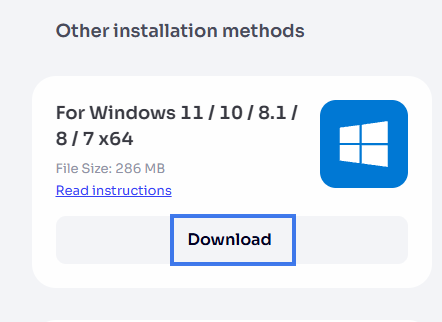
- Save the installer file to your computer.
Windows Installation
- Run the downloaded .exe installer.
- Accept the license agreement.
- Choose the installation location, or keep the default.
- Click Install.
- Wait for the installation to finish.
- Click Finish.
macOS Installation
- Open the downloaded .dmg file.
- Drag the OnlyOffice icon into the Applications folder.
- Eject the disk image.
- Open OnlyOffice from Applications.
- If prompted, confirm that you want to open the application.
Linux Installation
Installation steps depend on your Linux distribution.
Debian/Ubuntu (.deb)
- Download the .deb package.
- Install the package using your package manager.
- If needed, install any missing dependencies.
Red Hat/Fedora (.rpm)
- Download the .rpm package.
- Install the package using your package manager.
Snap Package
- Open your terminal.
- Install the Snap package for Desktop Editors.
- Wait for the installation to complete.
Flatpak
- Open your terminal.
- Install the Flatpak package for Desktop Editors.
- Wait for the installation to complete.
First Launch
- Open OnlyOffice Desktop Editors.
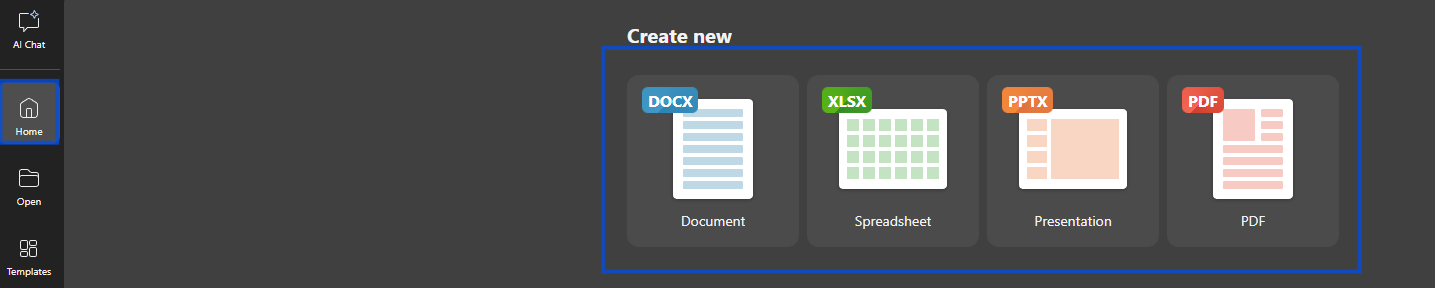
- The application opens to the start screen.
- You can immediately create a new local document or open an existing one.
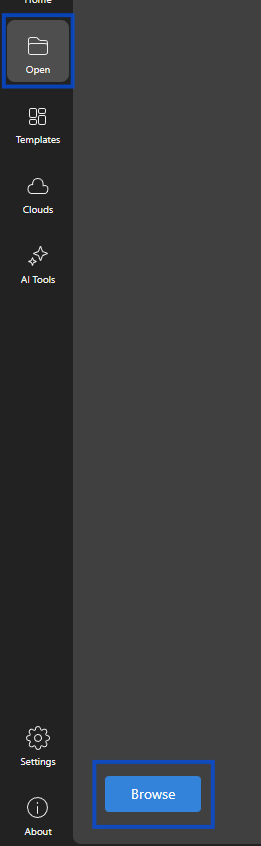
- To connect OfficeDocs, see
connecting-Connect-to-your-account.
Updates
Desktop Editors checks for updates automatically. When an update is available:
- You will see a notification
- You can download and install the update
- You may need to restart the application to apply it
Uninstalling
Windows
Use Add or Remove Programs in Windows settings.
macOS
Drag the application from Applications to the Trash.
Linux
Use your package manager to remove the package.
Troubleshooting
Installation Fails
- Make sure you have administrator or root permissions
- Check that you have enough available disk space
- Try downloading the installer again
Application Won’t Start
- Restart your computer
- Try reinstalling the application
- Check that your system meets the application requirements