
Editing Word Documents
OfficeDocs includes a full-featured word processor for creating and editing text documents. This guide provides an overview of the main editing tools and document features available in the editor.
Document editor overview
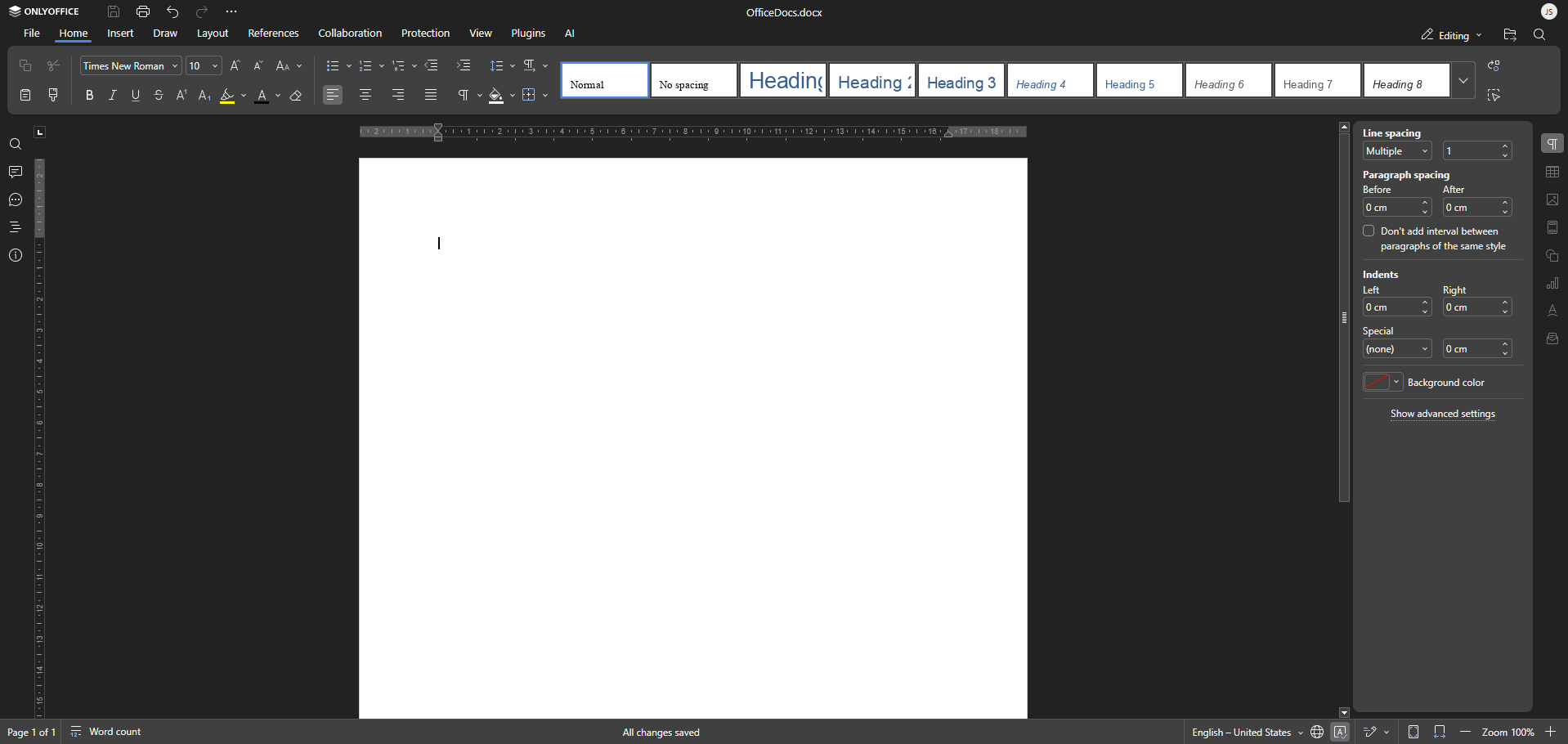
When you open a Word document, the editor includes:
- Toolbar: Formatting and editing tools at the top of the page
- Document area: The main workspace where you write and edit content
- Status bar: Page count, word count, and zoom controls
- Sidebar panels: Additional tools for navigation, styles, and comments
Basic editing
You can perform common editing actions directly in the document.
Typing and editing text
- Click anywhere in the document to place the cursor.
- Type to insert text at the cursor position.
- Use Backspace to remove characters before the cursor.
- Use Delete to remove characters after the cursor.
Selecting text
- Click and drag to select text.
- Double-click to select a word.
- Triple-click to select a paragraph.
- Press Ctrl+A to select all content.
Formatting text
The toolbar gives you quick access to common formatting options, including:
- Font family and size
- Bold, italic, underline, and strikethrough
- Text color and highlighting
- Text alignment
- Line spacing
- Bulleted and numbered lists
- Indentation
Working with document structure
Use document structure tools to organize content more clearly.
Headings
- Apply Heading 1, Heading 2, or other heading styles from the style list.
- Use headings to create a clear document outline.
- Headings can also be used to generate a table of contents.
Sections
- Insert section breaks from the Layout menu.
- Use sections to apply different headers, footers, or margins in different parts of the document.
Inserting content
- Images
- Tables
- Charts
- Shapes or drawings
- Hyperlinks
- Page breaks
- Headers and footers
- Page numbers
- A table of contents
Page setup
Page layout options are available from the Layout menu, including:
- Margins
- Orientation
- Paper size
- Columns
Review tools
OfficeDocs includes review features to help you check and collaborate on documents.
- Spell Check: Identify and correct spelling errors
- Comments: Add notes without editing the main content
- Track Changes: Record edits for review
Saving your work
Changes are saved automatically as you work. You can also press Ctrl+S to save manually. Each save may create a version history entry.