
Creating Share Links
- Navigate to the file in the Files module.
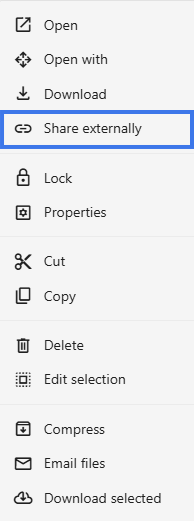
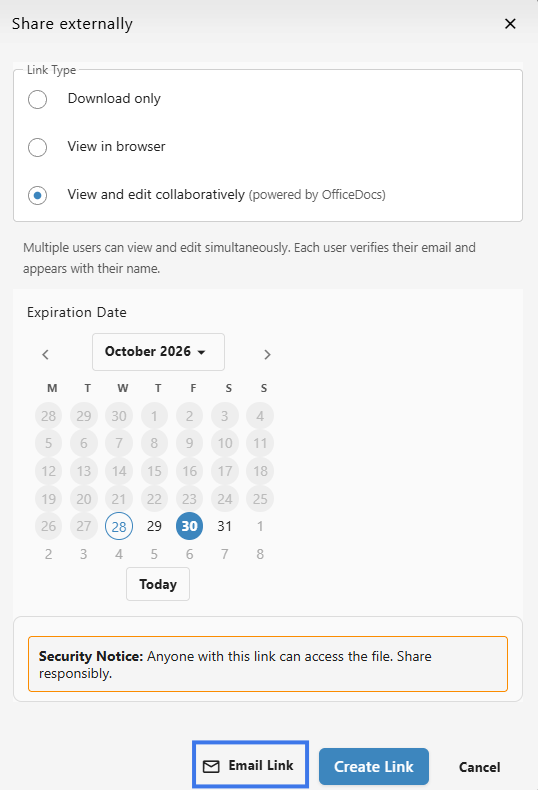
- Right-click the file and open Share Externally.
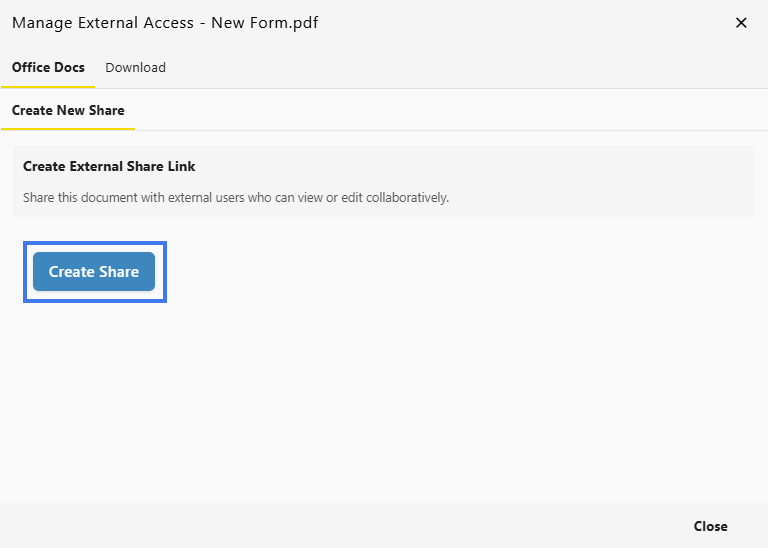
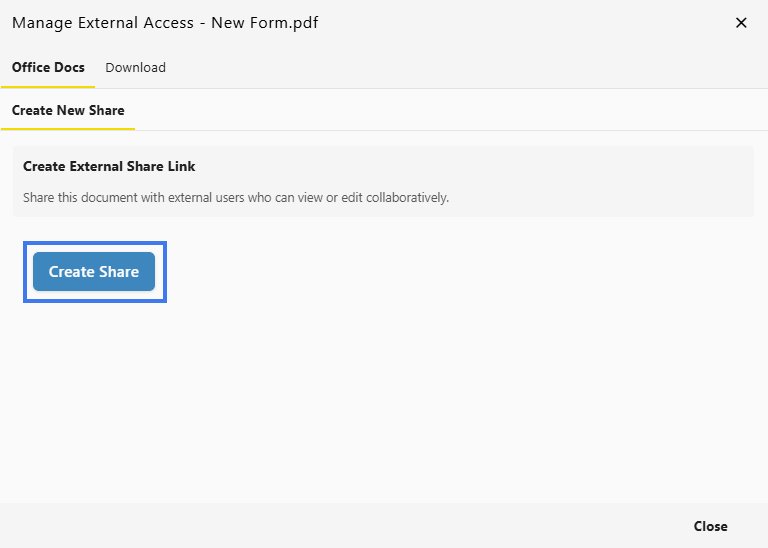
- Select Create Share.
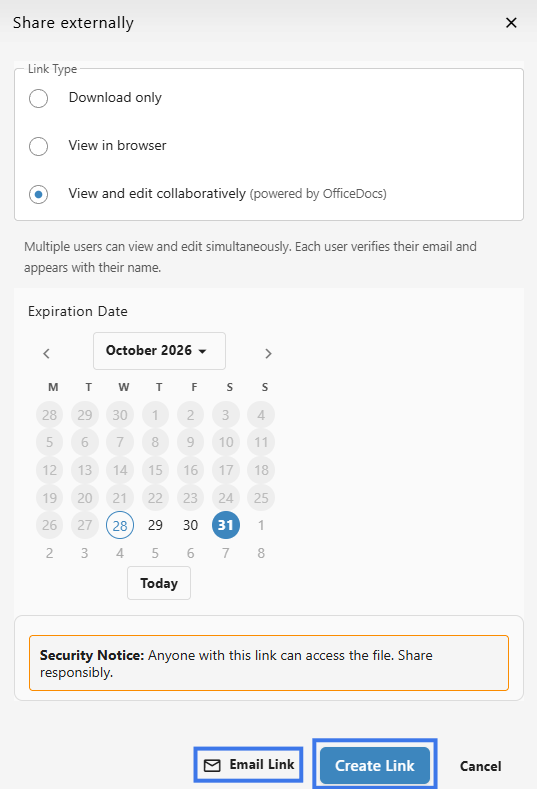
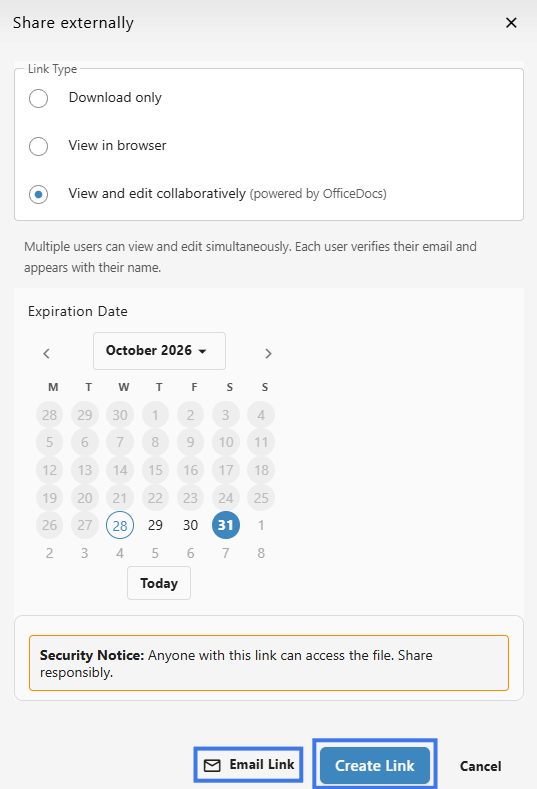
- Configure the link settings.
- Click Create or save the link.
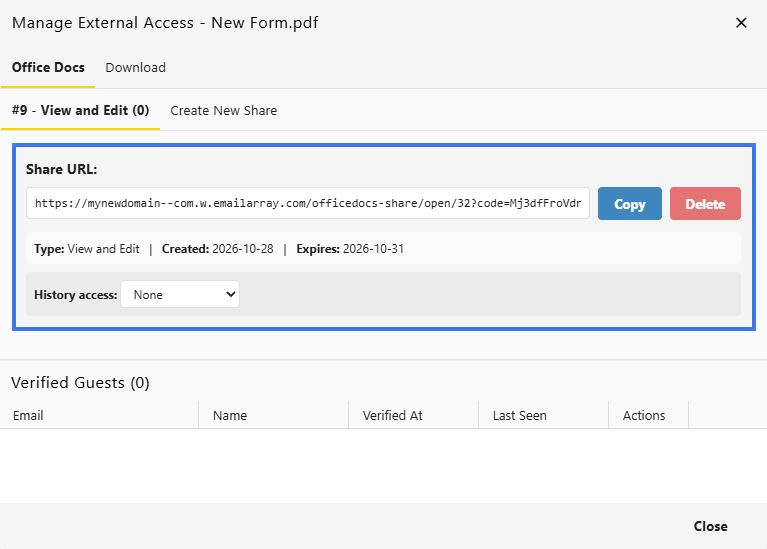
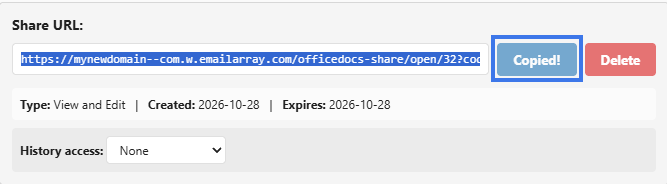
- A link is then generated and can be Copied or Deleted.
Link Settings
When creating a share link, you can configure different access and security options.
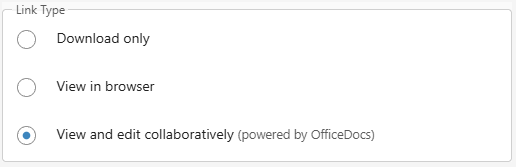
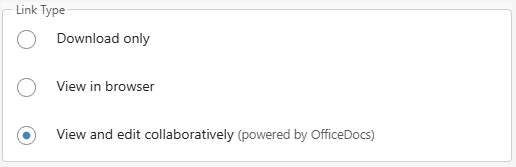
Permission Level
- Download Only
- View in Browser lets recipients read the document without editing it
- View and Edit lets recipients modify the document if editing access is allowed through the link
Expiration Date
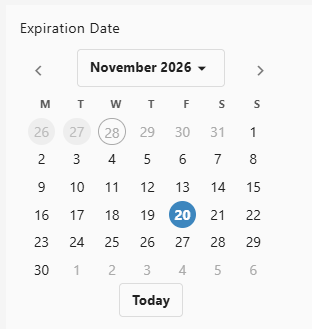
You can set a time limit for the link.
- choose a date when the link stops working
- after the expiration date, recipients can no longer use the link
Sharing the Link
Once the link is created:
- Copy the generated link.
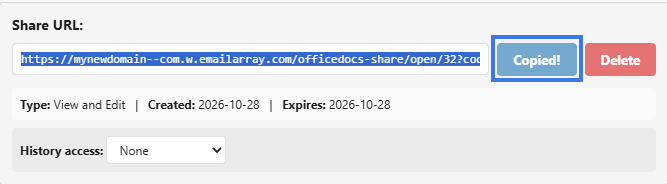
- Send it to recipients by email, chat, or another method.
- Recipients use the link to open the shared document.
You may also be able to send the link directly from the sharing window.
What Recipients Experience
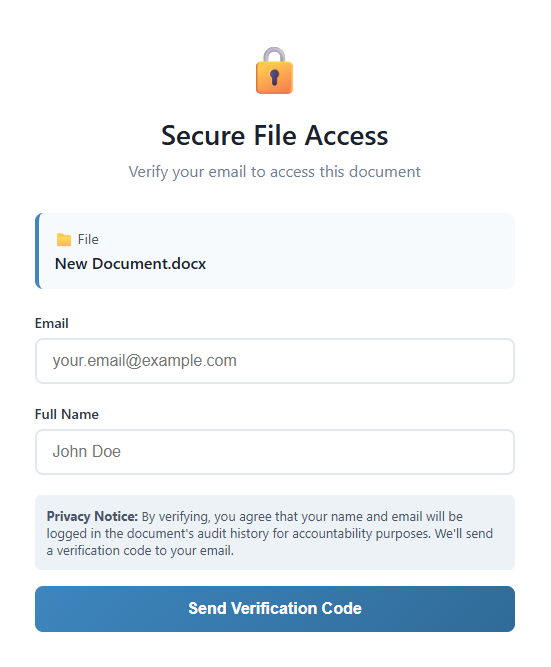
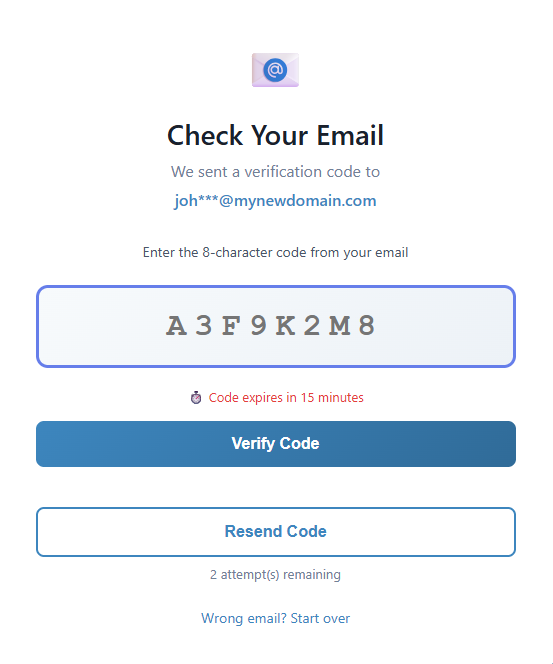
When someone opens a shared link, they may go through a short access process before opening the file.
A recipient may need to:
- Click the share link.
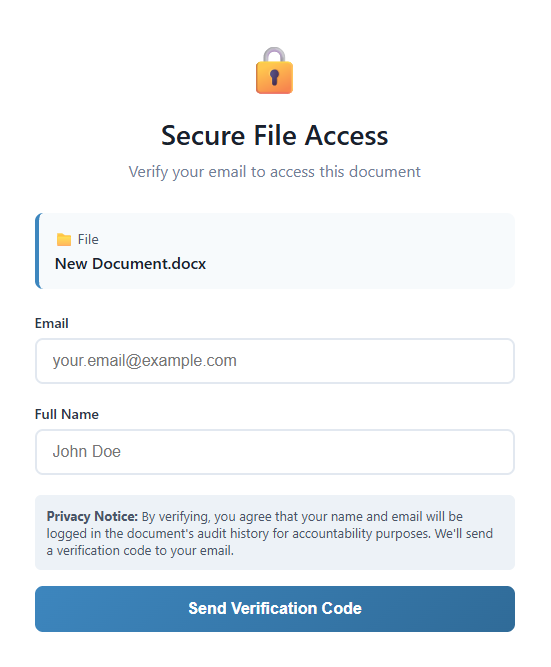
- Enter their Email Address and Full Name if requested.
- Receive a verification code by email.
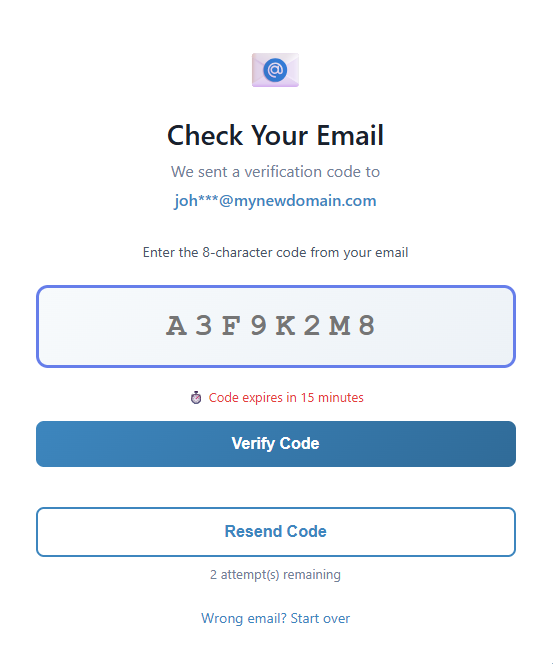

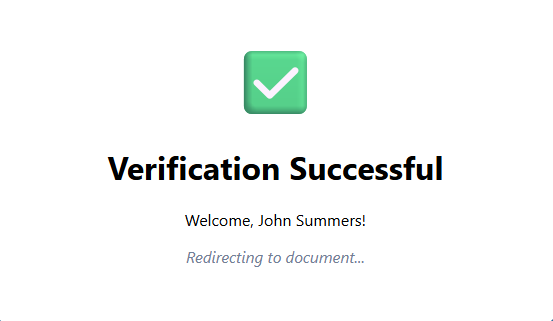
- Enter the code to verify access.
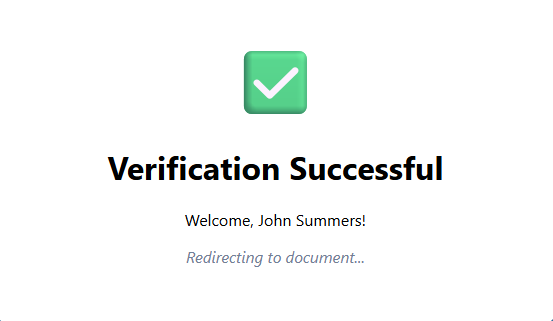
- The document will open automatically.

You can review and manage active links after they are created.
View Existing Links
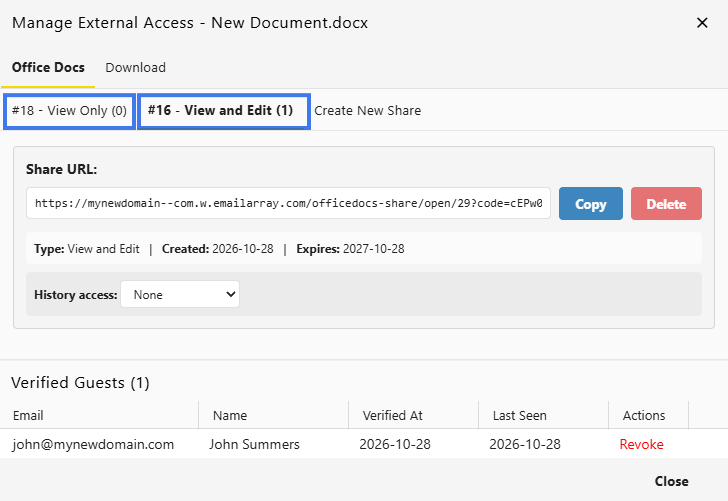
- Open the External Sharing Window for the document.
- View the active links and their settings.
Delete a Link
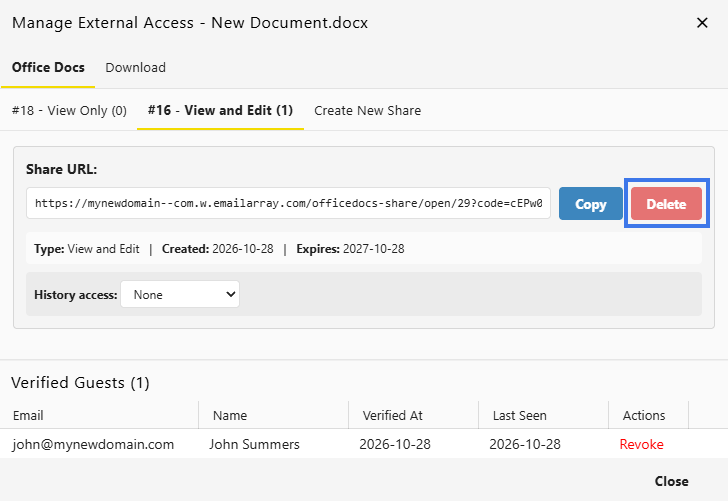
- Find the link you want to remove.
- Click Delete.
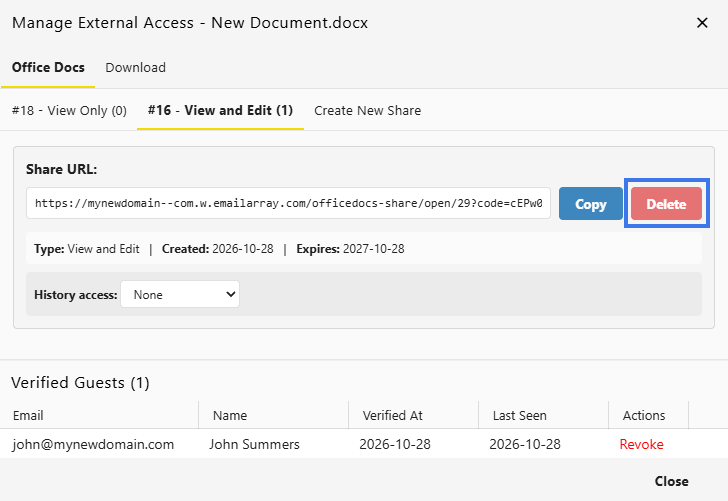
- Confirm the deletion if prompted.
- The link stops working immediately.
Multiple Links
You can create more than one share link for the same document.
This can be useful when you need:
- different links for different recipients
- different permission levels for different use cases
- separate links for easier tracking and control
Security Considerations
- use recipient restrictions for sensitive documents
- set an expiration date when possible
- use View Only when editing is not required
- review active links regularly
- remove links that are no longer needed
Link Access Tracking
You may be able to review how a link has been used.
This can include:
- when the link was used
- which email addresses accessed the document
