
Creating Documents
OfficeDocs allows you to create new documents, spreadsheets, presentations, and forms directly from your file storage. This guide explains the main ways to create a new file and the account requirements to do so.
Create a document from the File Manager
- Open the Files module in your account.
- Browse to the folder where you want to create the document.
- Click New or the + menu.
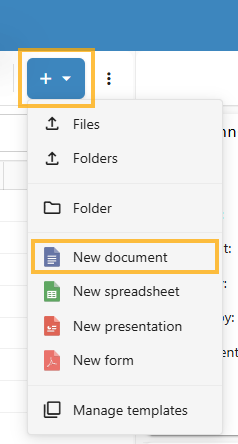
- Select the document type you want to create.
- Enter a name for the new document.
- The file will open automatically in the OfficeDocs editor.
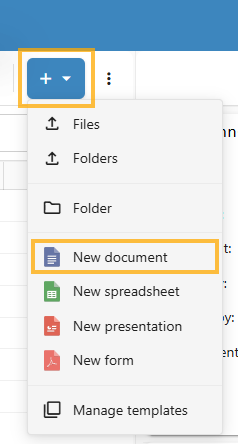
You can create:
- Document: Word document (.
docx)docx) - Spreadsheet: Excel spreadsheet (.
xlsx)xlsx) - Presentation: PowerPoint presentation (.
pptx)pptx) - Form document: Fillable form (.
docxf)docxf)
Create a document from Desktop Editors
- Open OnlyOffice Desktop Editors.
- Connect the application to your account, if needed.
- Click Create new.
- Select the document type.
- The file will be created and opened for editing.
Create a document from the Mobile App
- Open the OnlyOffice mobile app.
- Sign in to your account.
- Open the folder where you want to create the document.
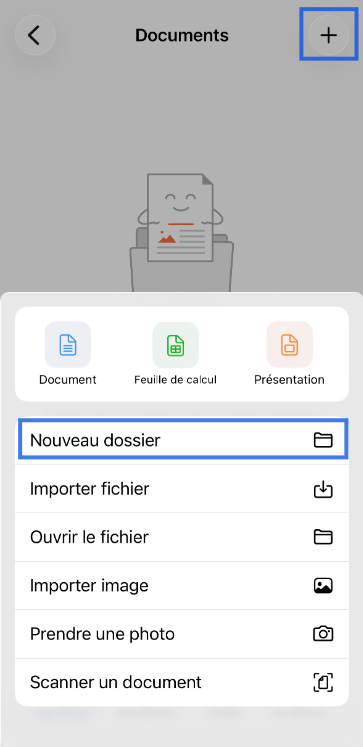
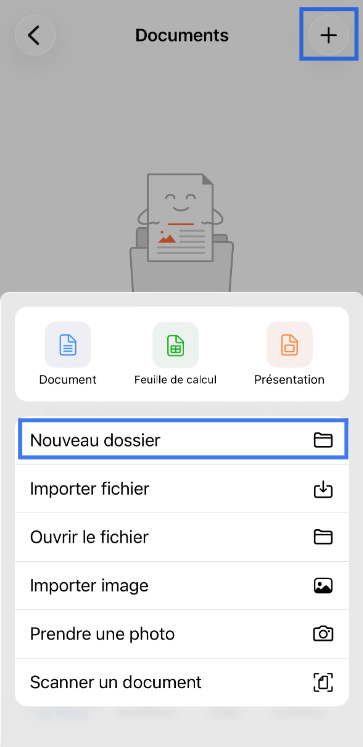
- Tap the + or Create button.
- Select the document type.
- Enter a file name.
- The document will open for editing.
Account requirements
Creating new documents requires an Enhanced account. Users with a Basic account can view documents shared with them, but cannot create new files.
File naming tips
- Use clear, descriptive names.
- Avoid unsupported special characters such as:
\ / : * ? " < > |
- The correct file extension is added automatically based on the document type.