MFA - Multi-factor authentication for your mailbox
Multi-factor authentication, or MFA as it's commonly abbreviated, adds an extra step to your basic login procedure. Without 2FA, the password is your single factor of authentication: you enter your username and password, then you're done.
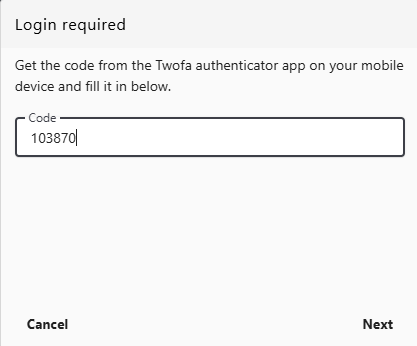
With MFA, you log in to the Webmail by entering your username and password and the six-digit code provided by an app installed on your smartphone.
In the Webmail, you will be prompted to enter the MFA code in a new pop-up window.
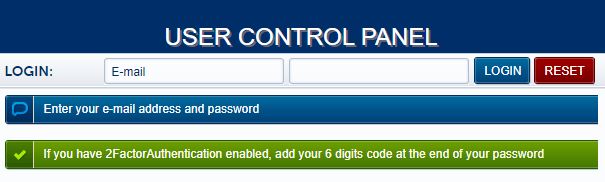
When logging into the User Panel, if you have MFA enabled for your mailbox, you must add at the end of the password the 6-digit code provided by the app on your phone. For example, if your password is T9D3K!px and the 6-digit code is 189 145, you must enter T9D3K!px189145 in the login form of the User Panel.
1. How to enable MFA from the Webmail
- Log into the Webmail using your full e-mail address and your current e-mail password
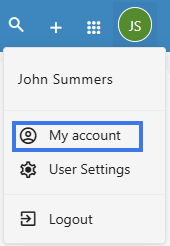
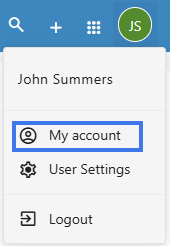
- Click on the User icon from the top right to activate the menu. Then click on My account
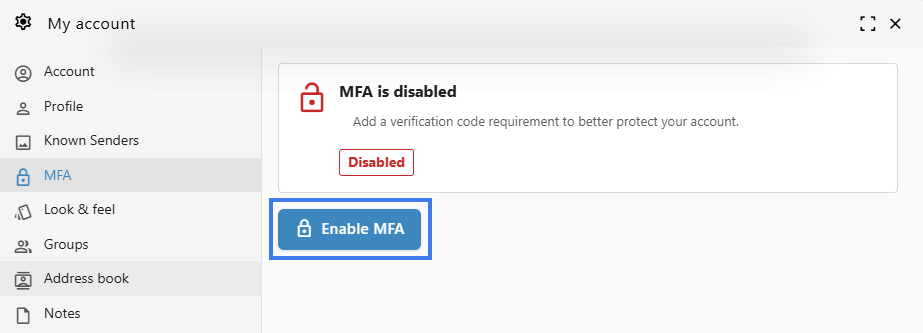
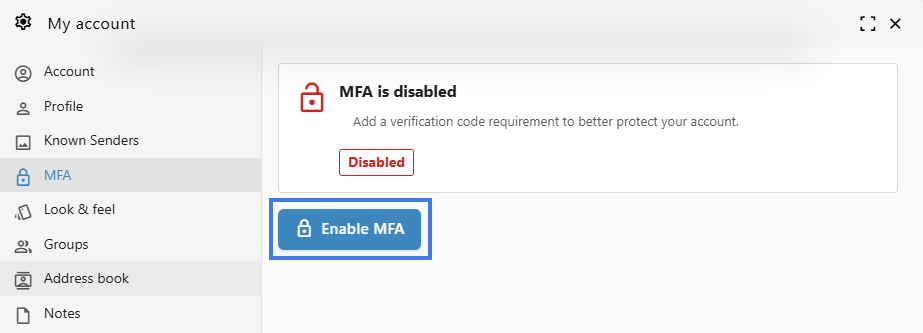
- In the Account tab, reach for the MFA section.
- Click on Enable MFA.
-
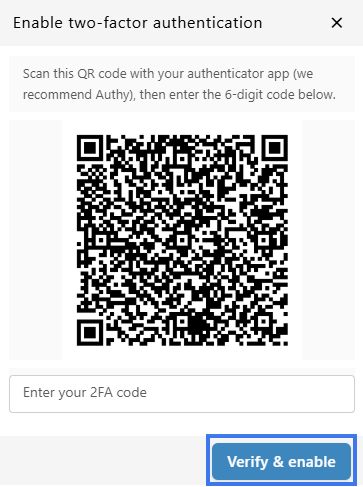
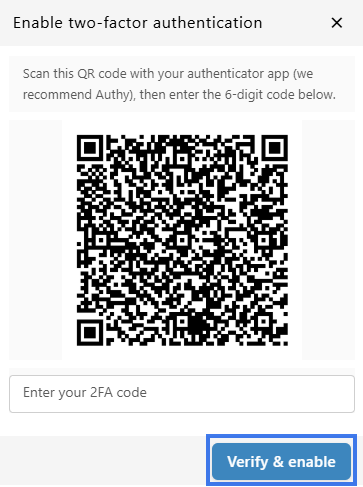
Use your authenticator app to scan the QR code, then enter the 6-digit verification code and click Verify & Enable.
1. How to enable MFA from the User Panel
First, you need a smartphone with a two-factor authenticator App installed (OTP / M-Step Verification / M-Factor Authentication), such as Authy or Google Authenticator.
To enable MFA for your e-mail address:
- Log in to the User Panel
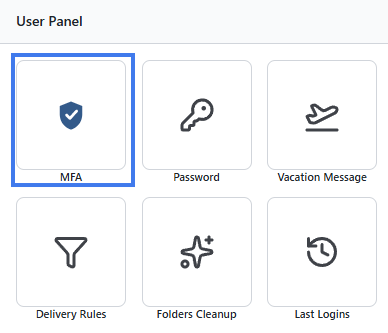
- From the menu, go to MFA
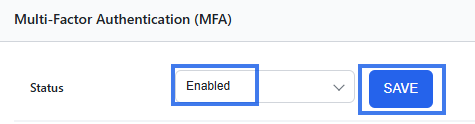
- Update the dropdown Status to Enabled. Click on the Save button.
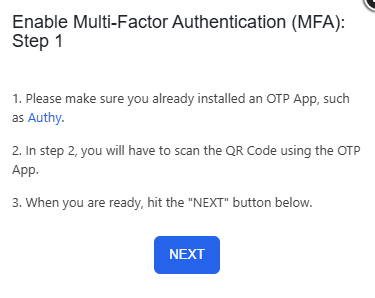
- Recheck the requirements: have a MFA App installed on your phone, such as Authy or Google Authenticator
- When ready, click on the Next button
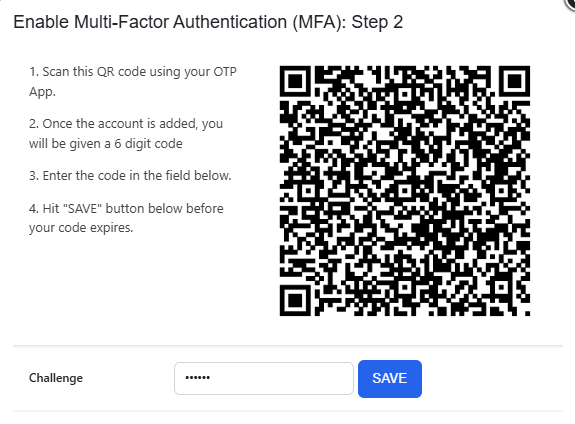
- Scan the QR code with the installed MFA App and fill in the generated six-digit code in the Challenge input field.
- Click on the Save button before your token expires. It is always better to wait for the app to generate a fresh token, so you have enough time before it expires.
- You have enabled MFA, and you will be prompted to fill in the token every time you log in using Webmail.
2. Disable 2FA for your mailbox
To disable 2FA for your e-mail address:
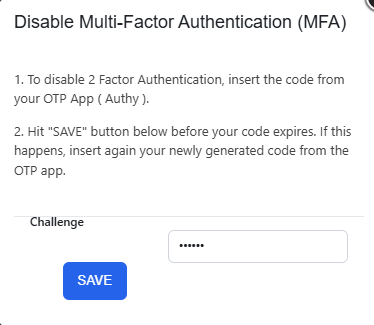
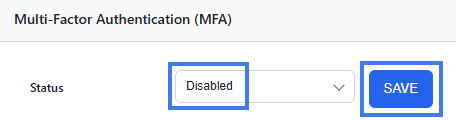
- Update the dropdown Status to Disabled. Click on the Save button.
- Insert the token from your MFA App (such as Authy or Google Authenticator) in the Challenge input field.
- Click on the Save button before the token expires. It is always better to wait for the app to generate a fresh token, so you have enough time before it expires.
- After you see the confirmation message that the MFA was disabled, you can delete the entry from your MFA app.