Zulip - How To
Zulip is an easy-to-use messaging platform that allows you to organize each discussion with topics so you can find important information exactly when you need it.
The urgency of real-time chat is combined with the productivity of the email threading model, helping users to process hundreds of messages daily and focus only on essential conversations.
This makes Zulip an excellent collaboration tool for in-office work, remote teams, or even those spread across multiple time zones.
Zulip Preview
Fully integrated with the Webmail
Log in directly from your Webmail and jump straight into productive conversations.
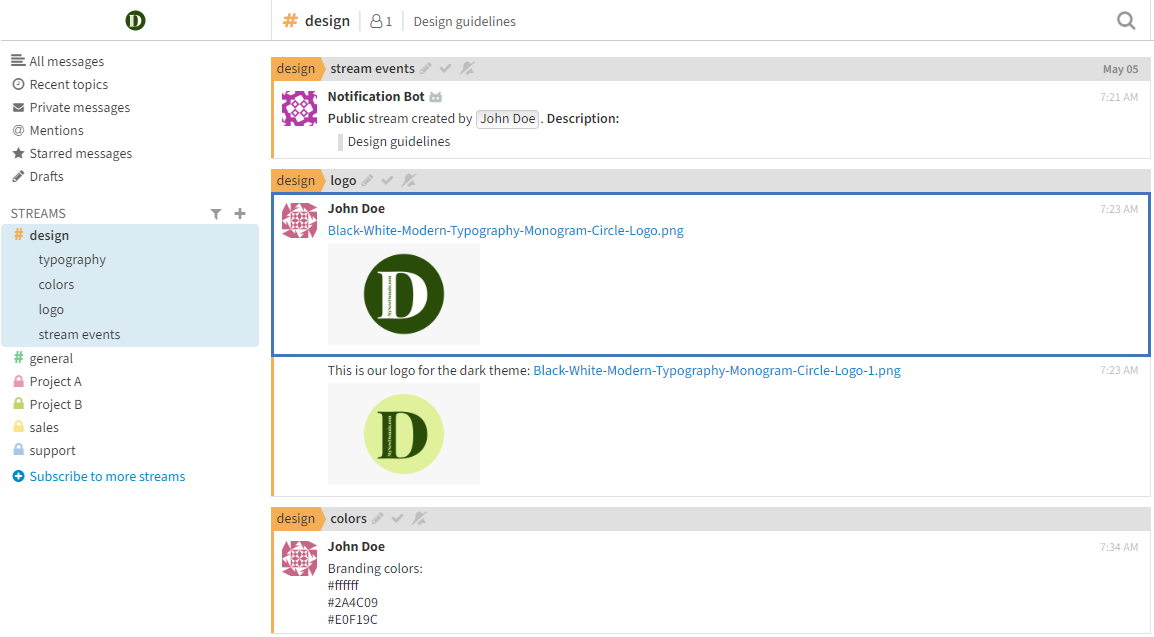
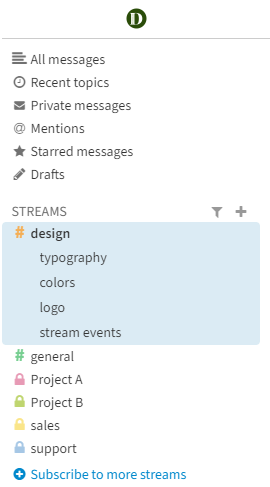
Organize your communications into streams and topics
Email-like threads with a subject (or topic) for every message make it easier to follow long conversations.
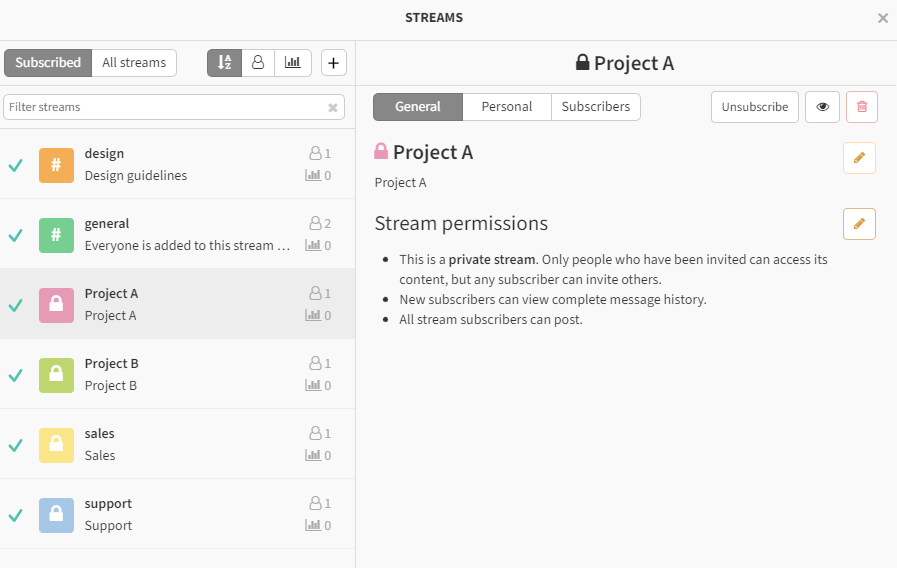
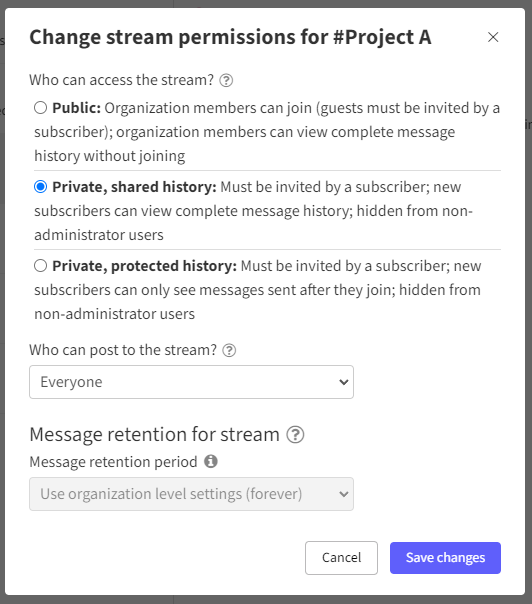
Customize stream permissions
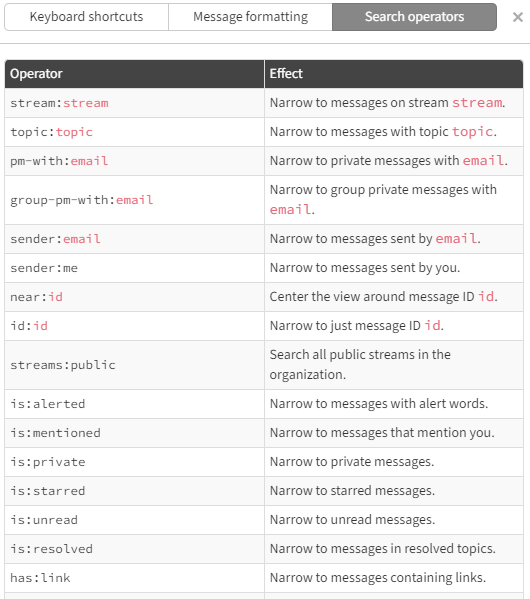
Advanced search options
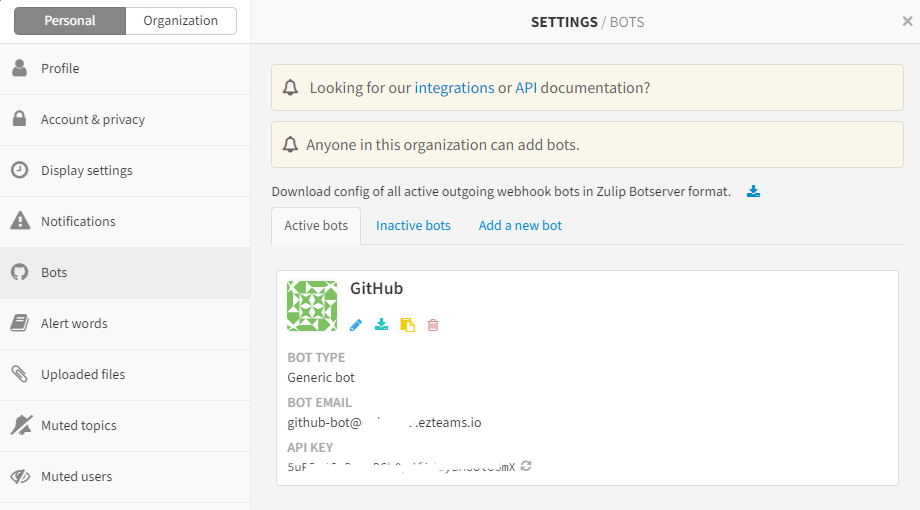
API integration - with Git Hub for example
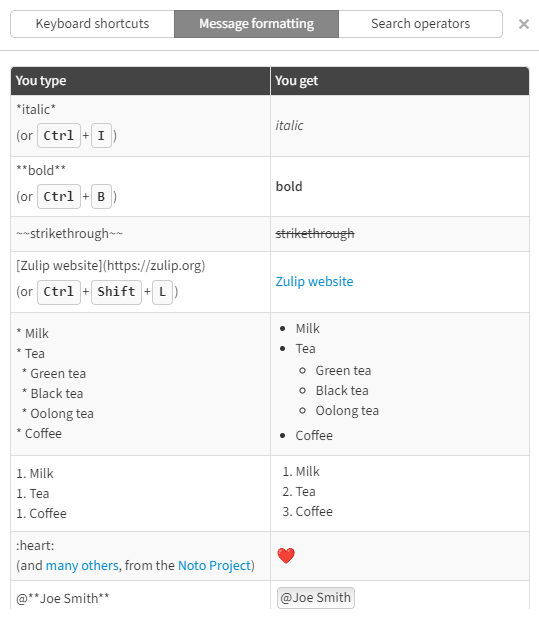
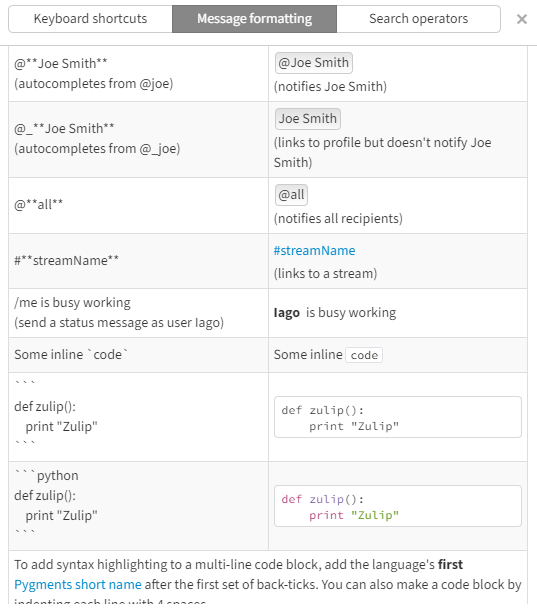
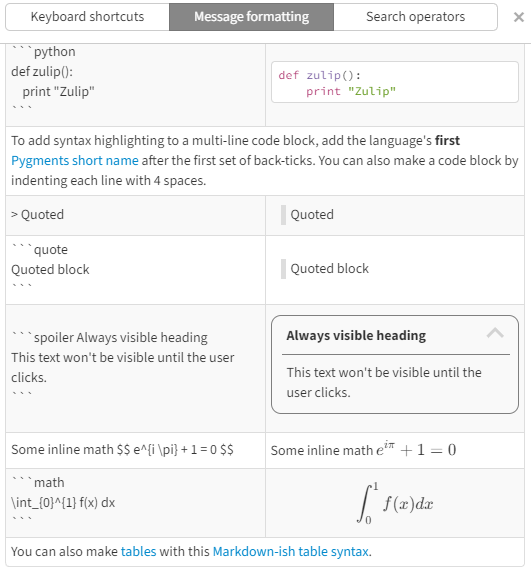
Message formatting
Make your message easier to read with markups such as bulleted lists, bold, italics, and much more.
Discuss code with Markdown code blocks and syntax highlighting or blocks of text with block quotes.
Enterprise-grade security
Zulip is used by some of the most security-conscious organizations in the world.
Add users to Zulip
Each mailbox can be added to the Zulip ecosystem, and only same-domain users can collaborate in our Zulip integration.
Adding external collaborators to Zulip is possible only if you create an e-mail address for them.
Adding a new user to Zulip
-
Go to the Admin Panel.
- Log in using your Admin username and password.
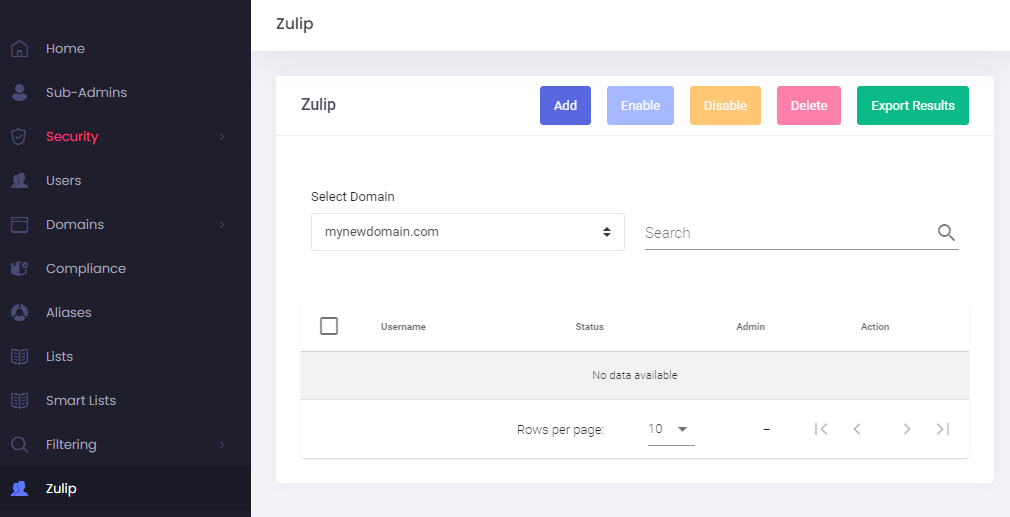
- Click on Zulip in the menu bar.
- Select the desired domain from the drop-down.
- Click on the Add button.
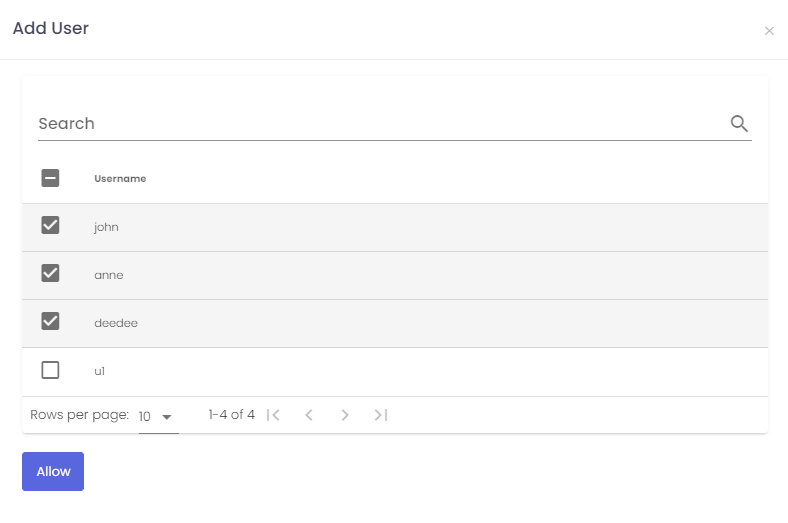
- A new window with a list of users from the domain will show.
- Select the users you wish to activate Zulip for.
- Click on the Allow button. Allow up to 5 minutes for the system to add the users to the Zulip ecosystem.
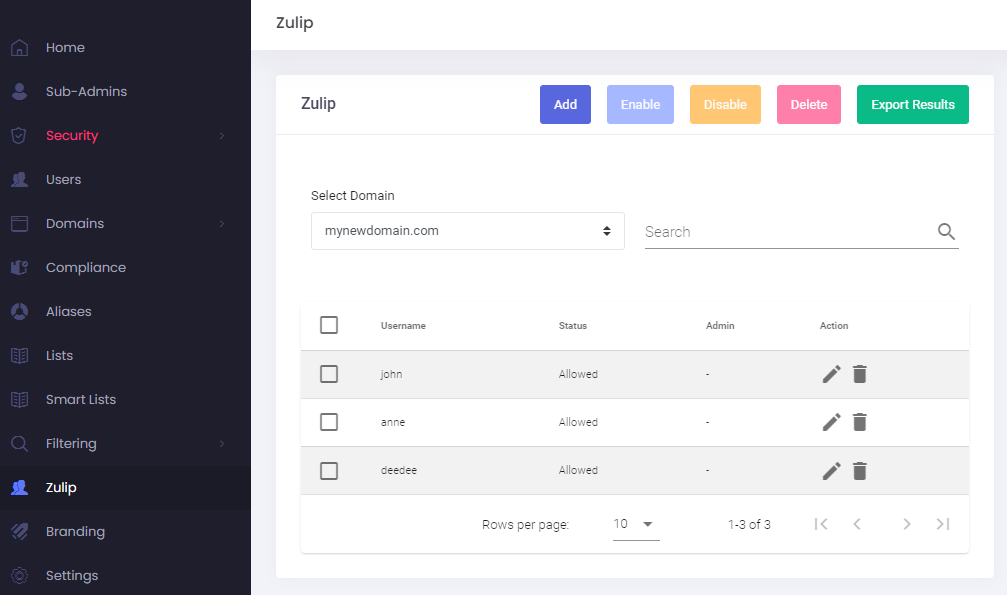
- The allowed users on Zulip will show in the list.
Zulip Login
- Go to the Webmail
- Log in using your full e-mail address and your current e-mail password (one time passwords / OTP or "Login as..." feature will not work).
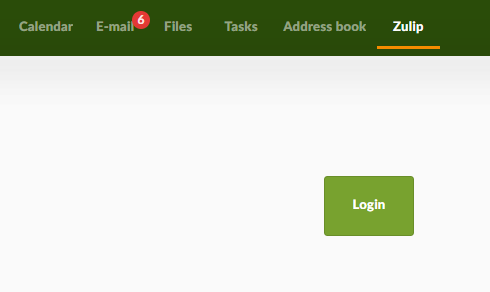
- Click on the Zulip tab from the top of the page
- Click on the Login button. The first login will set up the necessary account details and it might take a few moments.
If you would like to use the Zulip Desktop app, the URL will be in the following format, where mydomain--com would be replaced by your domain name: https://mydomain--com.ezteams.io .