Webmail - How to Send as an Alias
Sending emails from your alias is now fully automated. You no longer need to manually add aliases or domain aliases to your webmail settings.
If you have an alias or a domain alias set up to forward to your primary email address, it will automatically appear as a sending option in your webmail account.
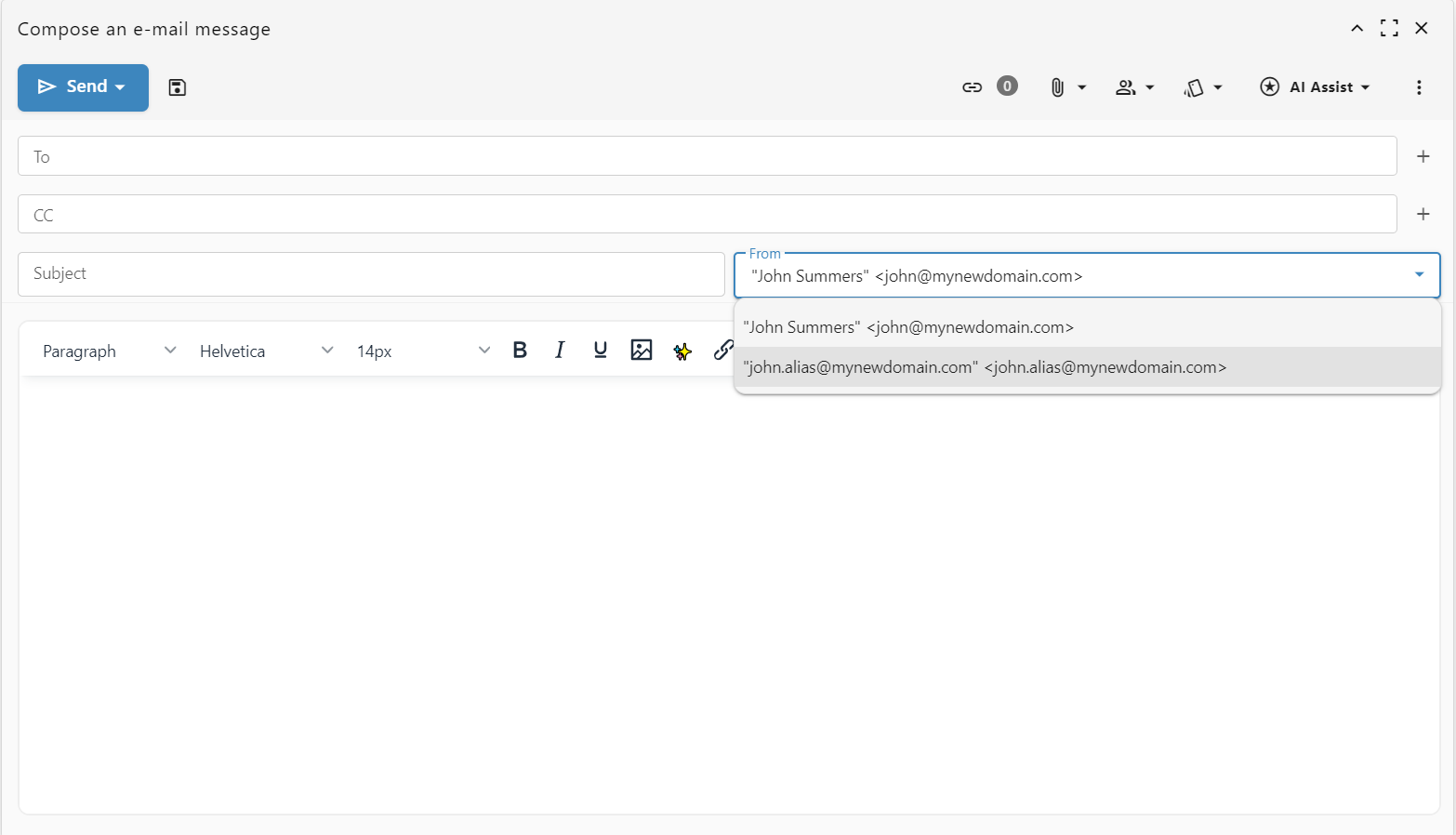
Step-by-step guide
- Log in to your webmail and open a new compose window to write a message.
- Click on the "From" field at the top of the message window. A dropdown menu will appear.
- Select the alias you want to use for this specific email.

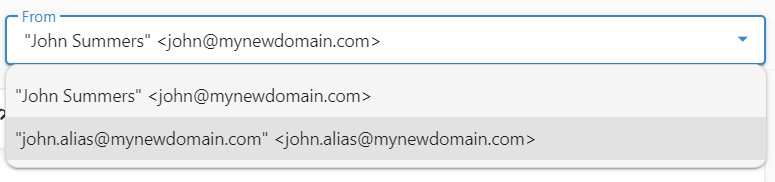
Your email will now be sent from your chosen alias.
Troubleshooting: Missing Aliases
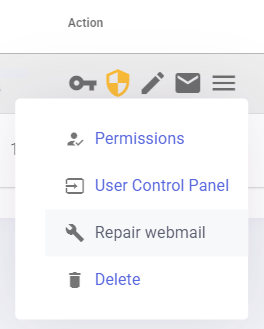
If your aliases do not show up as expected in the dropdown menu of your Webmail, you can quickly refresh the connection from your Admin Panel using the Repair Webmail function:
- Go to the Users section.
- Find the specific user account.
- Click on more options.
- Click on Repair Webmail.

- Once the repair is complete, reload your webmail and the aliases will show up in the "From" field.